Team & roles
Bring your team in, and give each person exactly the access they need.
Inviting teammates
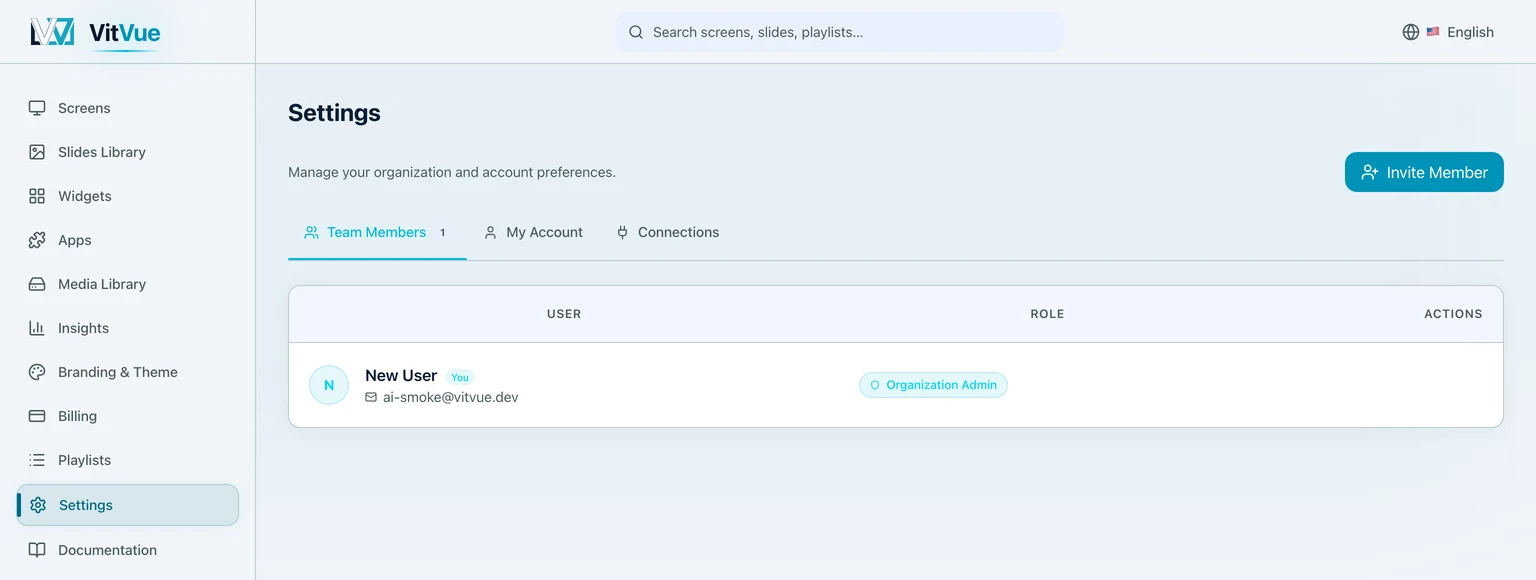
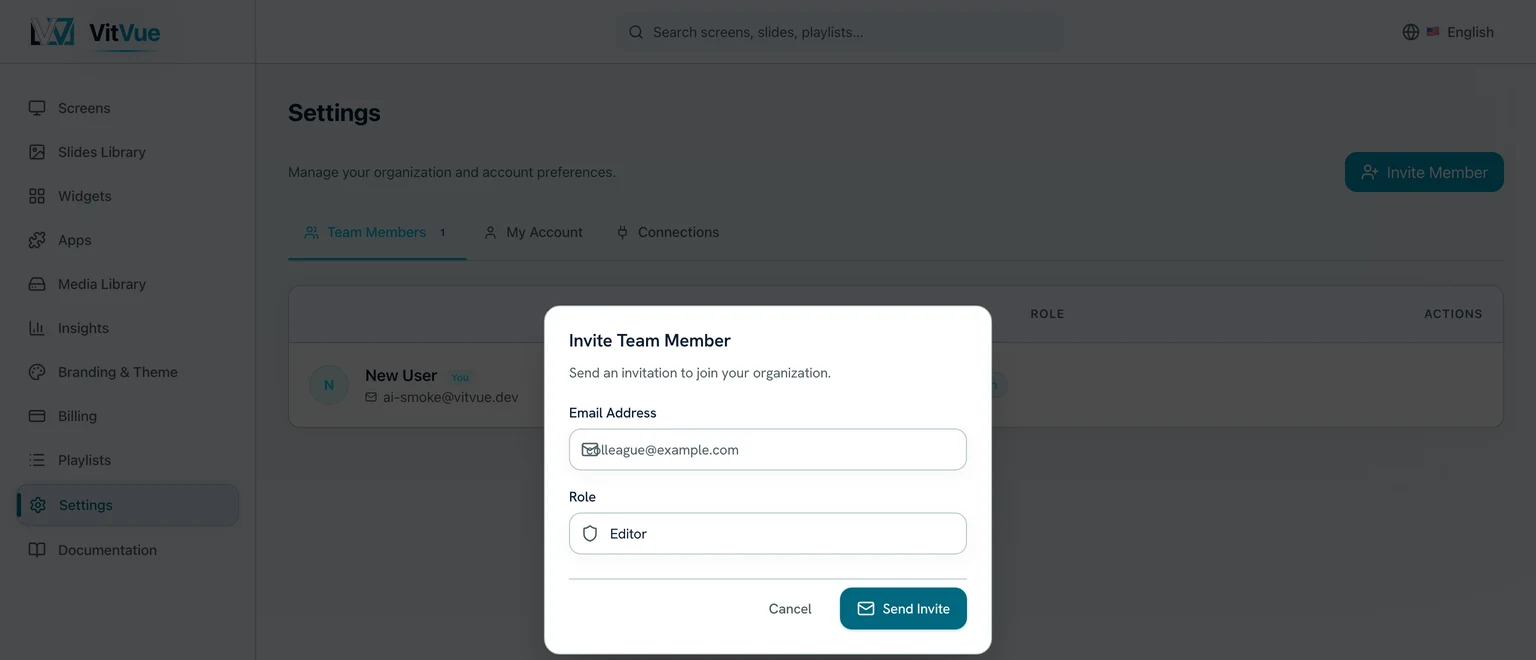
In Settings, invite people by email. They receive an invitation, set a password, and join your organization. You can change someone's role or remove them from the same screen at any time.
Who each person can reach
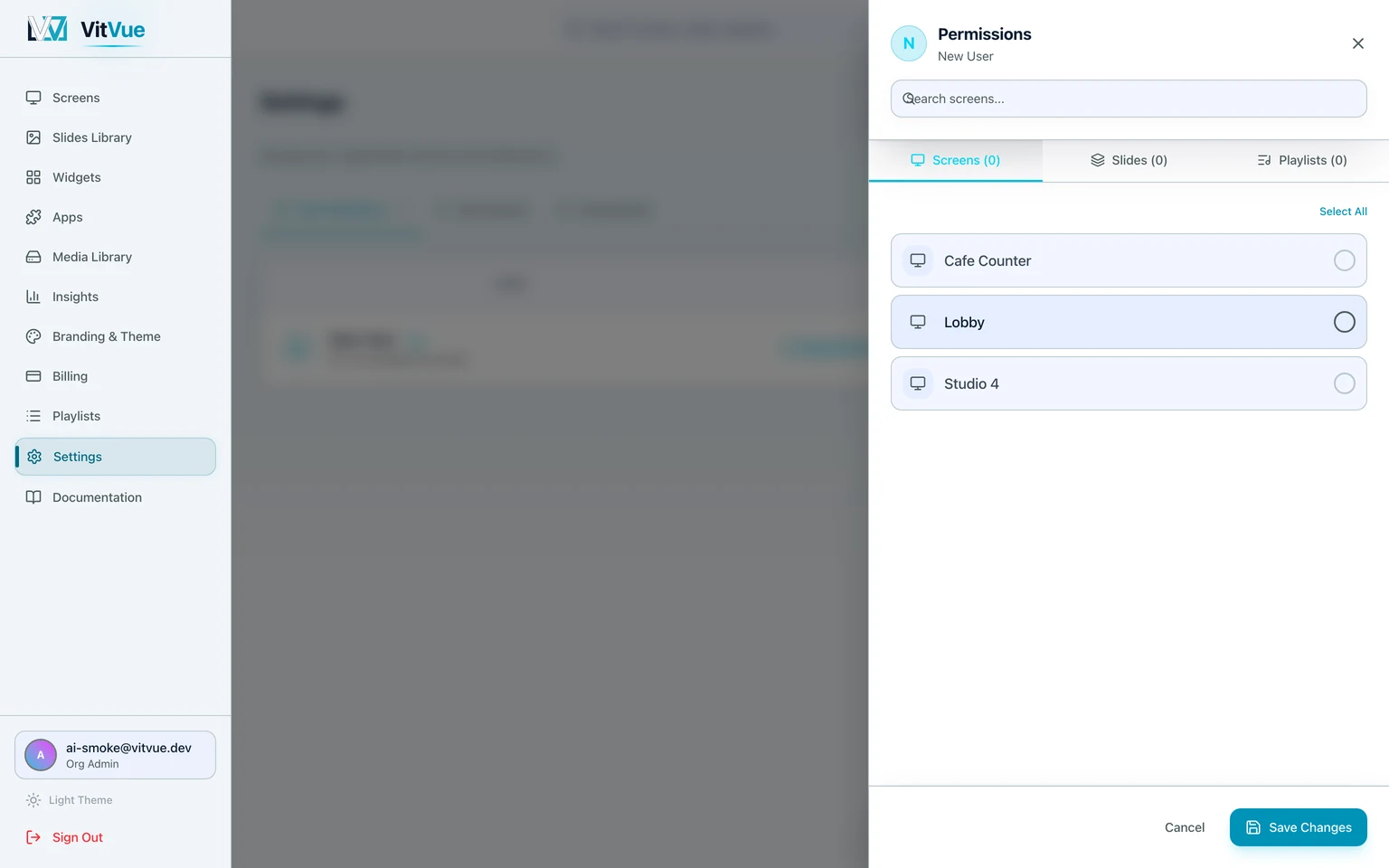
A role sets what someone can do; permissions set what they can do it to. Press the key icon on a member's row to open Permissions and pick the exact screens, slides and playlists they are allowed to see. Leave a tab empty and they get everything in it — narrow it, and the rest of the account disappears for them.
Roles
- Admin — full control, including billing, team management, and settings.
- Editor — content only. Editors design slides and manage playlists but can't touch billing, settings, or playback insights, and can be limited to specific screens, slides, or playlists.
Two-factor authentication
Protect the account with two-factor authentication (2FA). Members can use an authenticator app (TOTP) or email codes as a second step at sign-in. Admins can require 2FA for specific members — a good idea for anyone with billing or team access.
Login activity
Sign-ins are recorded with their approximate location. That log is kept for security review rather than shown in your dashboard — if you need it after a suspicious event, ask support. If something looks off, change the affected password and require 2FA.