Phone casting
Scan a QR code on the screen, pick a file on your phone, and it plays — with your approval in the loop.
What casting is for
Casting turns any paired screen into a drop zone for one-off content: a guest speaker's slides, a photo from the sales floor, tonight's specials. Nobody needs a dashboard login — they scan the QR code shown on the screen and upload straight from their phone.
Setting up a casting screen
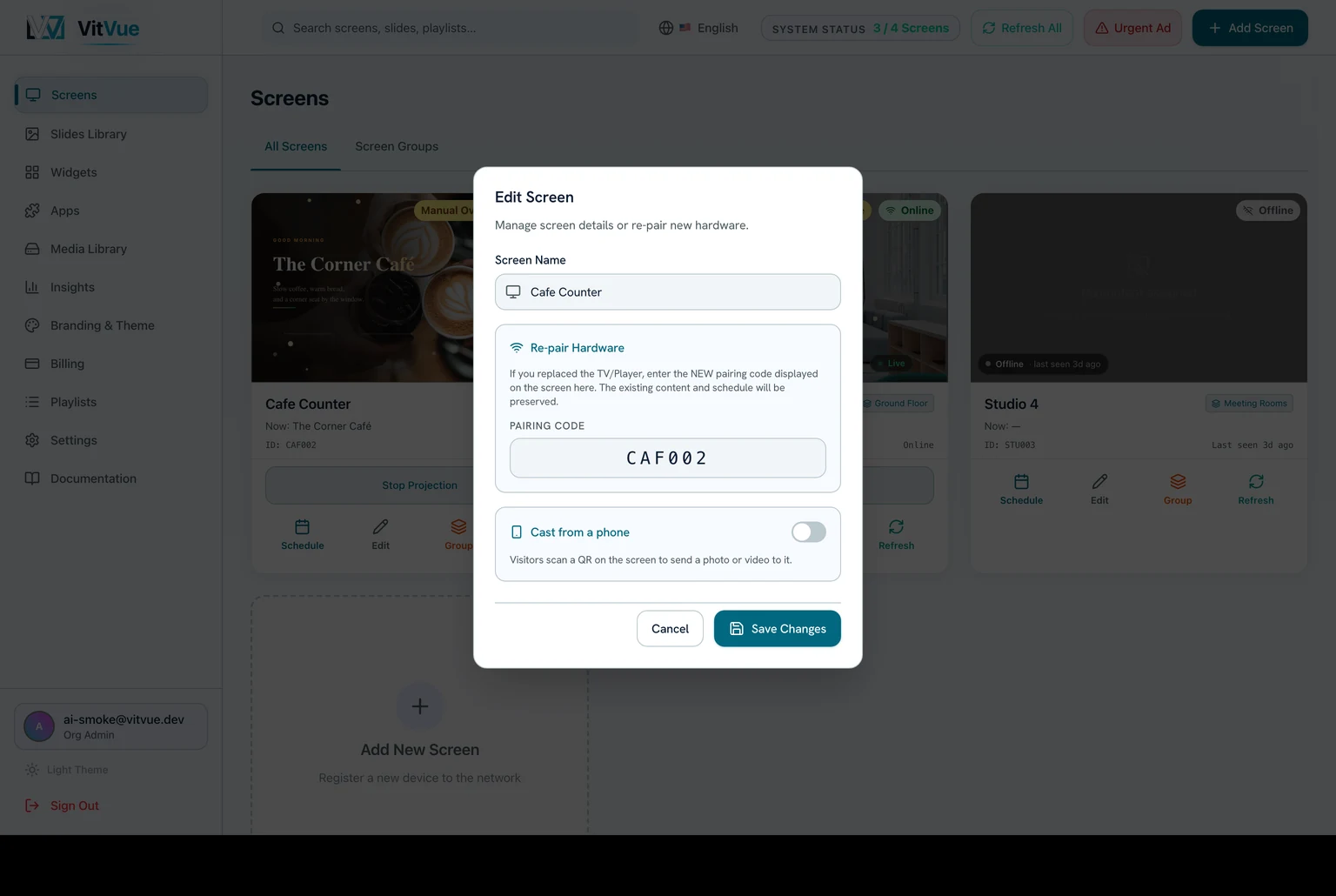
- On the Screens page, press
Editon any paired screen and turn onCast from a phone. - The screen starts showing a QR code that phones can scan.
- Turning casting off clears the cast content and drops the screen back to its schedule — or to
System Readyif nothing is scheduled. It does not restore a slide that was assigned before you set casting up, so re-assign that slide if you want it back.
What people can cast
- Photos and videos, straight from the phone's gallery or camera.
- Multi-image decks — up to 20 images at once, flipped through from the phone like a remote control.
- PDF presentations — the phone converts each page to an image before uploading, so the screen plays them perfectly. Using PowerPoint? Export it to PDF first and cast that.
- Each file can be up to 100 MB. A long video shot on a recent phone can exceed that — trim it, or lower the capture resolution, before casting.
You stay in control
Casting has two moderation modes. On approve — the default — every submission waits for you: you see what was sent and approve or reject it before it reaches the screen. On instant, submissions go straight to the screen with no prompt, which is the right choice for a private staff screen and the wrong one for a screen the public can reach.
The QR code on screen rotates every 60 seconds, and rotating it kills any link scanned from the previous code — so a photograph of the QR taken earlier is useless. Within that minute, though, a scanned link stays valid and can send more than once: the phone even offers a Send more button. Treat the code as short-lived rather than single-use.
Tips
- Casting works alongside your normal content — see Managing screens for how assignments layer.
- For content that should stay up permanently, build a slide instead — casting is for the moment, slides are for the schedule.