Quick start
Five steps from a fresh account to content playing on a screen. Nothing here needs an IT team.
- 01
Create your account
Sign up at app.vitvue.com and confirm your email — verification is required before you can use the dashboard. The 30-day trial includes one screen, so you can walk the whole flow before paying anything.
- 02
Design your first slide
Your account already has one. The dashboard opens on a slide made for you, with Make it yours to edit it — or press Create New Slide in
Slides Libraryto start another, from a template or a blank canvas. See The editor for what you can build. - 03
Open the player on your TV
On an Android TV or Google TV, install VitVue Player from the Google Play Store. Samsung (Tizen) and LG (webOS) aren't in the TV stores yet — on those, or any other device, open
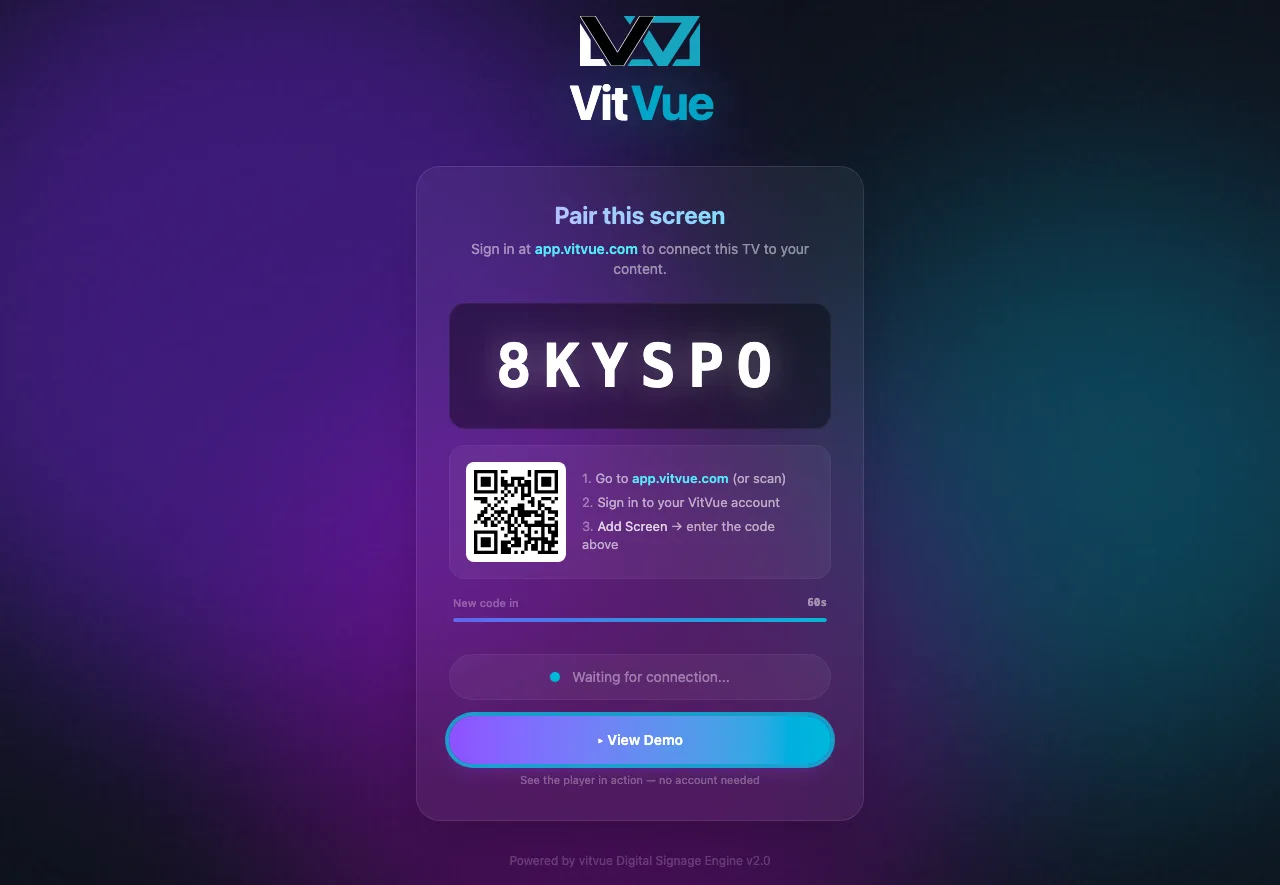
tv.vitvue.comin a browser. The player shows a 6-character pairing code. No TV to hand? The dashboard offers Open a virtual screen in this browser, which pairs like any other screen. - 04
Add the screen in your dashboard
On the
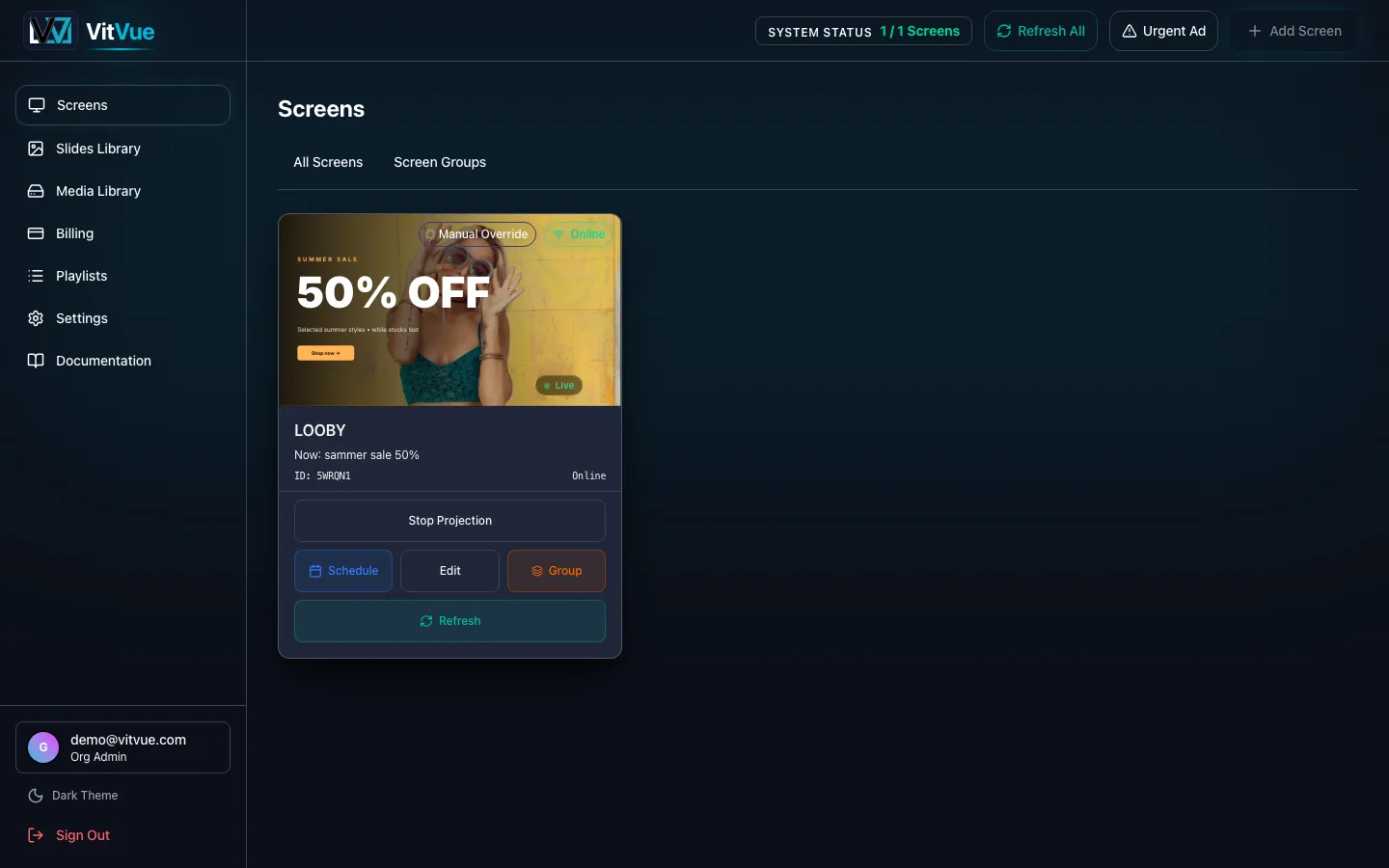
Screenspage, click Add Screen, give it a name (e.g. "Lobby TV"), and enter the code from the TV. The screen connects within a few seconds. Full details in Pairing a screen. - 05
Publish your content
Assign a slide or a playlist to the screen and publish. It goes live in seconds. Until something is assigned, the screen shows
System Ready/ "Waiting for scheduled content…".
No account yet? Try the demo first.
What you'll see
The pairing screen on the TV:
And your Screens dashboard, where you click Add Screen to pair it: