Screen groups
Control ten screens as easily as one.
Why groups
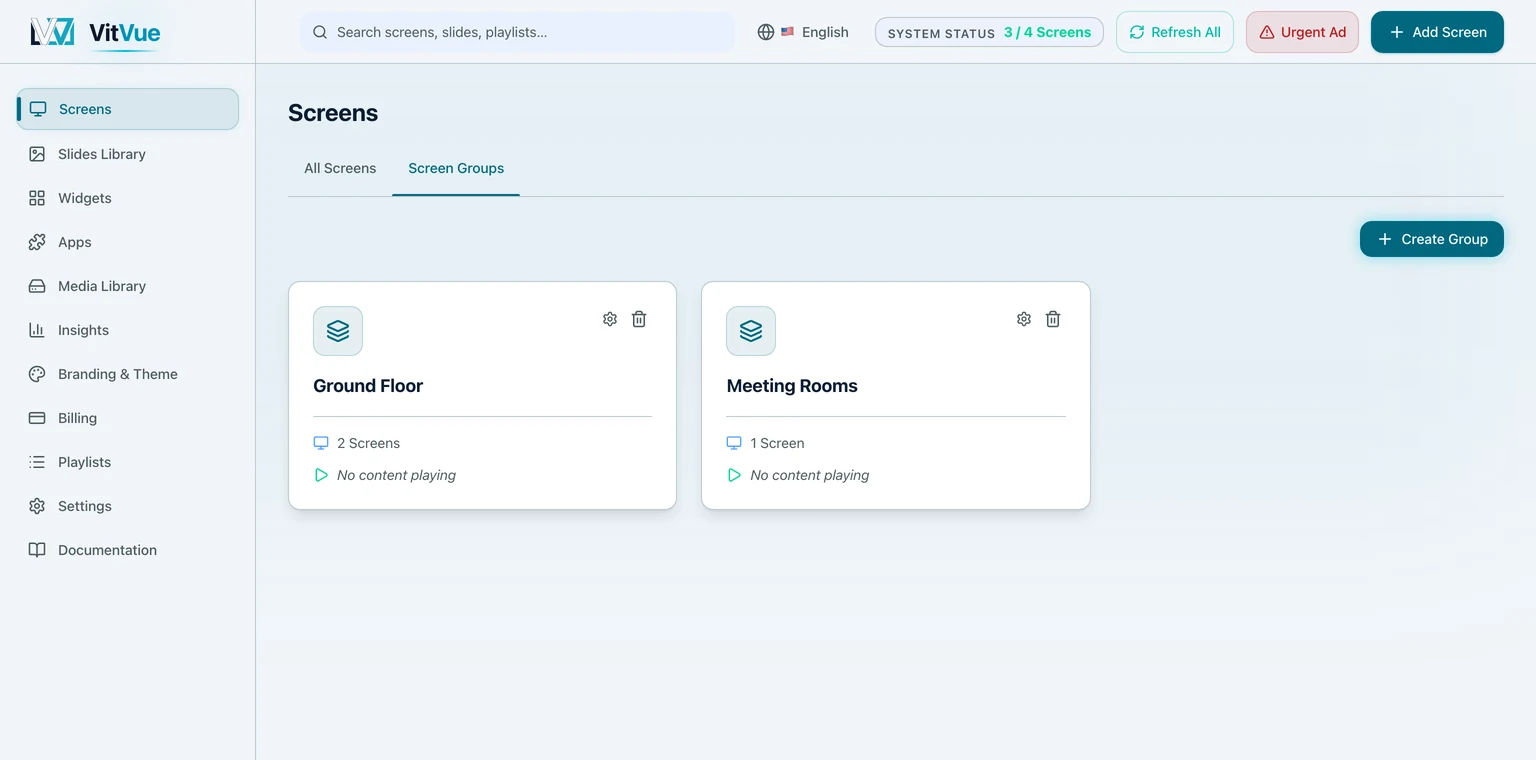
Groups let you organize screens the way your space is organized — Lobby, Floor 2, All Branches — and assign content once for the whole set. Every screen in the group plays the group's playlist or slide, and a new screen added to the group picks it up automatically.
Working with groups
- Create a group and add screens to it from the dashboard.
- Move a screen between groups anytime via the
Groupaction on its screen card. - Assign a slide to the group, or schedule a playlist on it, exactly as you would for a single screen.
Urgent content for a whole group
Need an announcement on every lobby screen right now? Push an urgent slide to the group — with an optional scheduled start and an expiry time — and stop it from the dashboard whenever you like. Screens return to their regular content automatically.
Who wins when both are set
A screen's own content always beats its group's, and an urgent message beats everything. In short: screen urgent, then group urgent, then the screen's own slide, then the screen's schedule, then the group's schedule, and finally the group's own content.
The complete order — all nine levels the player walks before it gives up and shows System Ready — is on Publishing & assignment. That page is the one to trust if the two ever disagree.
More on day-to-day screen control in Managing screens.