Brand kit
Define your brand once; every slide gets it for free.
What the brand kit holds
Your brand kit lives in your organization settings and stores your logo and brand colors. Once set, they follow you into the editor — brand colors appear right in the color pickers, so nobody has to remember hex codes.
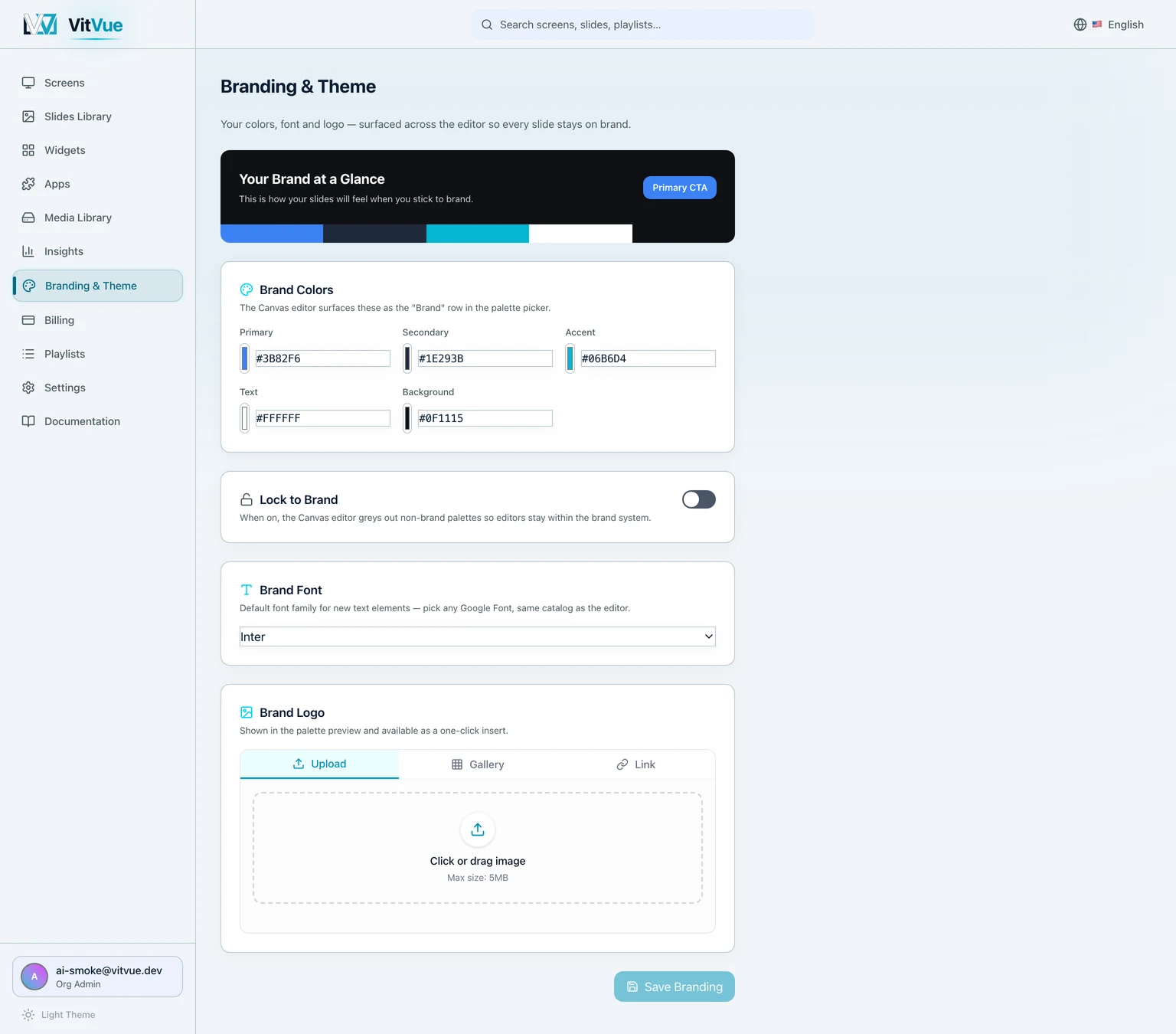
Setting it up
- Open your organization settings and upload your logo.
- Pick your brand colors — primary, accents, backgrounds.
- Save. New and existing slides can use them immediately.
Steering your team to the brand
Working with a team? Turn on Lock to brand and the palette picker stops offering the built-in palettes, leaving your brand colours as the obvious choice. It is a nudge, not a lock: someone who opens the colour picker on an individual element can still enter any hex value. Use it to make the brand the path of least resistance, and rely on roles and permissions to decide who can edit what.
Tips
- Use a transparent-background logo (PNG/SVG export) so it sits cleanly on any slide.
- Include a light and a dark variant of your primary color — screens in bright rooms read differently than menu boards in dim ones.