Pairing a screen
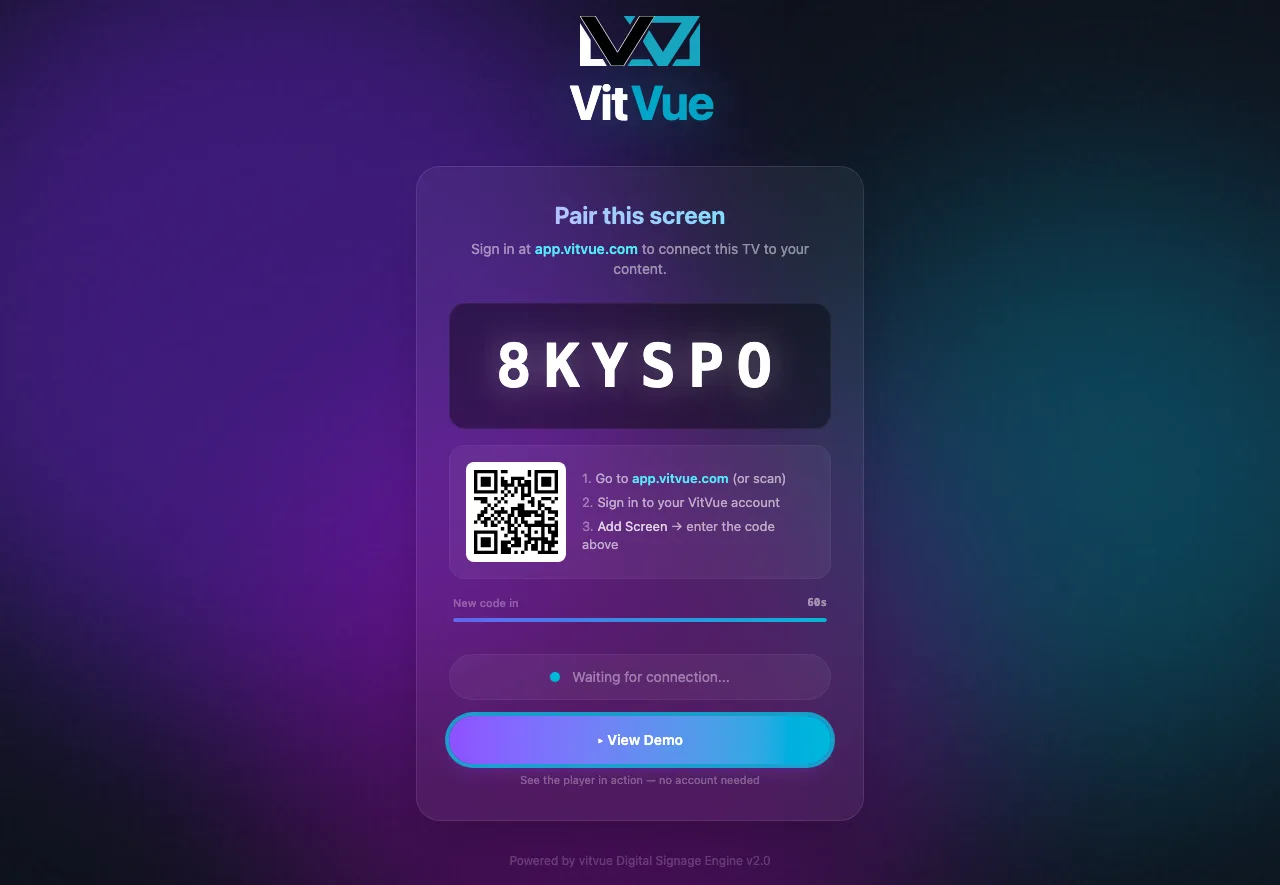
Connecting a display to VitVue takes about a minute. The player shows a code; you enter it in your dashboard.
1. Open the player
Run the VitVue player on the device you want to use as a screen:
- Android TV & Google TV — install VitVue Player on the Google Play Store (live now), or scan the QR code below with your phone.
- Samsung (Tizen), LG (webOS) & any other screen — the TV apps aren't in the Samsung or LG stores yet, so for now open
tv.vitvue.comin the TV's web browser (also works on a mini PC, laptop, or kiosk).
Want to see it in action before signing up? Tap View Demo on the player to preview bundled sample signage — no account or network needed.
2. Read the pairing code
The player displays a unique 6-character code with a countdown beside it. The code holds for as long as that countdown runs — 10 minutes on the current player, which keeps showing the same code until it expires. Players that haven't updated yet invent a new code every 60 seconds instead, keeping the last few valid for about three minutes. Either way: type the code that is on screen right now.
3. Enter it in the dashboard
From your computer or phone:
- Go to app.vitvue.com (or scan the QR code shown on the TV).
- Sign in to your VitVue account.
- On the
Screenspage, click Add Screen, name the screen, and enter the code. It connects within a few seconds.
Code not working?
Once paired, the screen shows System Ready until you assign content. Next: publish a slide or playlist to it.