How to Use Smart TV Signage in Your Business
Learn how to use smart tv signage to update every location fast, schedule targeted content, verify uptime, and reduce hardware and IT costs across teams.
On this page
A menu price changes at 10:30 a.m., a promotion ends at noon, and a store needs a new message on every screen before the afternoon rush. If your team is still moving files onto USB drives or asking staff to update TVs one by one, the process is already too slow. Learning how to use smart tv signage gives you a faster way to manage customer-facing screens with the TVs you already own.
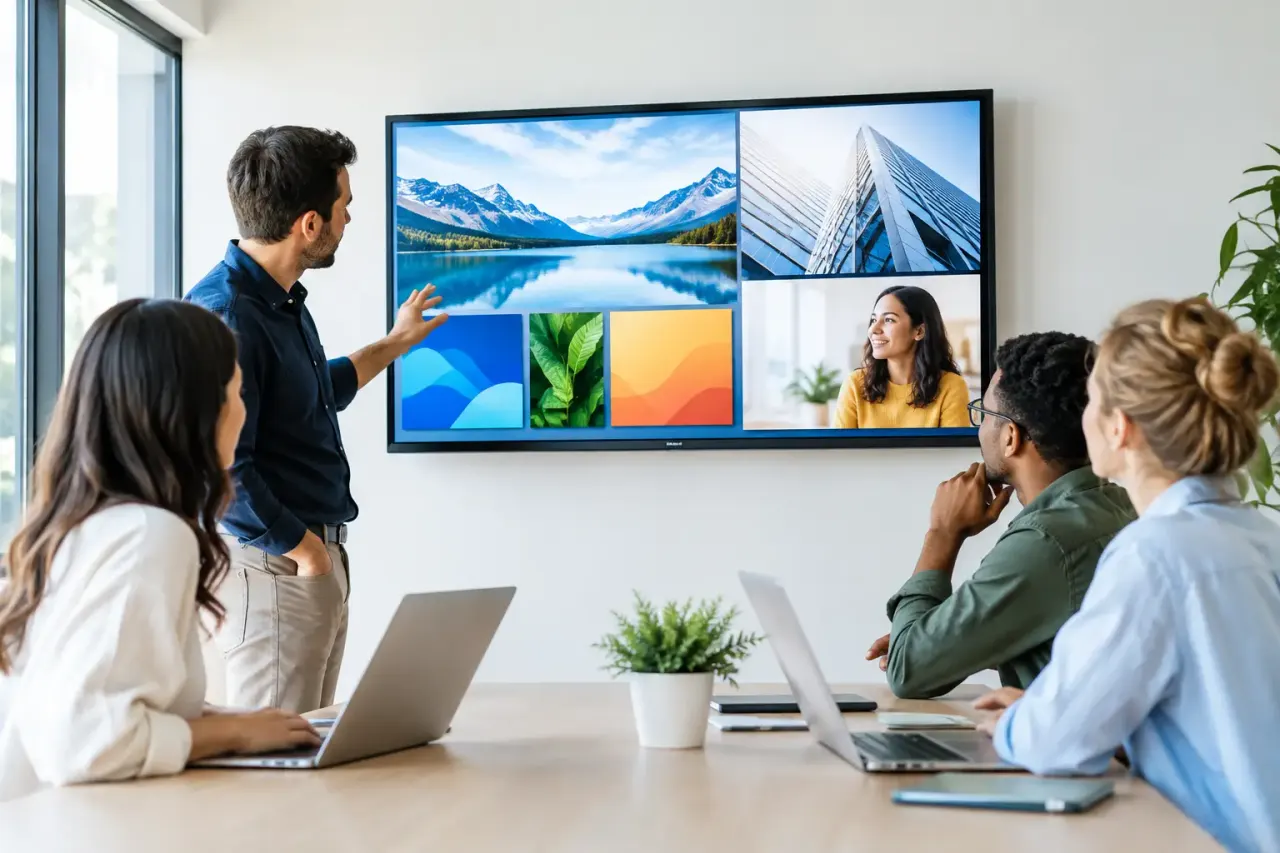
Smart TV signage turns a standard display into an active communication channel. Instead of treating each screen as a standalone device, you manage content, schedules, and screen status from one central dashboard. The result is simple: fewer manual updates, more consistent messaging, and no need to install a traditional media player behind every TV.
Start With the Right Screen Setup
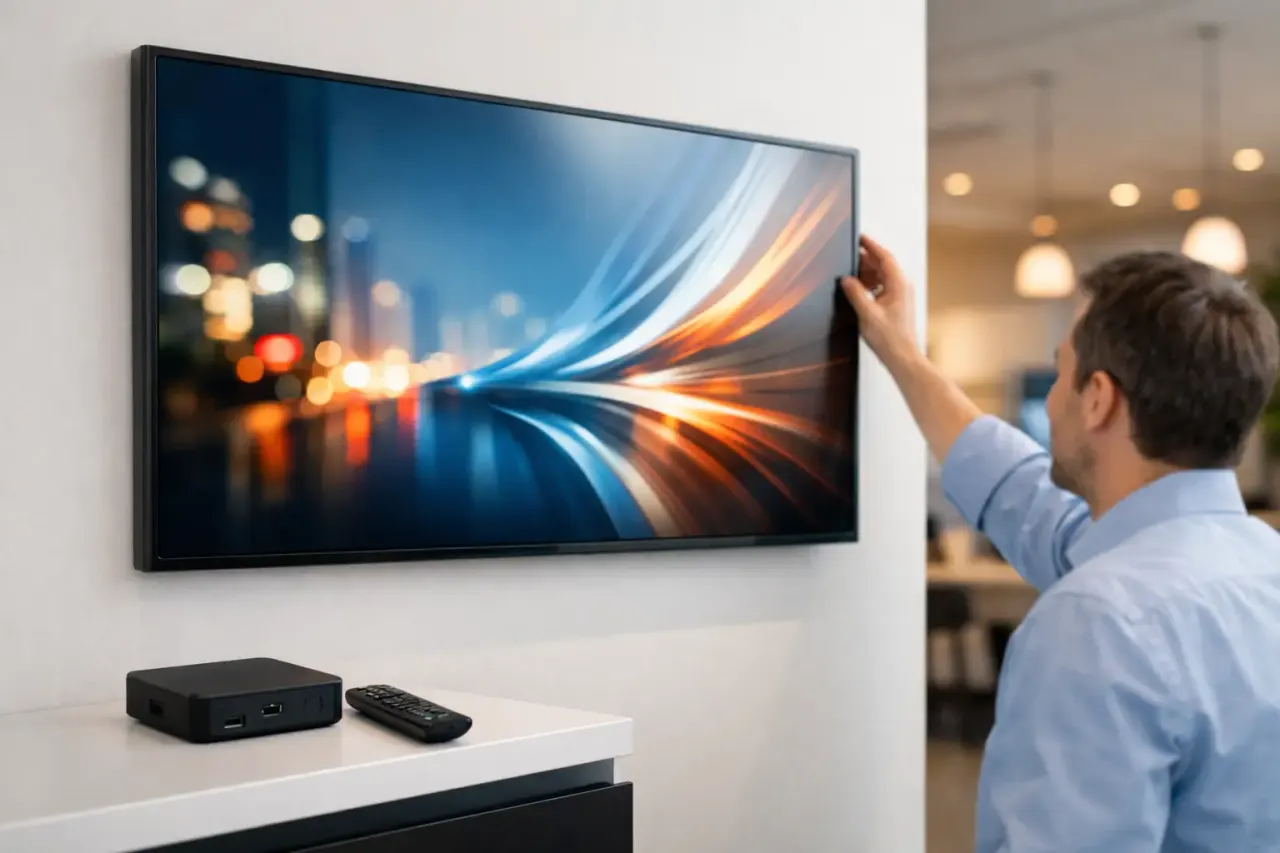
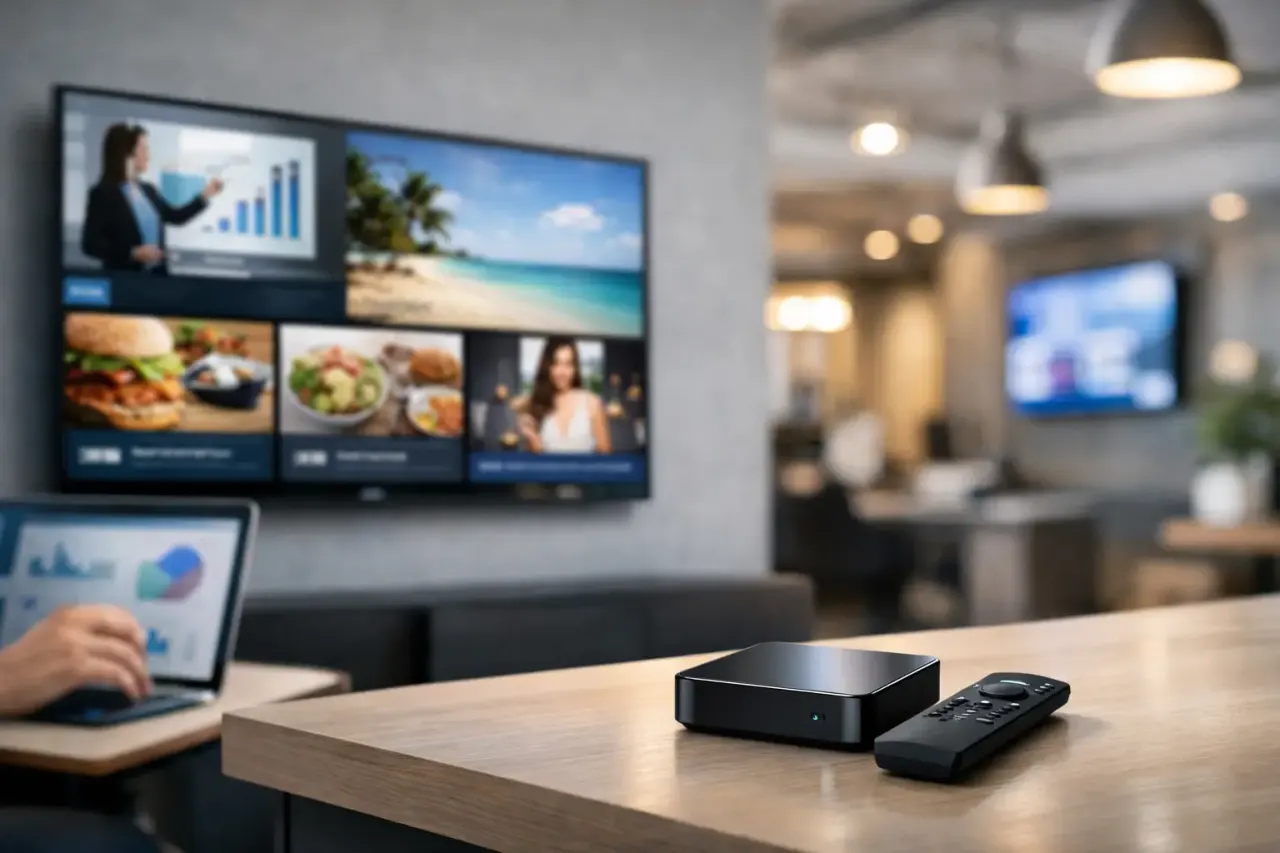
The easiest smart TV signage setup uses compatible Smart TVs with an installed signage app. If your current TVs do not support the app you need, an inexpensive streaming stick can provide the connection without replacing the display. That flexibility matters for businesses with a mix of screen brands, ages, and locations.
Before publishing content, confirm three basics: the screen has a reliable internet connection, it can remain powered on during operating hours, and it is positioned where people can actually read it. A beautiful playlist has limited value if glare, poor placement, or a weak Wi-Fi signal makes the screen hard to see or unreliable.
For a single location, this may be as straightforward as mounting a TV near a counter or waiting area. For multi-location teams, document each screen by location, purpose, and orientation before rollout. Naming a screen “Lobby TV” is useful. Naming it “Chicago - River North - Lobby - Portrait” is better when you are managing dozens of displays from a central office.
How to Use Smart TV Signage Without Extra Hardware
Traditional digital signage usually relies on a separate media player connected to every display. That setup can work, especially for highly specialized installations, but it adds hardware costs, cable management, replacement devices, and more points of failure.
With smart TV signage, the display or streaming stick runs the player software directly. You create content online, assign it to a screen or group of screens, and publish it remotely. No USB swaps. No on-site laptop. No IT ticket for a routine message update.
The basic workflow looks like this:
Connect each Smart TV or streaming-stick-connected TV to the internet and install your signage app.
Register the screen in your dashboard and give it a clear name.
Create a playlist using images, videos, menus, announcements, or ready-made templates.
Assign the playlist to one screen, a group, or every location.
Set the schedule and publish the content.
This approach is especially useful when the same campaign needs to appear across many locations, but local teams still need room for location-specific messages. A restaurant group, for example, may push a national limited-time offer to every screen while allowing each store to show its local hours, staffing notices, or event information.
Build Content for the Moment, Not Just the Screen
A screen should have a job. That job determines what it shows, how long it stays on screen, and where it should be placed.
A lobby screen can reduce repetitive questions by displaying check-in steps, wait times, office hours, and service reminders. A retail display can promote bundles, new arrivals, and loyalty offers. A gym can show class schedules, trainer promotions, and member announcements. In a restaurant, menu boards and upsell screens need quick, readable information that helps customers decide before they reach the counter.
Keep individual slides focused. One message, one action, and enough time for a person to read it. A common mistake is treating a TV like a flyer and filling every corner with text. Customers do not stop to study a crowded screen. Use large type, high-contrast colors, and short copy that can be understood at a glance.
Video can add energy, but it is not automatically better. Fast motion may distract from important pricing or instructions, and audio is often impractical in public spaces. Use video when it supports the message. Use static slides when clarity matters more than movement.
Schedule Content Around Your Operations
The real value of digital signage is not simply showing content. It is showing the right content at the right time without someone remembering to change it manually.
Schedule breakfast menus to end automatically when lunch begins. Run a weekday promotion only during slow afternoon hours. Show recruiting messages after the evening rush. Replace a holiday campaign at midnight without asking a manager to visit each location.
For most businesses, scheduling should follow three layers. First, set recurring content that stays relevant, such as branding, service information, or evergreen promotions. Next, add time-sensitive campaigns with specific start and end dates. Finally, reserve space for live updates that need to go out immediately, such as weather closures, inventory changes, policy notices, or event reminders.
Do not schedule every slide with the same priority. A pharmacy may need urgent health or closure information to take over the screen immediately. A retail store may prefer a campaign playlist that rotates steadily throughout the day. It depends on how critical the message is and how much control local teams need.
Organize Screens by Location and Purpose
As soon as you have more than a few screens, individual management becomes inefficient. Group screens by region, brand, store type, department, or use case. That lets one update reach every relevant display without affecting screens that serve a different audience.
For example, a franchise operator could maintain groups for all locations, a specific state, and each individual store. Corporate messaging can go to every screen. A regional offer can go only to the appropriate market. A local manager can receive content only for their location.
This structure prevents a frequent operational problem: sending the right promotion to the wrong screen. A customer-facing menu, employee breakroom announcement, and corporate lobby message should not be managed as one undifferentiated group just because the screens are in the same building.
Check That Screens Are Actually Playing
Publishing content is not the end of the job. You also need confidence that the screen is online and displaying the intended playlist.
A good signage platform gives your team visibility into screen status, playback history, and offline alerts. That means you can spot a disconnected TV before a customer notices a blank screen or outdated promotion. It also creates accountability when multiple teams create, approve, and publish content.
Offline playback matters here. Internet connections fail, especially across remote stores, hotels, clinics, and public-facing venues. Screens should continue showing previously downloaded content during a temporary outage rather than going black. When the connection returns, the system can sync the latest updates automatically.
With VitVue, teams can manage screens, schedules, playlists, and uptime from one dashboard while using existing Smart TVs or low-cost streaming sticks. That removes the expense and operational burden of dedicated media-player hardware without giving up centralized control.
Set Simple Rules for Your Team
Smart TV signage is easy to launch, but it still needs ownership. Decide who can create content, who approves it, and who has permission to publish across all locations. Clear roles prevent accidental changes to menus, pricing, compliance messages, or brand campaigns.
Create a small set of reusable templates for recurring needs, such as promotions, announcements, event schedules, and hiring messages. Templates speed up production and keep brand elements consistent, even when local managers need to make updates.
It also helps to establish a review rhythm. Check screen status weekly, review campaign performance monthly, and remove outdated assets before they reappear in a future playlist. This is less about adding process and more about preventing avoidable mistakes at scale.
Measure What the Screen Is Doing
Digital signage analytics will not always tell you exactly how many people bought a product because they saw a slide. But screen uptime and play history provide a practical foundation: you can verify that a campaign ran, where it ran, and for how long.
Pair that information with business data when possible. Compare promotions against sales periods, track QR code scans, watch changes in featured-item sales, or ask staff whether customers reference a displayed offer. The goal is not to overcomplicate reporting. It is to learn which messages deserve more screen time.
Start with one clear use case, such as a menu update, a retail promotion, or a lobby information screen. Once your team sees how quickly content can change across every display, the screen stops being another piece of hardware to maintain and becomes a channel you can use whenever the business needs to communicate.