How to Repurpose Smart Televisions for Signage
Learn how to repurpose smart televisions into signage for centralized, reliable displays without media players, USB updates, or a dedicated IT team now.
On this page
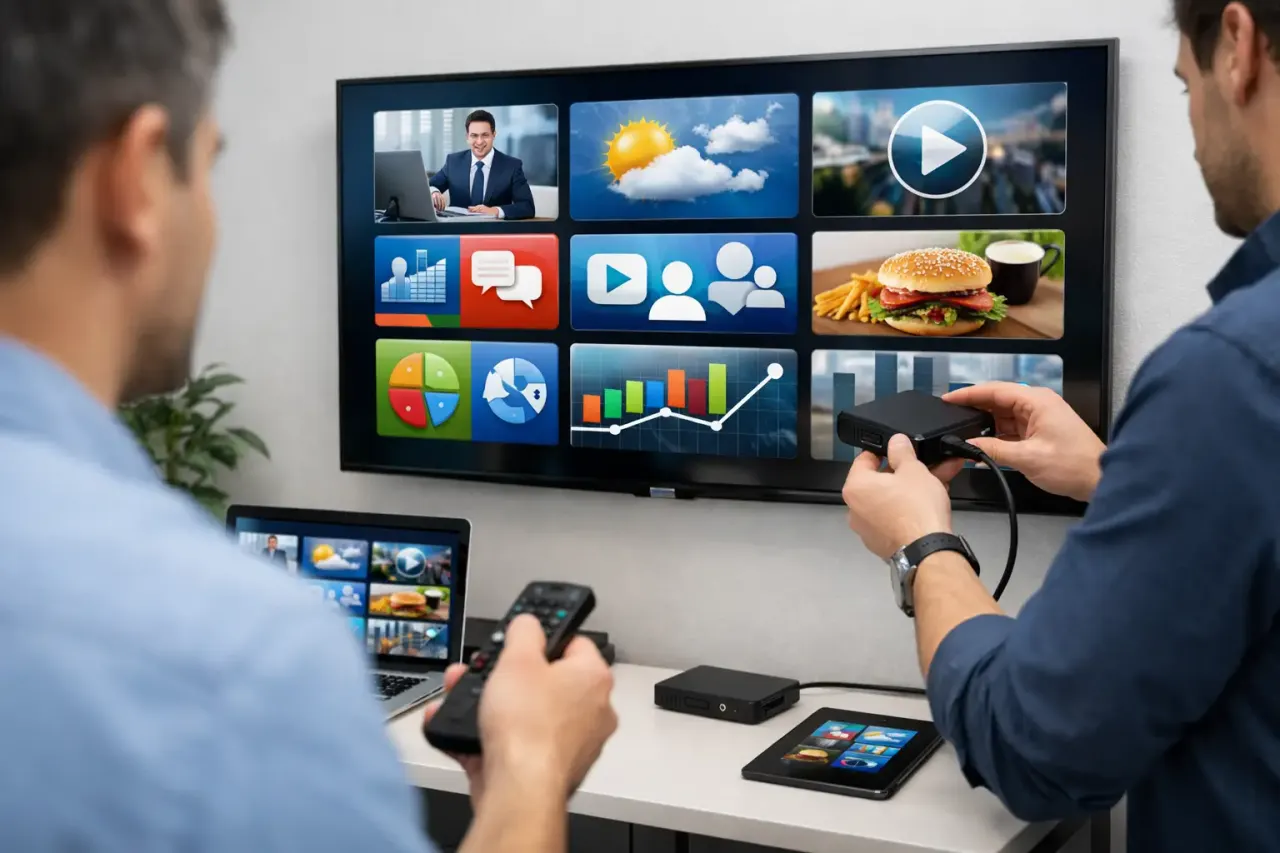
A 55-inch Smart TV sitting behind a counter, in a break room, or in a storage closet is not just an underused screen. It can become a live menu board, promotion display, lobby communication channel, or internal dashboard. When you repurpose smart televisions into signage, the goal is not simply to put images on a screen. It is to replace slow, disconnected update processes with a display system your team can control from anywhere.
For businesses with multiple locations, this shift matters quickly. A seasonal offer changes at 10 a.m. A clinic needs to update a waiting-room message. A franchise group needs every location to show the same campaign by lunch. USB drives and manual screen updates cannot keep pace. Existing Smart TVs can, provided you set them up for reliable, centrally managed playback.
Why repurpose Smart televisions for signage?
The obvious reason is cost. Most businesses already own screens that are capable of displaying digital content. Reusing them avoids buying dedicated commercial displays and separate media players for every location. That can reduce the up-front expense of a signage rollout substantially.
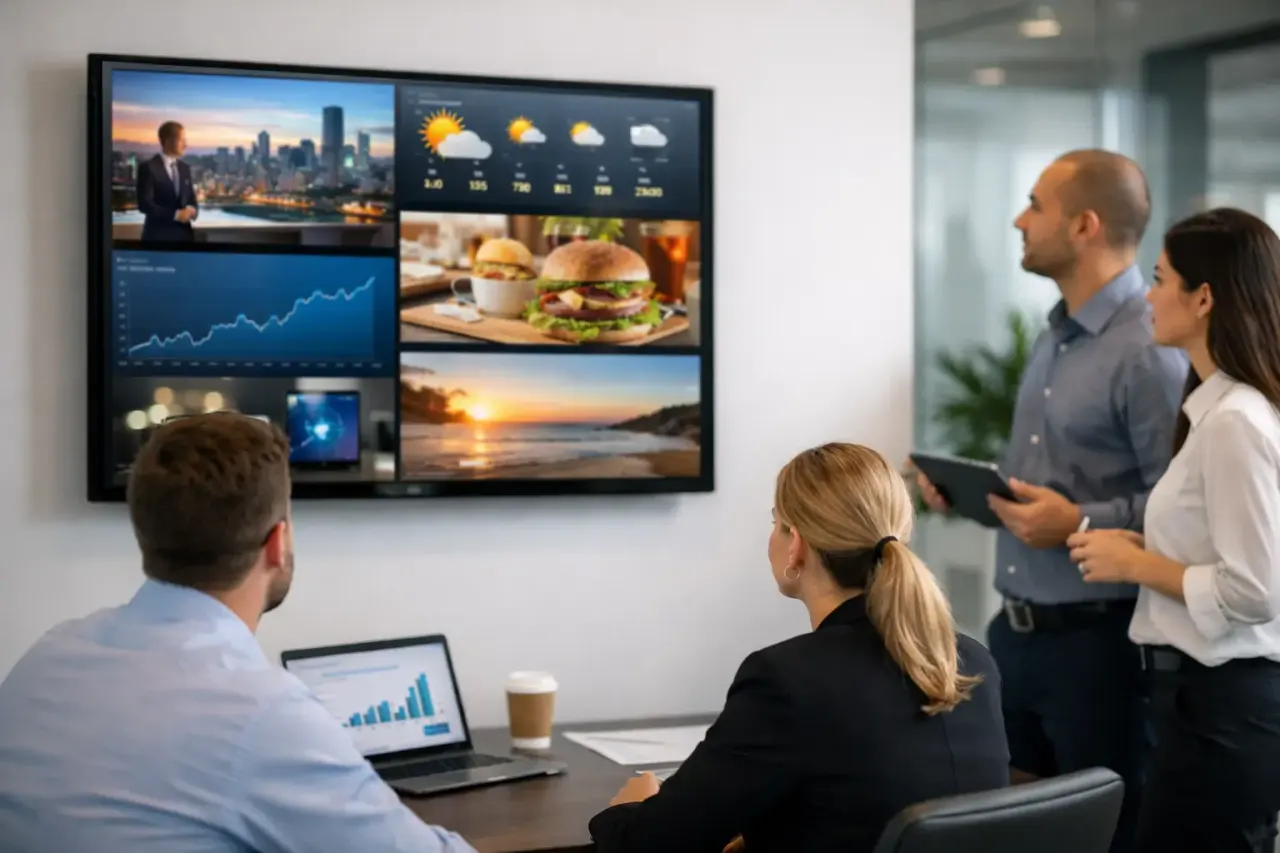
The more valuable benefit is operational control. A screen only works as signage when the right content appears at the right time and keeps playing without someone on-site managing it. Cloud-based signage software turns compatible Smart TVs into managed endpoints. Your team can create content, organize playlists, set schedules, and publish changes from one dashboard.
That changes the day-to-day workflow. A restaurant manager does not need to load a new menu graphic onto a flash drive. A retail marketing team does not need to email files to every store. An office administrator does not need to visit each conference area to update event information. The work happens once, then publishes across the screens assigned to that message.
Start with the screens you already have
Not every television is a perfect signage candidate, but many are good enough to get started. Before choosing software or planning content, audit the screens currently in use. Record the manufacturer, model, operating system, screen size, location, network connection, and how long the display is expected to run each day.
A newer Smart TV with a supported operating system and stable Wi-Fi is usually the easiest path. Install the signage app, connect the screen to your account, and assign content. There is no separate media player to mount, power, or troubleshoot.
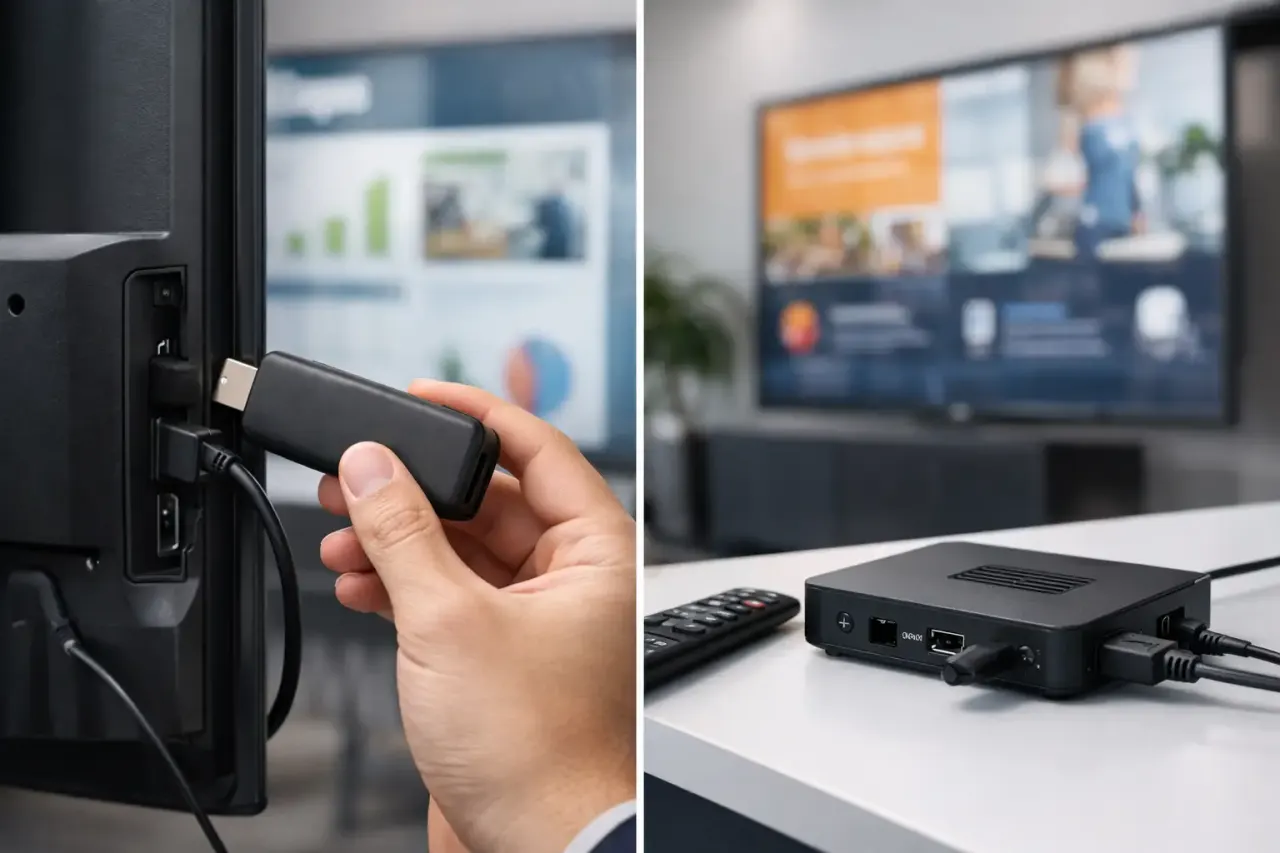
Older televisions are still useful. If a display does not support the signage app directly, an inexpensive streaming stick can provide the app environment needed for centrally managed playback. This lets you keep the existing screen while adding a small, replaceable device rather than replacing the television itself.
There are trade-offs. Consumer televisions are generally designed for lighter use than commercial-grade displays. A screen running 12 to 16 hours a day in a climate-controlled lobby may perform well for years. The same model running around the clock near heat, grease, sunlight, or heavy foot traffic may need replacement sooner. Reusing existing TVs is a smart first move, but it should not prevent you from budgeting for commercial hardware where the environment demands it.
Check the placement before you deploy
A good screen in the wrong location will not produce results. Look at viewing distance, lighting, mounting height, and the reason people are standing in that area. A menu board needs clear readability from the ordering line. A gym screen may be viewed briefly between sets. A hotel lobby display must compete with daylight and activity.
Also consider power and connectivity. If staff can easily unplug the television or switch its input, establish a simple ownership process. In some locations, a basic screen cover, labeled power outlet, or locked remote storage prevents avoidable interruptions.
Build signage around real operating needs
The strongest signage programs are not built around a collection of nice-looking slides. They are built around moments where customers or staff need information, direction, or a reason to act.
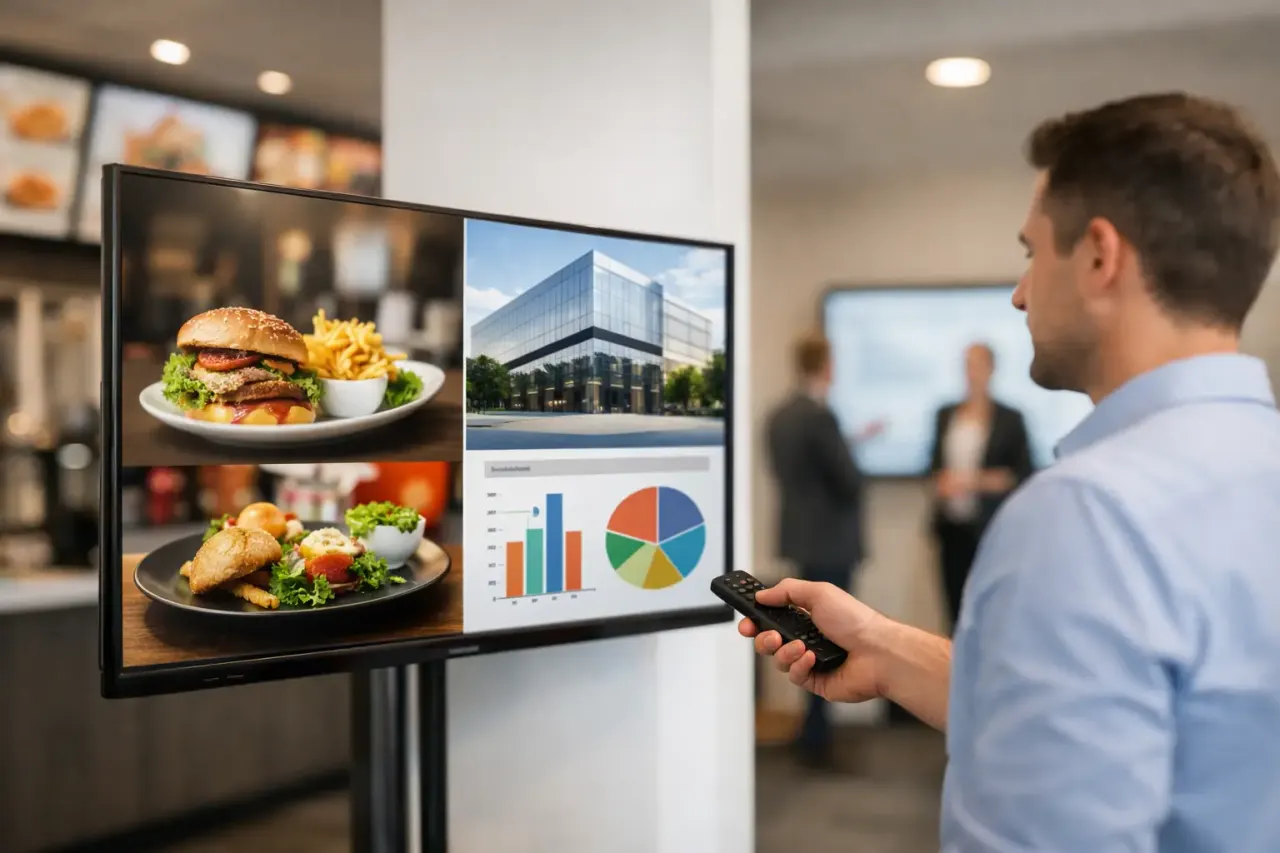
For a restaurant, that may mean daypart menus, limited-time offers, catering promotions, and pickup instructions. For retail, it could mean product highlights, current offers, loyalty prompts, and brand storytelling. Clinics often use screens for check-in instructions, services, provider profiles, and practical health reminders. Corporate offices can rotate visitor information, safety messages, meeting schedules, and internal announcements.
Keep each screen's job clear. A lobby display that tries to promote six services, explain every policy, and run employee notices at once becomes background noise. Assign a purpose to each zone or screen, then create playlists that support it.
Content also needs to match dwell time. A customer waiting in line for 30 seconds needs a short, readable message. Someone seated in a waiting room can absorb longer educational content. Use large type, high contrast, and a simple call to action. If a message cannot be understood at a glance, simplify it.
Replace USB updates with centralized scheduling
Manual updates are usually where signage programs lose momentum. One location gets the new promotion. Another keeps last month's pricing on screen. A third screen is stuck on a black display because the USB drive was removed. The issue is not design quality. It is the lack of a reliable publishing process.
Centralized scheduling fixes that process. Create a playlist, assign it to the right screens, choose the dates and times, and publish. A breakfast menu can run in the morning, lunch content can take over automatically, and a weekend promotion can begin and end without a staff member touching the television.
This is particularly useful for multi-location teams. You can maintain a core brand campaign across every site while allowing local managers to display location-specific messages. The corporate team controls what must stay consistent. Local teams retain enough flexibility to communicate store hours, events, staffing notices, or regional offers.
Platforms such as VitVue are designed for this practical model: use the screens you have, publish from one dashboard, and keep content moving without adding dedicated media players or involving IT for every update.
Plan for what happens when Wi-Fi drops
Internet access is necessary for remote publishing, but an outage should not immediately turn a screen blank. Choose a signage setup that supports offline playback. The device should retain previously downloaded content and continue playing it until the connection returns.
That does not remove the need for dependable network service. It protects the customer experience when an outage occurs. For critical screens, such as menus or operational instructions, test this behavior before rolling out to every location.
Set up ownership, permissions, and screen health
Digital signage becomes easier to manage when responsibilities are clear. One team may own brand templates and approved campaigns. Another may schedule content. Local managers may have limited permission to change only the screens in their location. This prevents accidental edits while keeping everyday updates fast.
Use templates for repeatable content. A promotion template with locked logo placement, approved colors, and designated text areas helps local teams create on-brand messages without waiting on a designer. It also reduces the temptation to improvise with unreadable fonts or inconsistent layouts.
Screen monitoring is equally important. You need to know whether displays are online, what playlist is assigned, and whether content has actually played. Without that visibility, a screen problem may go unnoticed until a customer points it out. Uptime and play-history data give operators a practical way to verify that a campaign reached the intended locations.
For larger deployments, document a simple recovery process: who checks the power, who confirms the Wi-Fi connection, who restarts the app, and who escalates an issue. It is a small operational step that prevents every screen problem from becoming an urgent call to a central team.
A practical rollout that avoids disruption
Start with a pilot, not every screen at once. Choose one or two locations with reliable connectivity and a clear use case. Launch a limited set of content, test scheduling, confirm offline playback, and get feedback from the people working near the screens.
Once the workflow is proven, standardize it. Create naming conventions for locations and screens. Build reusable playlists for recurring campaigns. Decide how far in advance promotions need to be submitted and who approves them. These basic rules make a 50-screen deployment far easier than a five-screen deployment managed informally.
Measure more than whether the screen is on. Look for operational outcomes: fewer manual update requests, faster campaign launches, fewer pricing errors, better promotion visibility, or reduced time spent by location staff. Those are the gains that justify expanding signage beyond the initial pilot.
Your unused Smart TVs do not need to stay unused, and they do not need an expensive hardware stack to become useful. Give every screen a purpose, give your team one place to control it, and make the next update something that takes minutes instead of a trip to every location.