How to Install Signage Apps on Any Smart TV
Learn how to install signage apps on Smart TVs and streaming sticks, connect screens, avoid setup delays, and manage every display from one dashboard.
On this page
A screen is only useful when the right message appears at the right moment. Yet many businesses still update TVs with USB drives, chase down remote controls, or rely on staff at each location to keep content current. When you install signage apps, that process changes from a local task into a centrally managed operation.
The goal is not simply to get an app onto a TV. It is to create a reliable display network that your team can update without visiting every site, calling IT, or buying a costly media player for each screen. Whether you operate one restaurant, 20 retail stores, or a distributed office network, the installation path should be quick, repeatable, and easy to support.
Start with the screen you already own
Before installing anything, identify what is driving the display. Most modern signage deployments fall into one of two categories: a Smart TV with a compatible app store, or a standard TV connected to an inexpensive streaming stick.
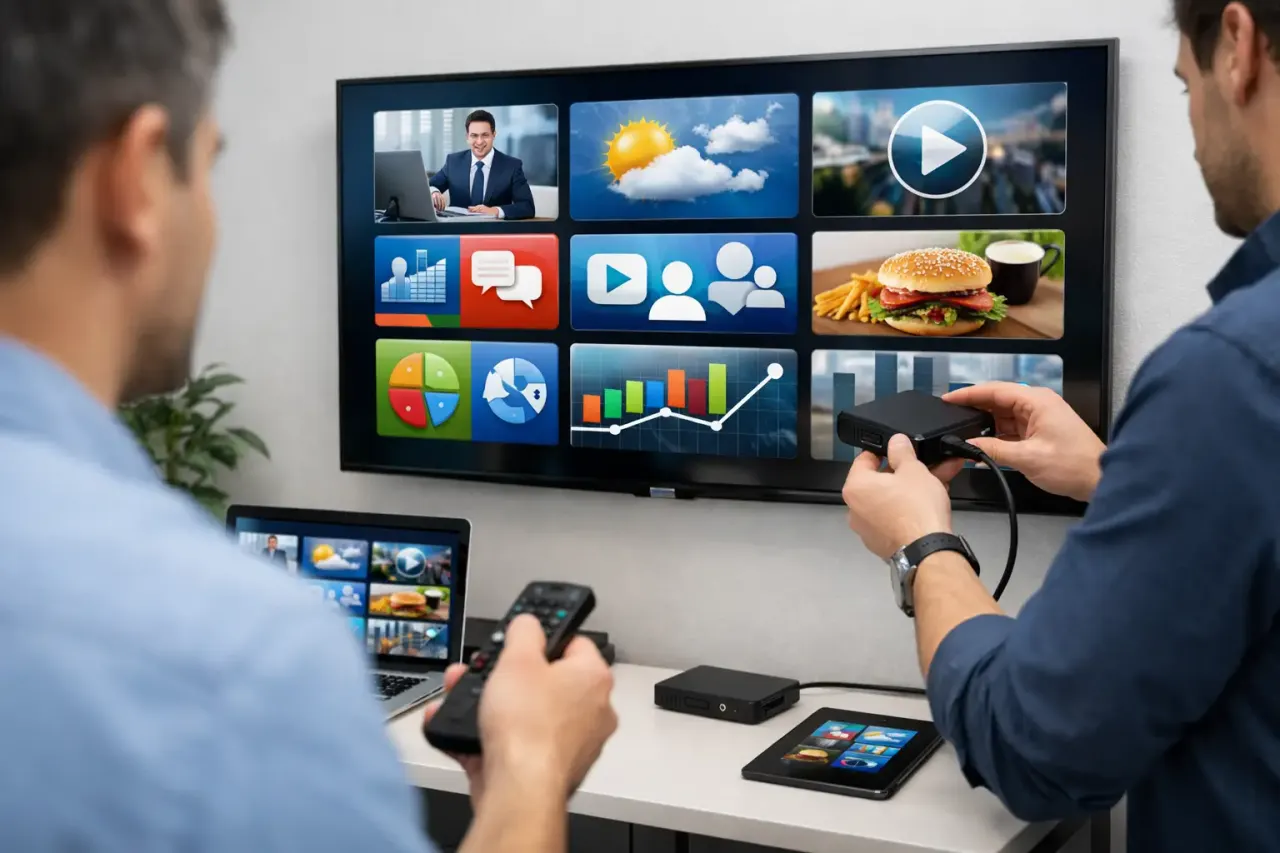
A compatible Smart TV can often run a signage app directly. This is the simplest route because there is no separate media player, extra HDMI cable, or additional power outlet to manage. For businesses replacing static posters or USB slideshows, using the TV's built-in operating system is usually the fastest way to get live.
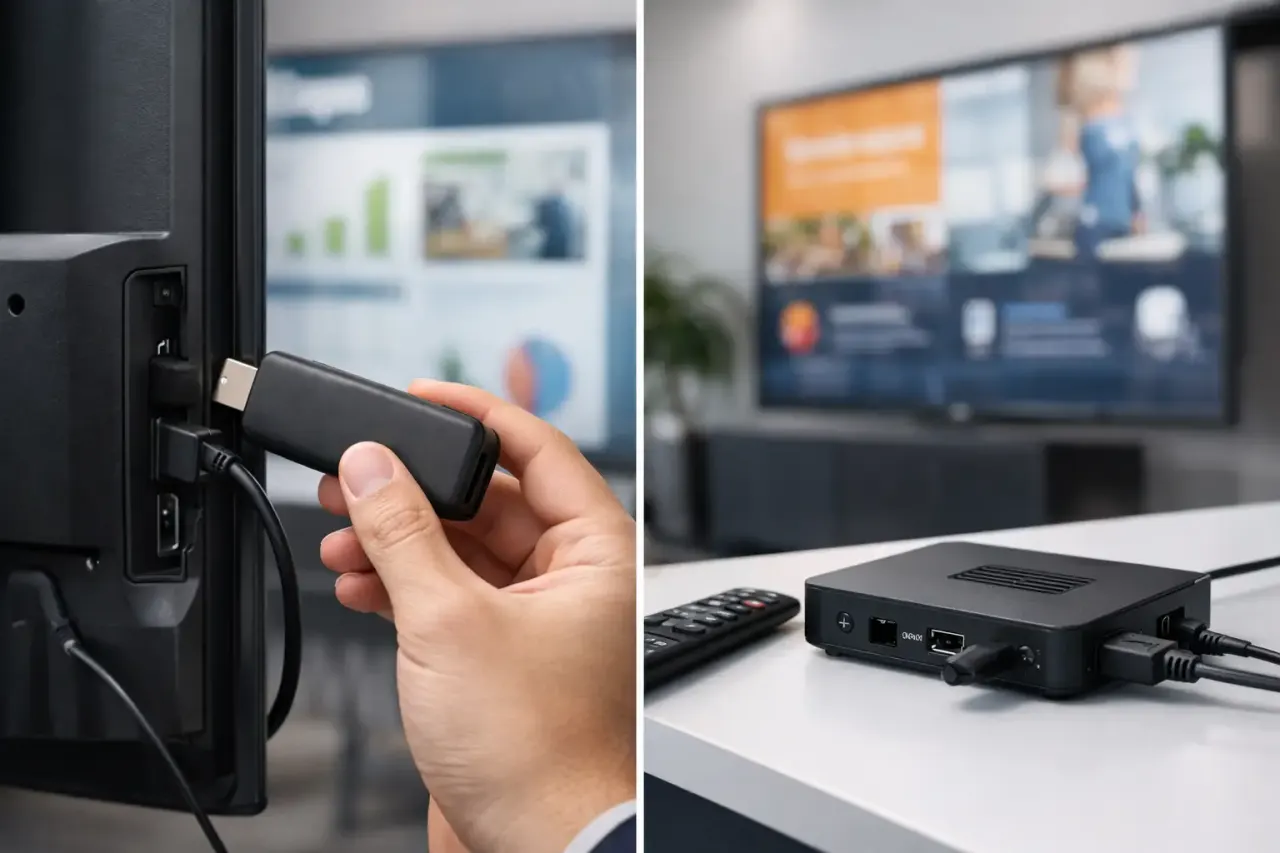
A streaming stick is the practical alternative when the TV is older, the built-in platform is unsupported, or you want to standardize the player experience across different TV brands. It connects through HDMI and gives the screen a consistent app environment. That can be useful for franchise groups that have accumulated different displays over time.
The trade-off is straightforward. Built-in TV apps reduce hardware and setup steps, while streaming sticks can add compatibility and consistency. Check the operating system, available storage, Wi-Fi quality, and whether the screen can remain powered on during business hours before making a choice.
What to prepare before you install signage apps
A smooth installation starts before anyone opens an app store. Have the screen connected to stable internet, confirm that the TV software is current, and make sure you have access to the device's app store account. For a streaming stick, complete its basic setup first, including Wi-Fi and any required operating system updates.
You also need a clear answer to one operational question: what should this screen show on day one? Prepare a menu board, promotion, welcome message, safety notice, event schedule, or branded playlist in advance. An installed player with no approved content creates an avoidable delay.
For multi-location teams, create a simple naming convention before adding screens. Names such as “Dallas - Lobby,” “Dallas - Checkout,” and “Austin - Break Room” make scheduling and troubleshooting far easier later. Avoid generic labels like “TV 1.” They work for a single screen and become confusing fast.
Finally, decide who owns the deployment. A store manager may be able to connect one display, while a marketing or operations team controls content from the central dashboard. Defining those roles early prevents employees from changing settings or publishing the wrong playlist by accident.
Install the app and pair the screen
The actual installation should take minutes. On the Smart TV or streaming device, open the relevant app store, search for your digital signage player, download it, and launch it. The app will typically display a pairing code or activation code.
From a computer, sign in to your signage platform and add a new screen. Enter the pairing code, assign the screen a recognizable name, and place it in the correct location or group. Once paired, the device becomes visible in your dashboard rather than remaining an isolated TV.
This pairing step is where digital signage becomes operationally useful. Instead of sending files to individual screens, you can assign content remotely, set schedules, and see whether each display is online. With VitVue, teams can turn compatible Smart TVs or streaming-stick-connected TVs into managed displays without adding traditional media players to every location.
Do not rush past screen settings. Confirm orientation before publishing content. A portrait display used for a storefront promotion needs a different canvas than a landscape screen above a counter. Also set the correct time zone for the location. Daypart schedules for breakfast, happy hour, classes, or appointments depend on it.
Publish a simple first playlist
Your first playlist should prove the system works, not attempt to answer every communication need at once. Use one or two pieces of content that are easy to verify from a distance, such as a branded welcome slide and a current promotion. Publish the playlist to the new screen and confirm that it appears within the expected time.
Then test a live update. Change a headline, swap an image, or add a time-sensitive message from the dashboard. If the screen updates correctly, you have confirmed the full path: the player is installed, the device is online, the screen is paired, and content is publishing properly.
This test matters most when you manage locations remotely. A playlist may look correct in the editor but still fail on a screen because of a network interruption, a display that has gone to sleep, or a device set to the wrong input. Catching that issue during installation is far better than discovering it during a promotion or service disruption.
Configure the TV for dependable playback
Most signage problems are not app problems. They are TV settings that were designed for home viewing, not continuous business use. After you install signage apps, take a few minutes to configure the display for daily operation.
Turn off sleep timers, energy-saving modes that shut down the panel too aggressively, and screen savers that interrupt playback. If the model supports it, enable automatic power-on after a power outage. Set the correct HDMI input if you are using a streaming stick, and prevent the TV from automatically switching to another source.
Consider the physical setup too. A streaming stick tucked behind a wall-mounted TV may have weaker Wi-Fi reception than expected. An HDMI extender can improve signal placement, and a wired connection may be worth considering for high-traffic areas where network reliability is critical. For most standard content, dependable Wi-Fi is enough, but network conditions vary by location.
Offline playback is another practical safeguard. When a screen temporarily loses internet access, it should continue displaying the most recently downloaded approved content rather than going blank. That does not replace a stable connection, but it protects customer-facing communication from short outages.
Build a rollout process for multiple locations
Installing one screen is easy. Installing 50 without losing control requires a repeatable process. Create locations and screen groups in the dashboard before shipping devices or sending instructions to store teams. Grouping screens by region, store, department, or display type lets you publish the right content without manually selecting every device.
Use a standardized deployment checklist for each site: connect the screen, install the player, pair the device, name it correctly, verify orientation and time zone, publish a test playlist, and confirm online status. This is one of the few places where consistency saves more time than speed.
For franchises and enterprise teams, limit permissions based on responsibilities. Local managers may need the ability to confirm a screen is working, while corporate marketing should control brand campaigns and templates. The right access model reduces mistakes without forcing every content update through a technical team.
It also helps to schedule content by purpose. A restaurant can run breakfast menus in the morning and promotions later in the day. A gym can switch from class schedules to membership offers. A clinic can display check-in instructions during open hours and after-hours information in the evening. Central scheduling keeps those changes on time even when no one is near the TV.
Common installation issues and fast fixes
If the app will not download, first verify the device model and operating system version. Smart TV app availability varies by platform and region, so confirm compatibility before purchasing screens in volume. If the player installs but does not pair, check that the device has internet access and that the pairing code has not expired.
If content does not appear, confirm the screen is assigned to the intended playlist and that the playlist is published. Then check time zone, schedule rules, and display orientation. A screen can be online and healthy while showing nothing relevant because its content is scheduled for a different time or group.
If a display goes black overnight or after a power interruption, revisit the TV power settings and automatic startup options. If it repeatedly drops offline, test the local Wi-Fi signal near the screen rather than at the front desk or office. The network can be strong in one part of a location and unreliable behind a TV wall.
Make every new screen easier than the last
The best signage installation is not a one-time technical win. It is a process your team can repeat as locations open, campaigns change, and screens are added. Keep your device standards clear, name screens consistently, and verify playback from the dashboard instead of relying on someone to notice a problem in person.
Start with one screen, prove that updates reach it when they should, then scale with the same controlled workflow. Your displays should be ready to communicate the moment your business needs them to.