How to Update TV Screens Across Locations
Learn how to update TV screens across locations from one dashboard, schedule local content, verify playback, and keep every display accurate without IT.
On this page
A promotion changes at 10 a.m., but one store still shows last week’s offer. A clinic updates its check-in instructions, while the waiting room screen keeps running an old slide. These are not design problems. They are control problems. Knowing how to update TV screens across locations means replacing manual handoffs, USB drives, and location-by-location fixes with one reliable publishing process.
For multi-location businesses, every screen is part of the customer experience. It can promote a limited-time menu item, direct visitors, communicate safety information, or reinforce a campaign. If updates are slow or inconsistent, screens become another operational task your team has to chase. The right setup lets a central team make changes quickly while giving each location the content that makes sense for its audience.
Start With a Central Content Hub
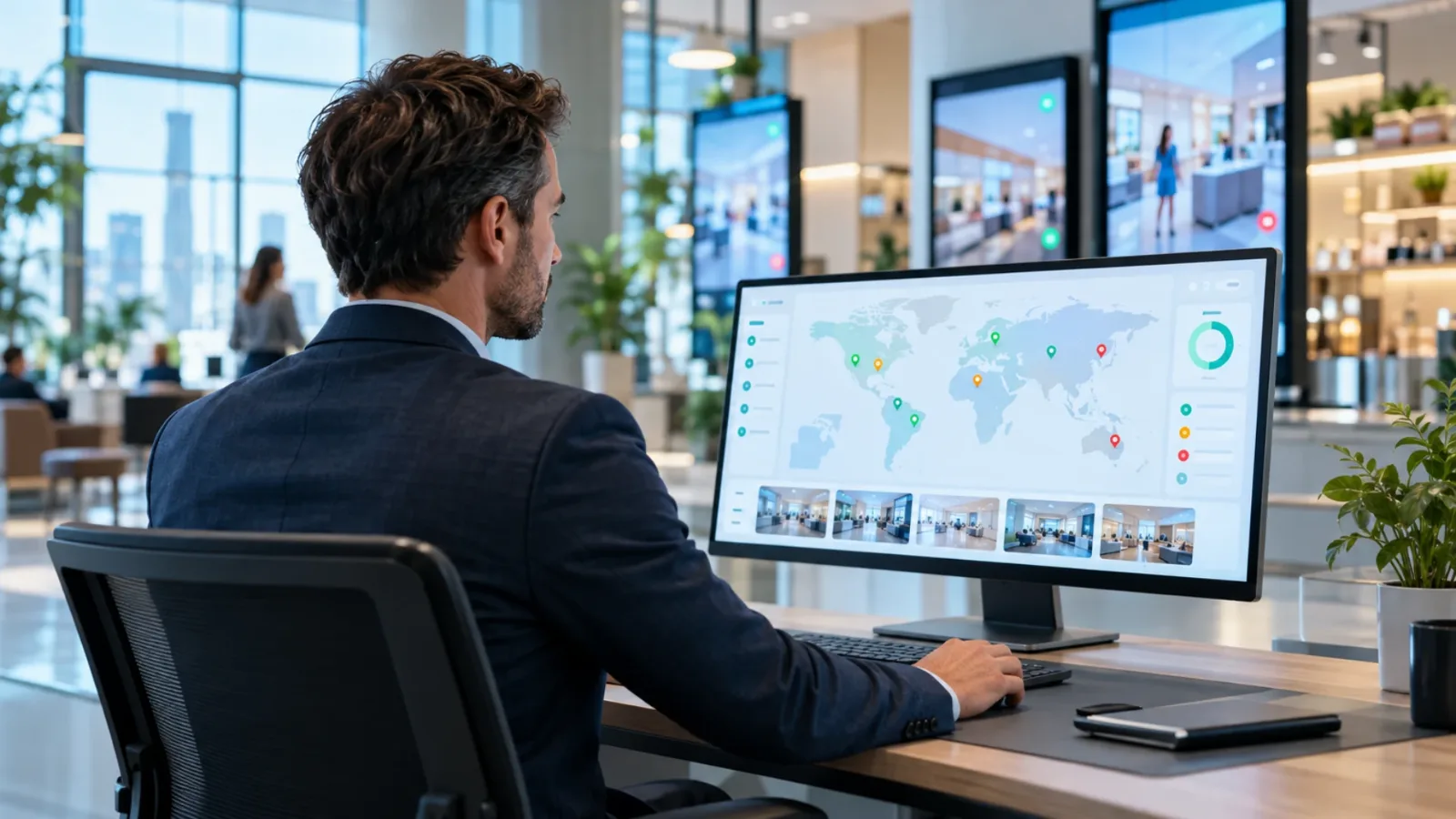
The most practical way to manage screens in multiple locations is through cloud-based digital signage software. Instead of copying files to USB drives or asking staff to update individual TVs, your team signs into one dashboard, changes a playlist or design, and publishes it to the screens assigned to that content.
This approach matters because a TV is only the endpoint. The real system is the content hub behind it. Your marketing team, operations lead, or office manager should be able to control what appears on every display without needing remote access to each store’s network or a technician on site.
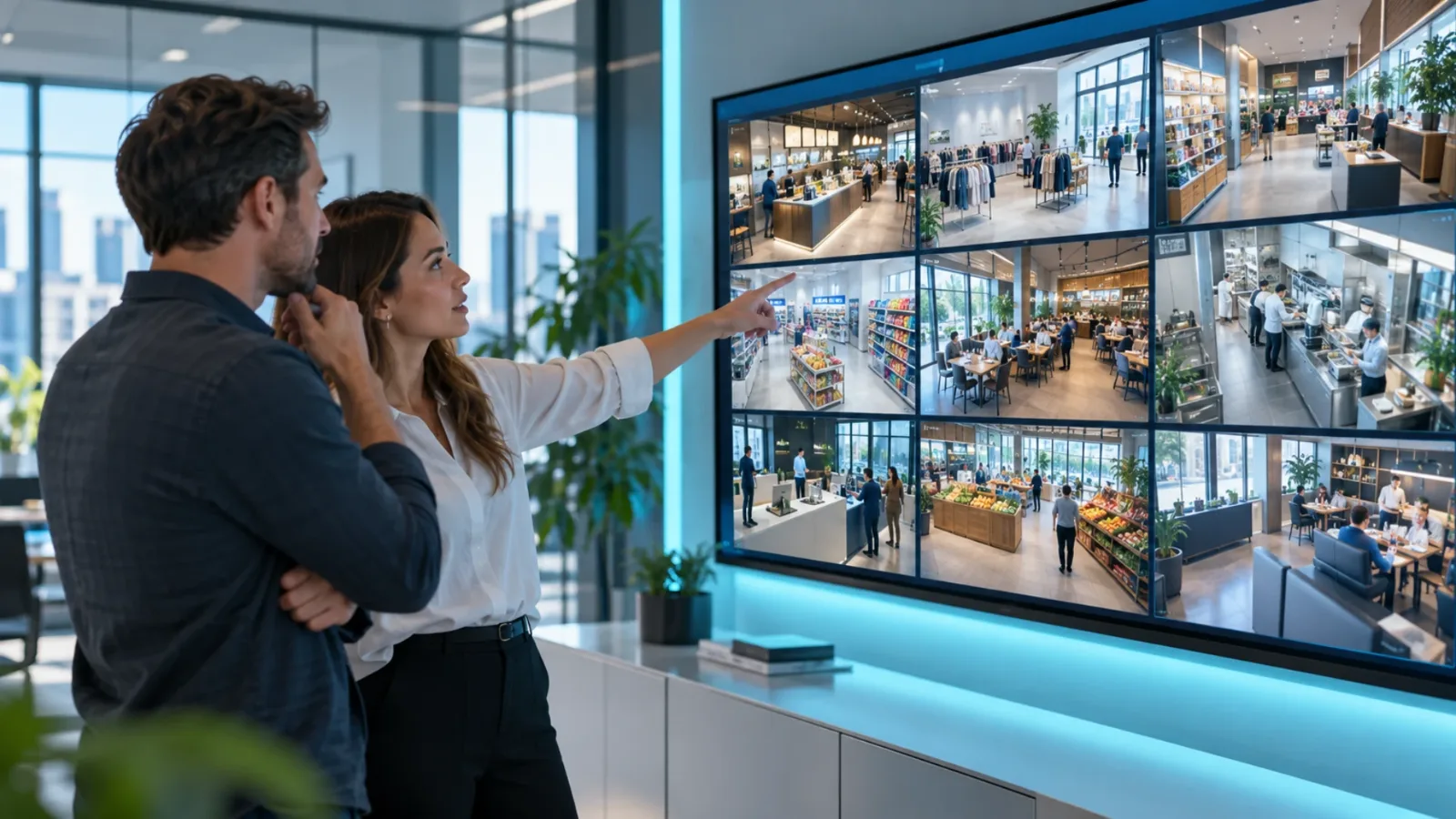
A central platform also keeps the work organized. You can group screens by region, brand, location, department, or use case. A retailer might have separate groups for storefront displays, fitting room screens, and employee backroom communications. A restaurant group might separate drive-thru menu boards from dining room promotions. The screen groups should reflect how your business actually operates.
How to Update TV Screens Across Locations in Four Steps
1. Connect and name every screen clearly
Begin by enrolling each Smart TV or streaming-stick-connected TV into your signage account. Give every display a name that makes its location and purpose obvious, such as “Austin - Lobby TV” or “Chicago - Checkout Screen 2.” Clear naming sounds basic, but it prevents publishing the wrong content to the wrong place when your screen count grows.
You do not need a rack of dedicated media players to create this structure. For many businesses, existing Smart TVs or an inexpensive streaming stick are enough to get connected. That lowers the upfront cost and removes much of the installation work that makes traditional signage projects drag on.
As you add screens, record who owns the physical display at each location. They may not manage content, but they should know how to confirm Wi-Fi, power, and TV input if an issue occurs. Centralized control works best when local teams have a simple escalation path, not a complex technical checklist.
2. Build reusable content and playlists
Avoid designing every update from scratch. Use templates for recurring messages such as weekly promotions, event schedules, service notices, employee recognition, or holiday hours. A drag-and-drop editor helps non-designers create on-brand content quickly while keeping fonts, colors, and layouts consistent.
Then assemble content into playlists. A playlist is the sequence of slides, images, videos, or apps that a screen should play. You can build one master playlist for all locations and layer in local content where needed. For example, every gym location may run the same membership campaign, while each club shows its own class schedule and local trainer spotlight.
This is where centralized signage becomes more useful than sending a single file to every TV. You are not choosing between one-size-fits-all content and total local independence. You can standardize the message that needs to be standard while preserving room for location-specific offers, hours, contact details, or events.
3. Schedule content by time, location, and audience
Not every update should go live immediately. Schedule campaigns to start and stop automatically, including dayparted messages that change throughout the day. A restaurant can show breakfast content in the morning, lunch promotions at midday, and catering offers later in the afternoon. A hotel can display conference directions during an event, then return to general guest information after it ends.
Scheduling also reduces the chance that outdated material stays on screen. Set an end date when a sale, event, or seasonal message is created. If your team has to remember to manually remove every campaign, something will eventually be missed.
For location-specific messaging, assign the right playlist to the right screen group. A national promotion may run everywhere, while a grand opening campaign appears only in a new market. This is especially useful for franchises and regional operators that need brand consistency without forcing every location to run identical content.
4. Publish, verify, and adjust from one dashboard
When content is ready, push it live to the selected screens. The best workflow is immediate: make the change, choose the screen group, publish, and confirm that the devices received it. There should be no waiting for a staff member to download a file, no email chain, and no guessing whether a location completed the update.
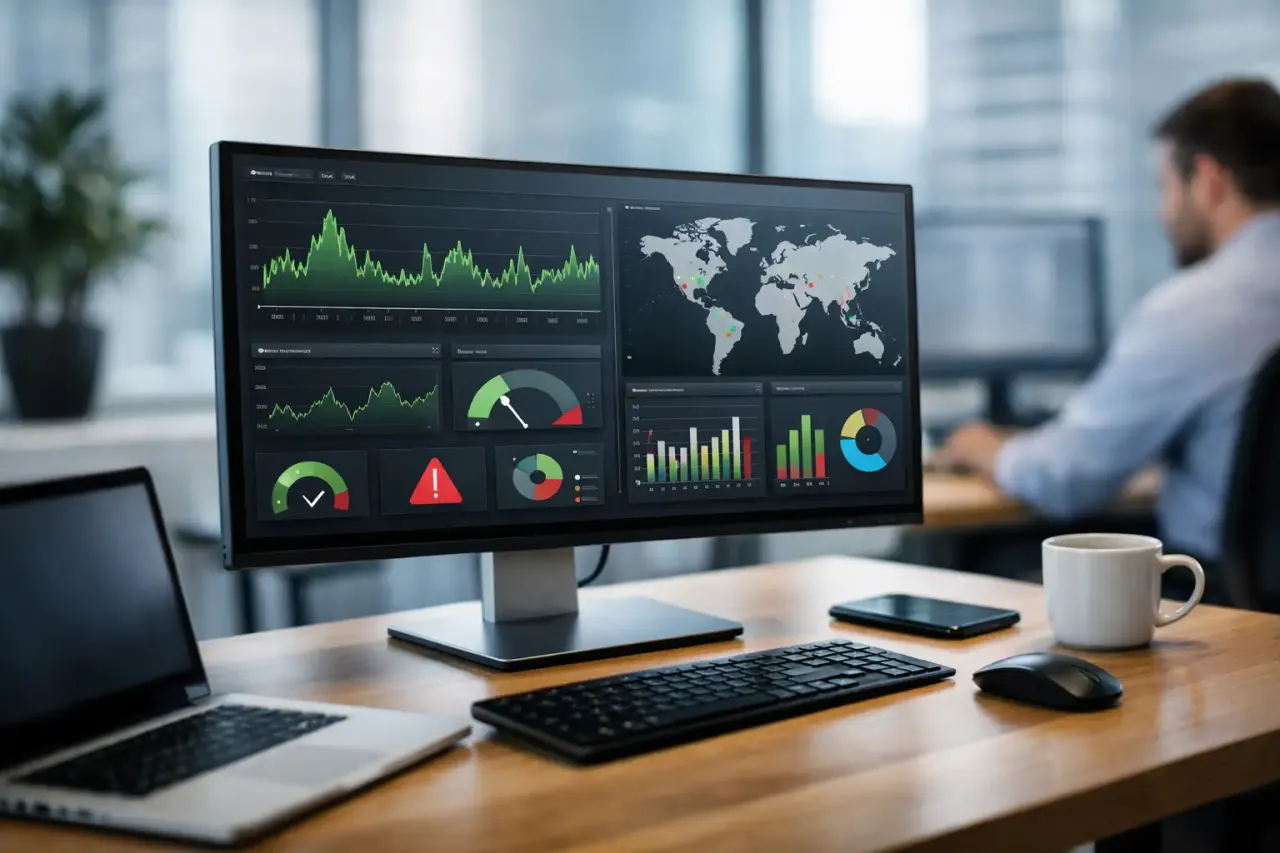
Verification is the step many businesses skip until there is a problem. Use screen status and playback history to check whether devices are online and whether the intended playlist has played. If a screen is offline, you can contact the location with a specific request instead of discovering weeks later that the display has been blank or stuck on stale content.
Offline playback is equally valuable. Internet connections are not perfect, particularly in retail, hospitality, and older buildings. A properly configured screen should continue playing previously downloaded content during a temporary connection loss, then reconnect when service returns. That does not replace stable Wi-Fi, but it protects the customer-facing experience from brief outages.
Decide What Should Be Central and What Should Be Local
Central management does not mean headquarters should control every message. The right balance depends on the business.
Brand campaigns, compliance notices, major promotions, and seasonal creative usually belong with a central team. They need consistency and should be updated once across the network. Local teams are often better positioned to manage store events, community announcements, staffing notices, or inventory-specific promotions.
The key is to set permissions and guardrails before content is needed. Give local managers access to approved templates or designated local playlist zones rather than full control over every display. That keeps the brand clean while allowing locations to move quickly. For a small group of sites, one person may manage everything. For a franchise network or enterprise operation, role-based access becomes far more important.
Replace the Workflows That Create Screen Chaos
USB-based signage is familiar because it looks simple. At one location with one TV, it can be. Across ten, fifty, or five hundred screens, it becomes expensive in staff time and unreliable in practice. Someone has to prepare files, distribute them, visit each screen, swap the drive, and confirm the update. Every step creates another opportunity for delays and mistakes.
Emailing videos to local managers is not much better. Files get buried, formats vary, and there is no dependable record of what actually made it to the screen. Casting can work for a temporary meeting-room display, but it is not built for persistent, scheduled, multi-location communication.
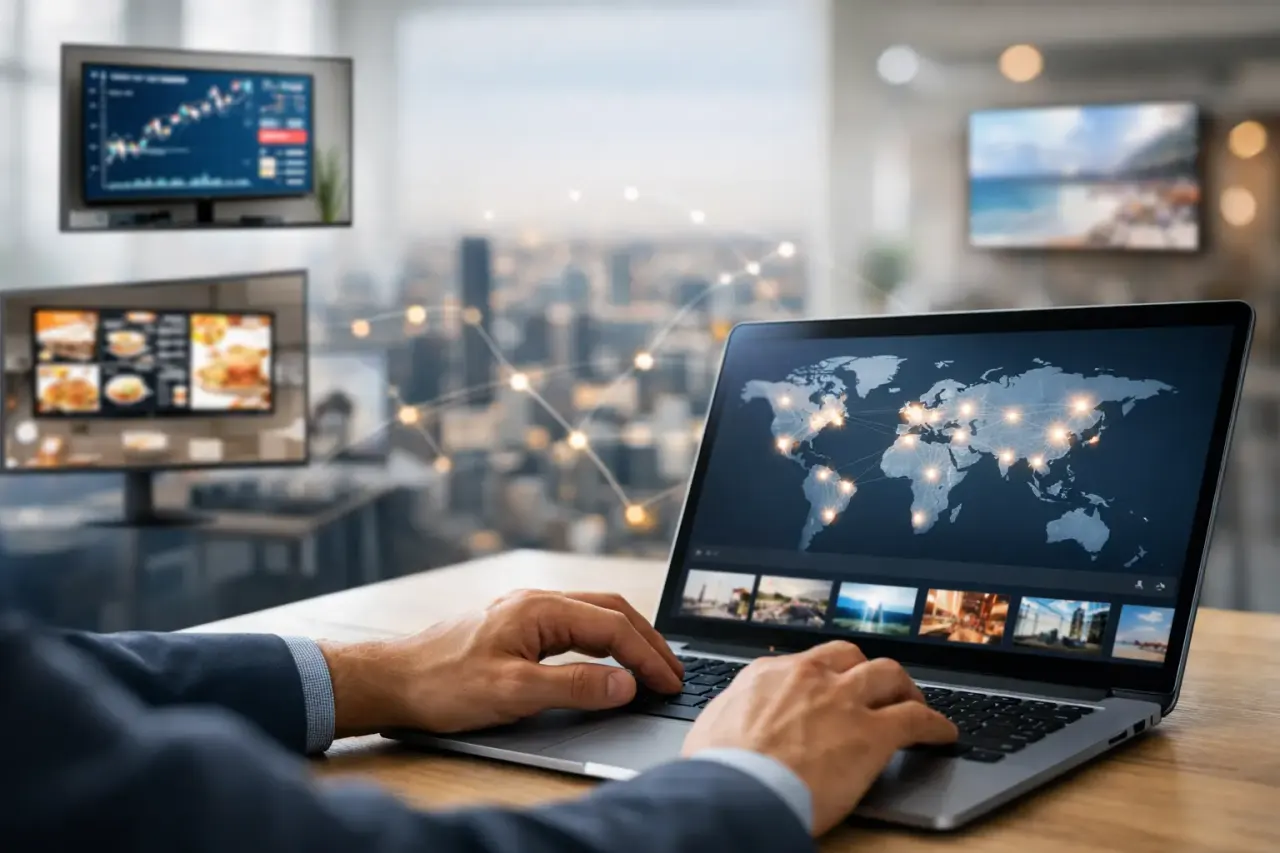
A centralized digital signage platform replaces these fragmented tasks with a repeatable operating process. VitVue, for example, lets teams create, schedule, deploy, and monitor content from one dashboard while using Smart TVs or low-cost streaming devices already suited to the location. The goal is not more technology for its own sake. It is fewer manual steps between an approved message and a live screen.
Set Up a Publishing Routine Your Team Can Maintain
The technology only pays off when the process is simple enough to use every week. Establish a content calendar for predictable updates, such as monthly campaigns, weekly specials, and holiday messaging. Keep urgent messages separate so operations teams can publish a closure notice, service change, or event update without rebuilding the regular playlist.
Before publishing broadly, test new layouts on one or two screens. Check readability from the normal viewing distance, verify that any video plays correctly, and make sure time-sensitive messages use the right dates. A screen can be online and still fail its purpose if the text is too small or the offer is no longer valid.
It also helps to define a short approval path. Marketing may own the creative, operations may approve timing, and local managers may supply site details. The fewer unclear handoffs in that chain, the faster your screens become useful.
Measure Whether Screens Are Actually Working
Uptime and play history answer the first question: did the content display? From there, connect screen activity to a practical business outcome. A retail team can compare promotion periods with product sales. A clinic can watch whether check-in questions decline after adding clearer wayfinding. A corporate office can use quick employee feedback to improve internal communications.
Not every screen needs the same metric. A lobby display may be about reducing confusion, while a menu screen may be about increasing average order value. Decide what each screen is meant to do before measuring it. That prevents teams from filling displays with content simply because the screen is available.
The strongest multi-location screen programs feel calm from the customer’s perspective and controlled from the operator’s perspective. Build a system where a change can be made once, directed where it belongs, checked remotely, and refined without sending anyone to a TV with a USB drive.