How to Schedule Screen Content Without the Chaos
Learn how to schedule screen content by location, time, and audience, so every display stays current without USB drives, media players, or IT for teams.
On this page
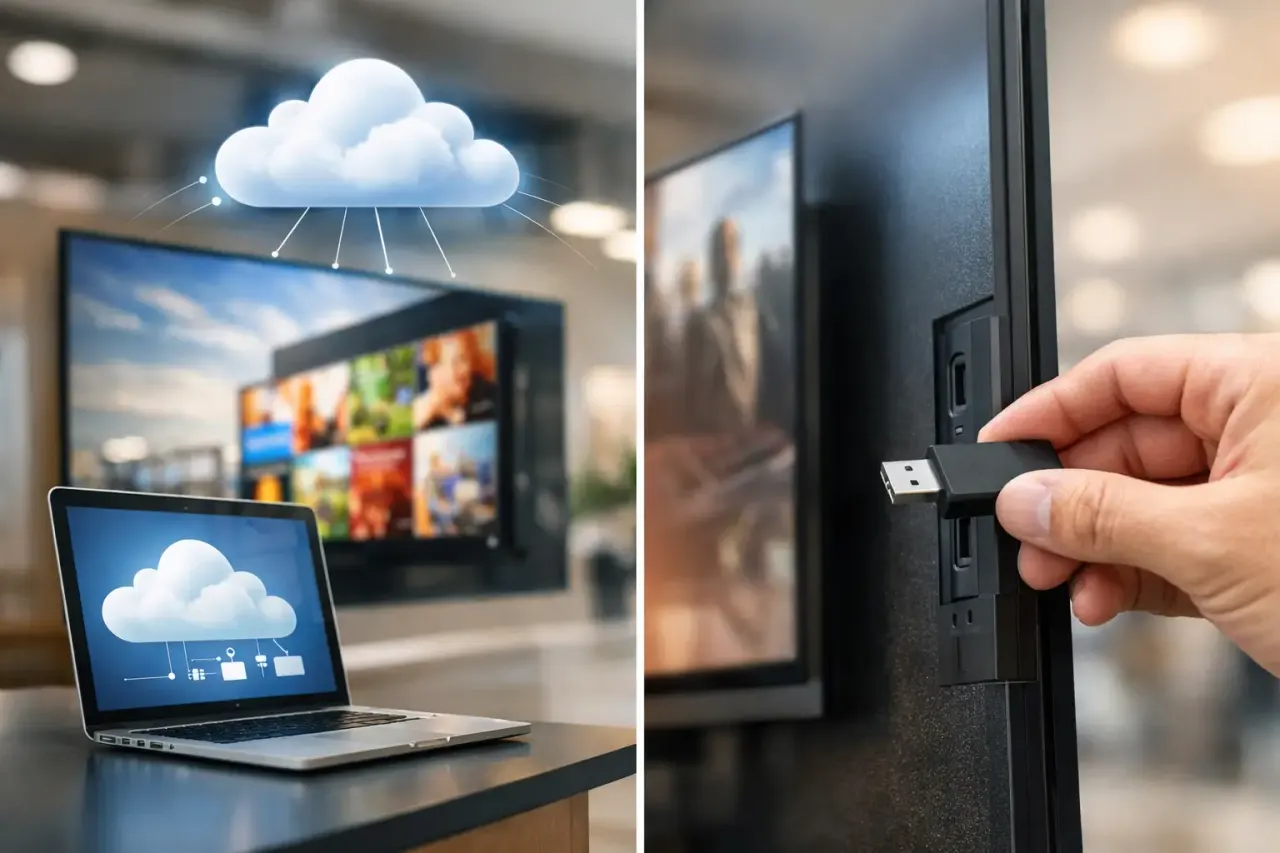
A lunch promotion that runs after 3 p.m. is not just outdated. It takes up screen space that could be driving the next purchase. The same applies to expired events, old pricing, and generic messages shown in the wrong location. Learning how to schedule screen content gives every display a job to do at the right moment, without someone visiting each TV with a USB drive.
For a single location, that may mean swapping breakfast menus for lunch menus automatically. For a multi-location brand, it means keeping national campaigns consistent while letting each store show its own hours, local offers, and announcements. The goal is simple: put the right message in front of the right audience, on the right screen, at the right time.
How to Schedule Screen Content Around Real Business Hours
Start with the customer journey, not the content library. A screen near a restaurant entrance has a different purpose from a screen behind the counter. A gym lobby needs a different message at 6 a.m. than it does at 6 p.m. Scheduling works when each screen has a clear role before you decide what plays on it.
Map your day into the moments that affect customers or staff. Most businesses do not need a different playlist every hour. They need useful dayparts: opening, peak traffic, afternoon, evening, and closing. A retail store might feature new arrivals in the morning, bundle offers during lunch traffic, and loyalty reminders near closing. A clinic may show check-in guidance during busy appointment windows and health education content between peaks.
Keep the schedule tied to operational reality. If your kitchen stops serving breakfast at 10:30 a.m., set the breakfast menu to end at 10:30, not 11:00. If a promotion ends Sunday night, give it a hard end date. These details prevent the most common signage failure: screens displaying content that staff have already stopped honoring.
Build playlists before you build schedules
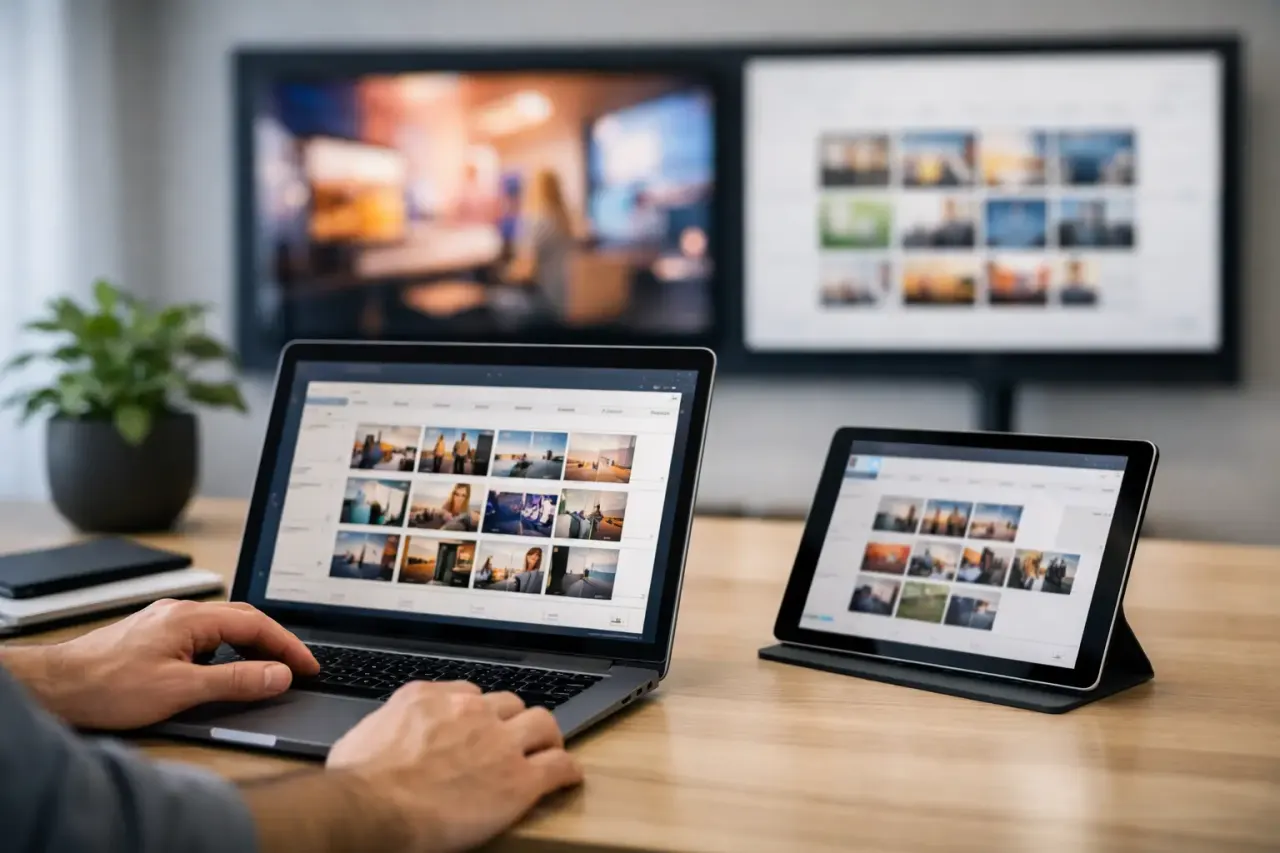
A playlist is the content sequence a screen will play. Create playlists around a purpose, such as Breakfast Menu, Lunch Menu, Weekend Promotion, Staff Updates, or Lobby Welcome. This makes scheduling faster because you are assigning a ready-to-use content group rather than rebuilding individual slides every time.
Each playlist should have a focused job. A screen showing a menu should not also be crowded with a long employee message. A corporate lobby screen can rotate visitor information, company news, and event notices, but it should not become a catch-all for every department request.
Plan for duration as well as content. If a playlist has 20 slides, customers may never see the offer you care about most. For high-traffic customer screens, keep the loop short enough that a person waiting in line can see the key message. Longer loops can work better in waiting rooms, break rooms, and hotel lobbies where viewers stay longer.
Set priorities for overlapping content
Schedules can collide. A recurring lunch playlist may overlap with a one-day product launch, an emergency notice, or a local event. Decide in advance which message wins.
Use a simple priority order: urgent notices first, time-sensitive campaigns second, core operational content third, and evergreen brand content last. That hierarchy protects the screen from becoming unpredictable when several teams publish content at once.
A short-term campaign should have exact start and end times. Evergreen content can fill the gaps. This approach keeps screens active without forcing your team to manually restore the standard playlist after every event.
Schedule by Location, Not Just by Time
A schedule that works at headquarters may fail in the field. Locations have different opening hours, customer patterns, local regulations, and offers. Even two stores in the same city can need different content if one serves office traffic and the other serves families.
Group screens by what they have in common. You might create groups for all locations, a specific region, a store format, or a single location. Then apply national content broadly while reserving local playlists for the screens that need them. This is faster than managing every TV as a separate exception, but it still gives local operators room to act.
For example, a franchise group can schedule a company-wide seasonal campaign across every display, then add local fundraiser details to just the participating stores. A hotel brand can push standard guest messaging everywhere while each property schedules its own breakfast hours, meeting room notices, and weekend events.
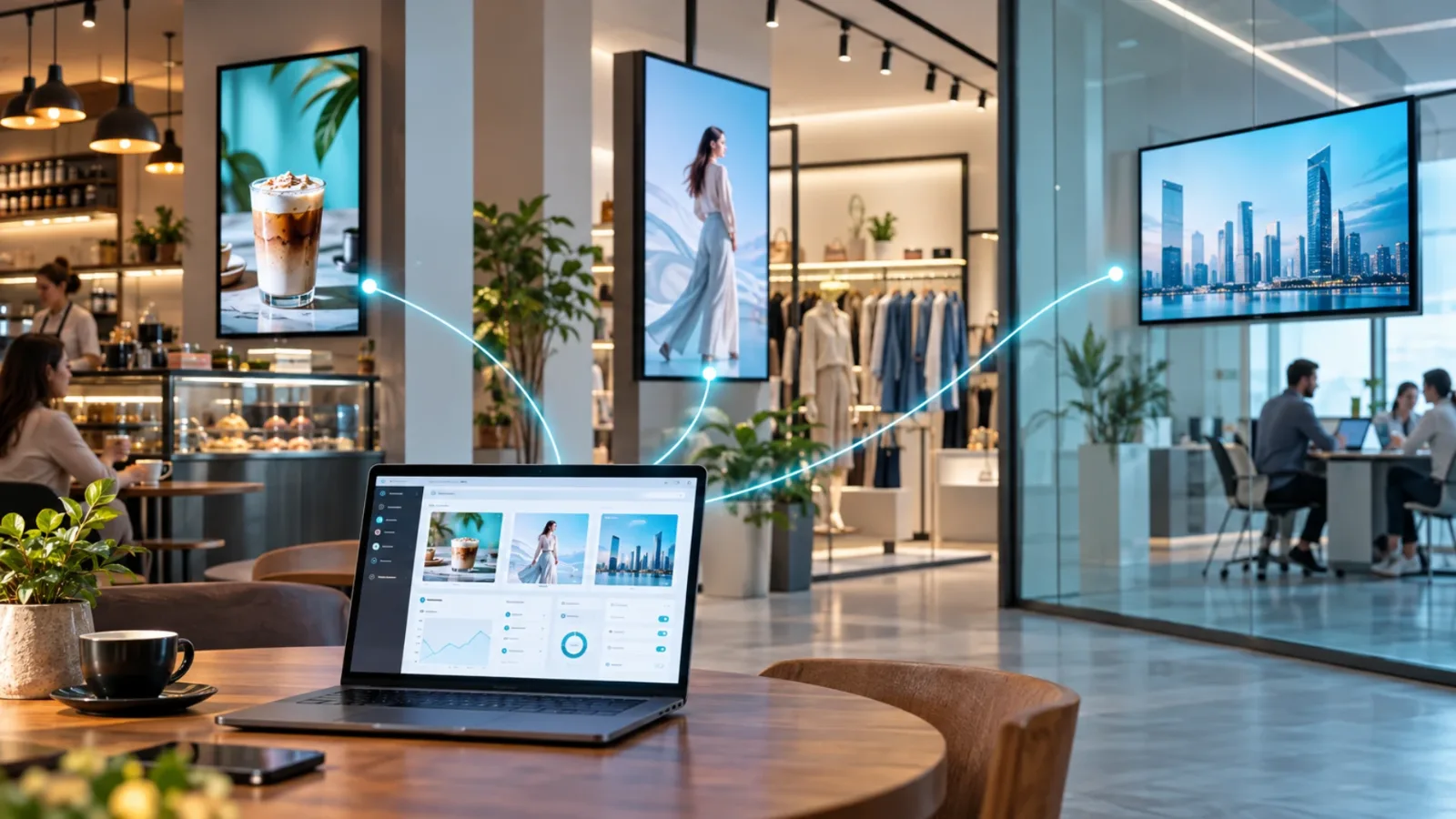
This is where centralized digital signage earns its value. With VitVue, teams can create playlists, assign schedules, and push changes across screens from one dashboard instead of relying on local staff to update each display manually.
Account for time zones and local exceptions
For brands operating across states, check whether schedules follow the screen's local time. A 9 a.m. promotion should appear at 9 a.m. in each location, not at 9 a.m. in the time zone where the marketing team works.
Also set a process for exceptions. Holiday hours, weather closures, private events, and inventory shortages can make a standard schedule inaccurate. The best setup lets a local manager temporarily replace content without breaking the larger campaign structure. Once the exception ends, the normal schedule should resume automatically.
Use Content Rules That Reduce Manual Work
The strongest schedule is not the one with the most rules. It is the one your team can understand and maintain. Build a small set of repeatable scheduling patterns, then reuse them.
A restaurant may use weekday, weekend, and holiday templates. A retailer may use regular hours, promotional events, and clearance periods. An office may use business hours, visitor events, and after-hours messaging. Reusable patterns reduce setup time and make it less likely that someone forgets to schedule a campaign ending.
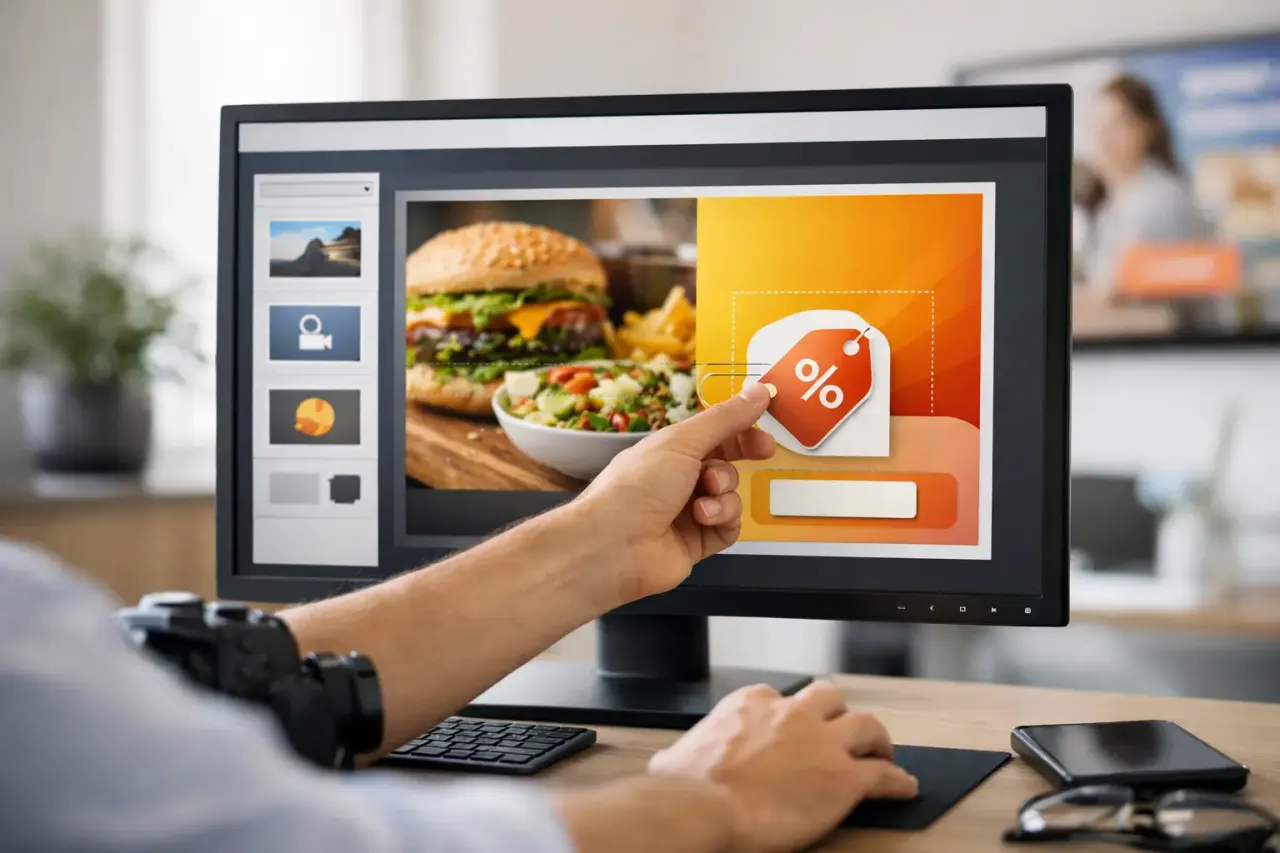
Set content expiration dates whenever a message has a deadline. Promotions, event invitations, pricing, and seasonal material should never depend on a person remembering to remove them. An expiration date protects your customer experience and reduces unnecessary work for your team.
Use recurring schedules for content that repeats every week. A gym class schedule, a Friday special, or a Monday staff reminder should be automated once and left alone until the message changes. That is the difference between a screen network that saves time and one that creates another weekly task.
Test Schedules Before They Reach Every Screen
A perfectly planned schedule can still fail if a file is unreadable, a screen is assigned to the wrong group, or an old playlist takes precedence. Test important campaigns on one or two screens before sending them to every location.
Check the basics: Is the correct playlist playing? Are start and end times accurate? Does the content look right at viewing distance? Is the text large enough for a customer standing several feet away? If the message includes a price, date, or offer condition, confirm it matches the operational details staff are using.
For large rollouts, create a simple approval process. Marketing owns the message, operations confirms the offer can be delivered, and the location team verifies that the screen placement makes sense. You do not need a slow committee for every slide, but high-impact content should have clear ownership.
Monitor What Is Actually Playing
Scheduling is only useful if the screen is online and showing the intended content. USB workflows offer almost no visibility after the file leaves the office. A centrally managed platform gives your team a way to confirm screen status, review playback history, and spot devices that need attention.
This matters most across multiple locations. If a display goes offline before a major campaign, you need to know before a store manager or customer points it out. If a playlist did not play as expected, playback records help your team identify whether the issue came from the schedule, the screen assignment, or the device connection.
Offline playback is also worth considering. Internet interruptions happen, especially in busy locations with shared networks. Screens should continue showing previously downloaded scheduled content when a connection drops, then reconnect and receive updates when service returns. That keeps a temporary network issue from turning into a blank screen.
Make Screen Scheduling Part of Your Weekly Workflow
Treat screen content like an operational channel, not a last-minute design task. Set a weekly time to review upcoming promotions, events, menu changes, and location needs. Schedule content ahead of time, then leave room for the exceptions that genuinely require a live update.
The best screen schedule is nearly invisible to the people running it. Content changes when the business changes. Local teams see messages they can support. Customers get information that is current, useful, and timed for the decision in front of them. Start with one screen, one playlist, and one business moment worth improving, then build from there.
Read our guide to cloud based digital signage software.