How to Deploy TV Signage Without Extra Hardware
Learn how to deploy TV signage using existing screens, central control, smart schedules, and live updates - without media players or IT delays at scale.
On this page
A restaurant manager should not need to visit every location with a USB drive just to change a lunch promotion. Neither should a retail team wait on IT to update a price message that needs to be live before the store opens. That is the practical answer to how to deploy TV signage: use the screens you already own, connect them to a cloud-managed platform, and make every update from one place.
For most businesses, the hard part is not mounting a TV. It is building a system that stays current after launch. The right deployment gives operators control over content, schedules, screen status, and multi-location consistency without adding a stack of expensive media players or creating more work for on-site staff.
Start With the Screens You Already Have
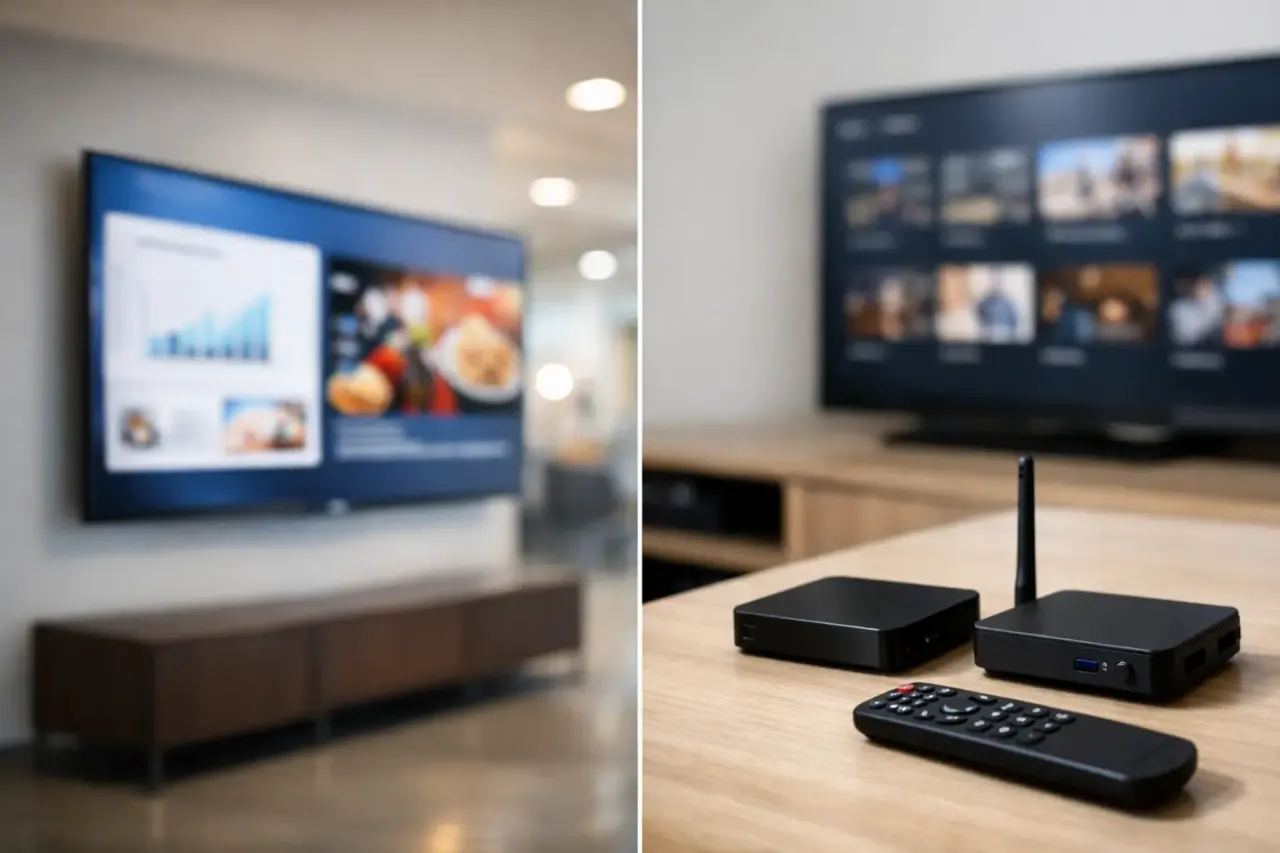
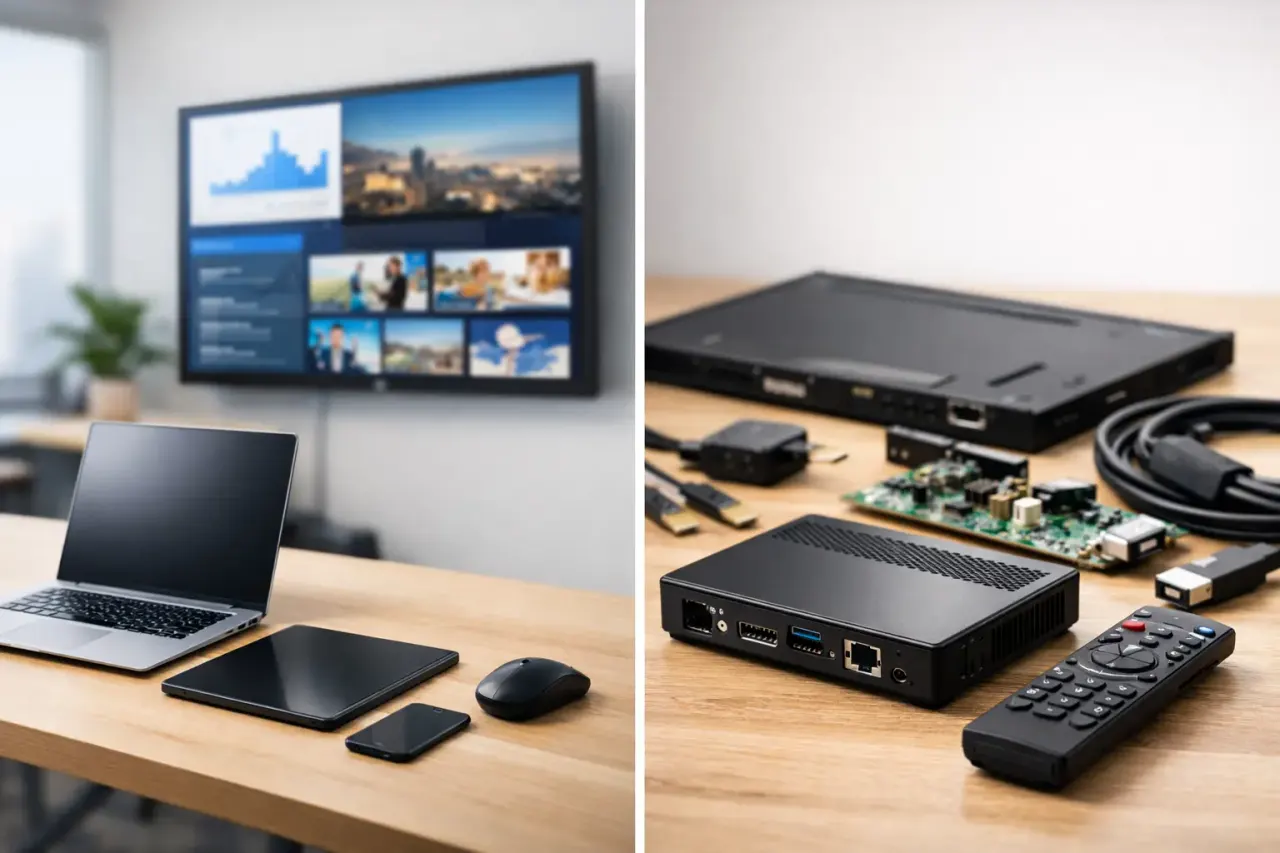
Before buying new hardware, audit what is already installed. Many Smart TVs can run a digital signage app directly. If a display is not smart or does not support the app you need, a low-cost streaming stick can usually provide the connection. Either route is far simpler than installing a dedicated media player behind every screen.
Create a screen inventory that includes the location, room or zone, TV model, screen orientation, network type, and intended content. A hotel lobby display has different needs than a back-of-house staff screen. A gym may need class schedules in one area and membership promotions near the front desk. Defining the job of each screen upfront prevents a common mistake: deploying identical content everywhere because the system was never organized around real use cases.
This is also the point to decide which displays need portrait layouts and which need landscape. Rotating a screen after templates and playlists are built creates avoidable rework. A few minutes of planning saves hours of redesign later.
Build a Network Plan That Supports Playback
Digital signage does not need a complex network architecture, but it does need a reliable connection during setup and when new content is published. Use the business Wi-Fi network or a wired connection where available. For public-facing environments, keep signage devices separated from guest Wi-Fi whenever possible.
Bandwidth requirements are usually manageable because the screen downloads content and can continue playing cached media when the connection drops. Still, unreliable Wi-Fi can slow initial provisioning and delay live changes. Test connectivity at the actual display location, especially in large stores, older buildings, warehouses, and outdoor-adjacent areas where signal strength may be inconsistent.
Ask three operational questions before rollout: Who owns the Wi-Fi credentials? Who can approve a new device on the network? And who will be the local contact if a screen is moved, unplugged, or replaced? Clear answers keep a small issue from turning into a multi-day support chain.
How to Deploy TV Signage in Minutes
A modern deployment should follow a simple sequence: install the signage app, pair the screen to your dashboard, assign content, and confirm playback. The physical screen can stay where it is. There is no need to wire a separate media player, manage a pile of remotes, or send a technician to every location for routine changes.
With VitVue, each screen receives a pairing process that connects it to a central account. Once paired, the display appears in the dashboard where you can name it, group it by location, and assign the correct playlist. This matters when you manage more than a handful of screens. A clear naming convention such as Chicago - Lobby - Screen 1 or Austin - Drive-Thru Menu keeps teams from publishing the right content to the wrong display.
Do not launch every screen at once unless the rollout is very small. Start with one pilot location or one representative screen type. Test video, images, layout scaling, scheduling, and offline playback. Then use that successful configuration as the model for the rest of the network.
A pilot is not a delay. It is how you avoid discovering that your promotional content is unreadable from six feet away after it has already been published to 40 sites.
Create Content for the Distance People Actually Stand
A TV in a business location is not a desktop browser. People may see it while walking, waiting in line, checking in, or exercising. Your content needs to communicate quickly.
Keep the hierarchy clear: one primary message, a readable supporting line, and a direct next action where relevant. A restaurant may promote a limited-time item with a high-quality image, price, and ordering prompt. A clinic may show check-in instructions, service reminders, and health education. A corporate office may rotate meeting updates, safety information, and recognition messages.
Avoid treating every screen like a presentation slide. Dense paragraphs, tiny prices, and crowded graphics lose attention fast. If viewers need more than a few seconds to understand the message, split the information across multiple slides or simplify the design.
Ready-made templates can speed up production, but they still need brand discipline. Use approved colors, legible fonts, and current offers. The benefit of a drag-and-drop editor is not just faster design. It gives non-design teams a controlled way to make routine updates without rebuilding every layout from scratch.
Use Playlists and Schedules to Make Screens Relevant
The strongest signage deployments do not show the same loop all day. They use schedules to match the message to the moment.
A quick-service restaurant can feature breakfast promotions in the morning, lunch offers at midday, and family bundles in the evening. A retail store can run weekday promotions during business hours and switch to hiring messages near closing. A school can display daily announcements before classes, event information in the afternoon, and emergency messaging when needed.
Organize this through playlists rather than one oversized sequence. Build playlists around a purpose, location, audience, or time of day. Then assign them to individual screens or screen groups. This gives local managers flexibility while keeping central marketing in control of brand-critical content.
There is a trade-off. Too many schedules can become difficult to maintain, especially when promotions change often. Start with a small number of repeatable dayparts and add complexity only when it produces a real business benefit. A schedule should reduce manual work, not create a calendar nobody trusts.
Group Screens for Multi-Location Control
When every display is managed individually, growth gets expensive. Group screens by store, region, business type, or campaign. A franchise group might have an all-locations group for approved brand content, regional groups for market-specific messages, and store-level groups for local events.
This structure makes live updates practical. If a product is out of stock nationwide, remove the promotion once and publish the change across the relevant screens. If one location is hosting a community event, update that store without affecting the rest of the network.
Set permissions with the same discipline. Corporate teams may control templates and national campaigns, while local teams can edit approved content zones or choose from assigned playlists. The goal is not to lock local teams out. It is to give them useful control without opening the door to off-brand, outdated, or unapproved messaging.
Verify Every Screen Is Actually Playing
A screen that is powered on is not necessarily displaying the right content. That is why monitoring matters after deployment. Your dashboard should show which screens are online, when they last checked in, and what content has been scheduled or played.
Use uptime and play history to catch problems before customers do. A screen may be offline because a power cable was bumped, the TV input changed, or the network dropped. A scheduled campaign may be missing because the playlist was assigned to the wrong group. Central visibility turns these from location-level mysteries into quick operational fixes.
Make screen checks part of a simple routine. For a single location, a manager may review status once a week. For a multi-location brand, a marketing or operations owner may review exceptions daily and follow up only on offline or misconfigured displays. No IT team is required for most of these tasks, but someone should own them.
Plan for the First 30 Days, Not Just Launch Day
The first month tells you whether your signage system is helping the business or just adding another screen to maintain. Track which promotions run, whether teams update content on time, and which screen placements get the most attention. If a display has low visibility, changing the playlist will not solve the problem. It may need a better physical location, brighter content, or a different role.
Keep a small content cadence as well. Review offers weekly, replace expired campaigns immediately, and refresh recurring messages before they become background noise. Digital signage works best when customers have a reason to look up again.
A successful deployment is not measured by how many TVs are mounted. It is measured by how quickly your team can put the right message in front of the right audience, then know with confidence that it is playing. Start with one screen, prove the workflow, and scale only when the system feels easier than the USB drive it replaced.
Read our guide to cloud based digital signage software.