Why Digital Signs Go Black and How to Fix Them
Why digital signs go black, how to identify the real cause, and practical fixes that keep every screen online, visible, and ready for customers each day.
On this page
A black screen at the front counter, in a waiting room, or above a menu board creates an immediate problem: customers see nothing, and your team has no time to guess. Understanding why digital signs go black helps you restore the display quickly and prevent the same issue from spreading across locations.
The cause is not always the TV itself. A black digital sign can come from a power setting, a loose connection, an unavailable input, an app issue, weak network access, or content that failed to download. The fastest fix is a disciplined check of the screen, then the player or app, then the network and content setup. That order prevents unnecessary replacements and avoids a support ticket that starts with, "We tried everything."
Why Digital Signs Go Black
A screen that appears black can mean several different things. The TV may be powered off, but it may also be on with no active video signal. It may be showing a black asset from a scheduled playlist, or the signage app may be running without the content it needs to display. Those scenarios look similar from across the room, but they require different actions.
Start by looking for small clues. Is the TV's power light on? Does the remote bring up the TV settings menu? Does the screen briefly show a manufacturer logo after a restart? Can you see a faint image if the room is dark? These observations separate a display hardware issue from a signage delivery issue in minutes.
The screen lost power or entered a power-saving mode
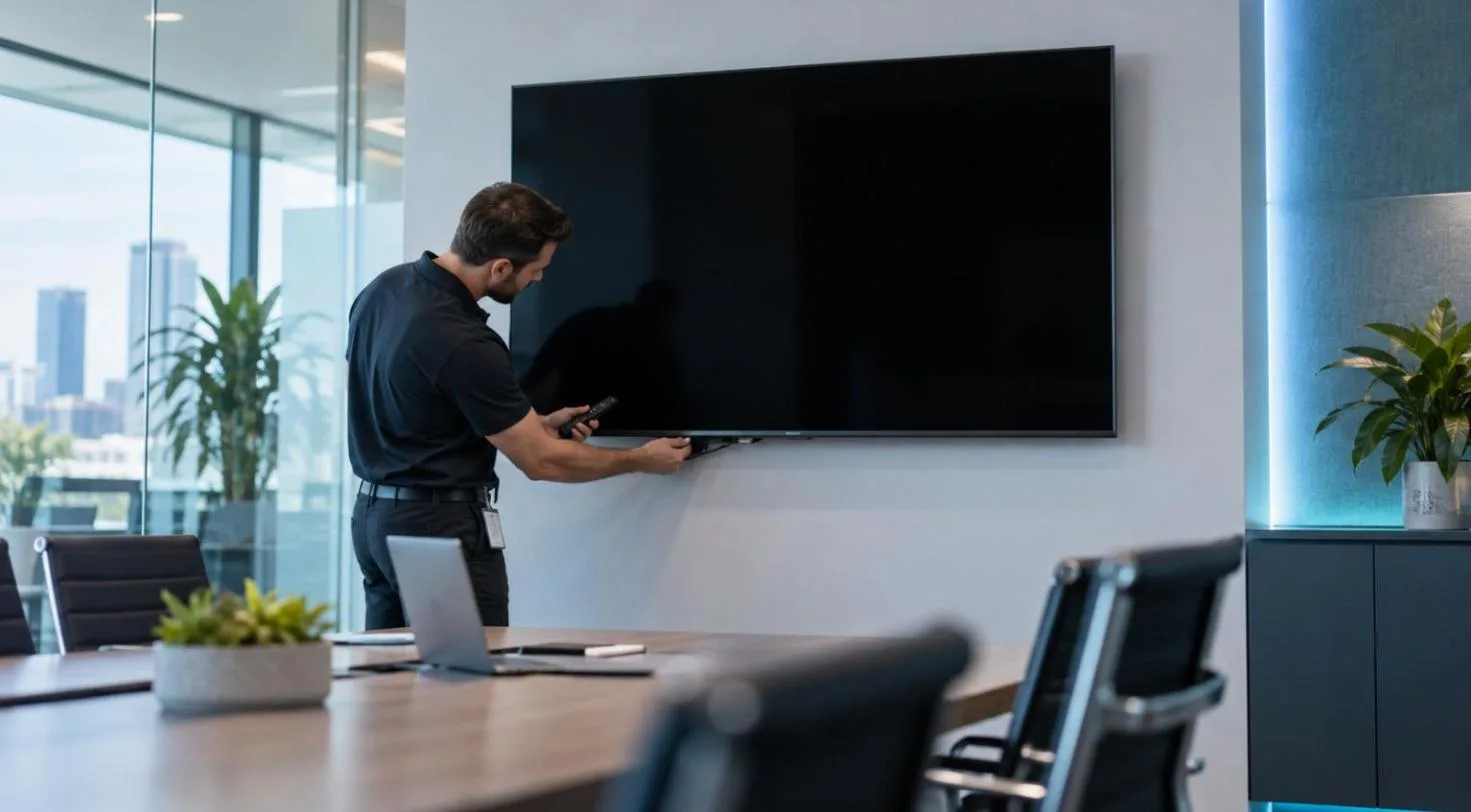
This is the simplest cause and one of the most common. A power strip may have been switched off, a plug may have loosened during cleaning, or a circuit may have tripped. In restaurants, retail stores, and gyms, screens are often connected to outlets that staff use for other equipment. That makes accidental shutdowns more likely than most teams expect.
Also check the TV's own settings. Many Smart TVs have sleep timers, auto-off settings, eco modes, and occupancy-based power controls. A display might work perfectly during setup, then turn black after several hours with no remote interaction. If the sign runs during business hours only, use a deliberate on/off schedule rather than relying on default energy settings.
The TV is on the wrong input
A black screen often appears after a power event, a firmware update, or someone pressing the input button on the remote. The TV may be waiting for HDMI 1 while your streaming stick is connected to HDMI 2. Or it may have switched from its internal Smart TV app to an empty input.
Check the selected source before changing anything else. If your signage runs through a streaming stick, confirm that the correct HDMI input is active and that the stick has power. If your signage uses the TV's native app, make sure the TV has not opened a different app or an idle home screen instead.
HDMI cables, adapters, or streaming sticks are failing
If the TV menu displays normally but the signage source stays black, inspect the connection path. HDMI cables can work intermittently before they fail completely. Low-cost adapters can loosen over time, especially when a TV is mounted high on a wall and the cable hangs under its own weight. Streaming sticks may also lose power when they rely on a TV USB port that shuts off during standby.
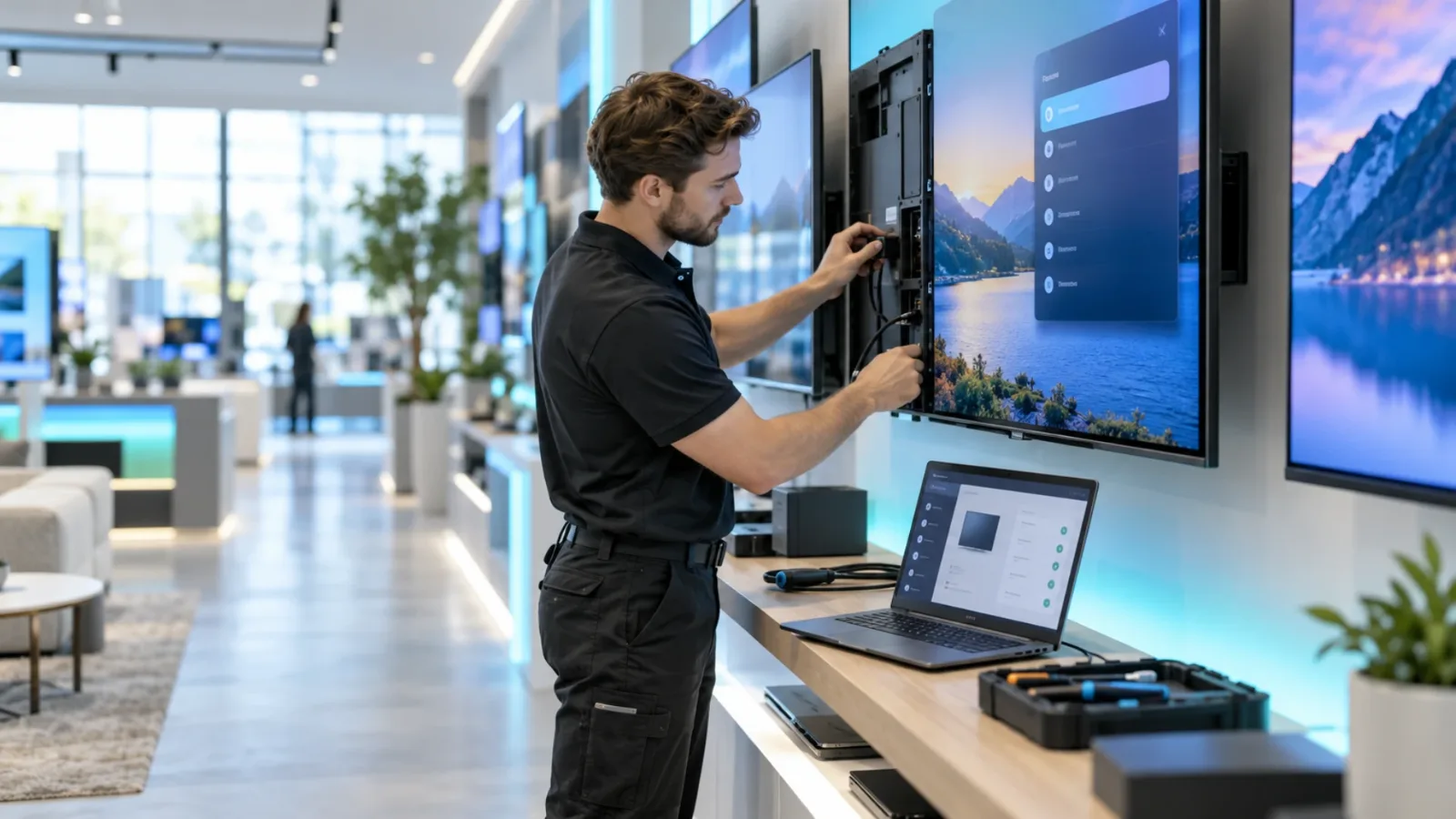
Reseat the HDMI cable and power connection first. Then test the source on another screen or test the screen with a known working source. This isolates the failure without replacing multiple parts at once. For streaming-stick deployments, use the manufacturer-approved power adapter when possible. It is more reliable than assuming every TV USB port supplies consistent power.
The display is connected, but the signage app is offline
A digital signage app needs enough connectivity to receive new content, report its status, and refresh scheduled changes. When Wi-Fi drops, the result depends on how the system handles offline playback. A well-configured platform will continue playing downloaded content, but it cannot show a newly scheduled campaign until the connection returns.
If the screen has gone fully black, look beyond the Wi-Fi icon. The device may have joined a guest network with a sign-in page, lost its saved password, or moved out of range after a router change. A network that works for a phone is not always stable enough for a wall-mounted display at the far end of a building.
For multi-location teams, this is where remote device status matters. With VitVue, teams can monitor screen availability and play history from one dashboard instead of waiting for a store employee to notice a problem. That visibility turns a vague "the sign is down" report into a specific next action.
The playlist, schedule, or media file is the problem
Not every black screen is a device failure. A playlist may contain a black image, an empty slide, or a video that did not process correctly. A schedule can also leave a gap between campaigns. For example, a breakfast menu may end at 10:30 a.m., while the lunch playlist is not scheduled to begin until 11:00 a.m. The screen is functioning exactly as configured, but the result is still a blank customer-facing display.
Open the active playlist and review it in sequence. Confirm that every slide has visible content, videos have completed processing, and the playlist is assigned to the correct screen. Then review the schedule by day and time, including time zone settings. This is especially important for franchise groups and regional locations that operate on different hours.
A Fast Troubleshooting Sequence
When a screen goes black, avoid starting with a factory reset. Factory resets take time, remove useful settings, and can create a new setup task during a busy shift. Use a simple progression that narrows the cause.
First, confirm that the TV has power and can display its own settings menu. If it cannot, check the outlet, power cable, power strip, and TV hardware. Next, verify the input source. If the TV is working but the content source is missing, inspect the HDMI connection or launch the native signage app.
Then restart the display and its connected device. A controlled restart resolves many temporary app, memory, and handshake issues. Give the device enough time to reconnect before making additional changes. Restarting it repeatedly can make it harder to identify whether the network or app actually recovered.
After that, check network access and device status in your signage dashboard. If the device is online but the screen remains blank, inspect the assigned playlist and schedule. If it is offline, focus on Wi-Fi, Ethernet, network credentials, and any captive portal requirements. This sequence keeps the troubleshooting effort proportional to the problem.
Prevent Black Screens Before They Disrupt a Location
The best fix is a setup that makes black screens less likely and easier to spot. That starts with choosing stable power and network connections. Keep power cables secured, label the correct HDMI input, and document which outlet and network each display uses. Small details matter when the person troubleshooting is a shift manager, not an IT technician.
Build playlists with a fallback message. Instead of allowing an empty schedule window, assign a simple branded slide such as store hours, a promotion, or a "Check back soon" message. It is better for customers and makes a scheduling gap obvious to your team.
Set clear rules for screen ownership. Someone should be responsible for checking that displays are on at opening, displaying the intended content during the day, and powered down only when planned. Centralized monitoring reduces that manual burden, but local staff still need an easy escalation path when a screen has a physical power or connection issue.
Finally, treat display health as an operational metric, not an afterthought. Review uptime and playback history regularly, especially after a network upgrade, a new campaign launch, or a rollout to additional locations. A digital sign only earns its space when it is visible, current, and working.
A black screen does not have to become a customer complaint or a costly service call. Give every display a reliable power path, a confirmed content fallback, and a simple way to verify status remotely. Your team can then spend less time chasing cables and more time putting the right message in front of customers.
Learn why you can run digital signage without a media player.
Read our guide to cloud based digital signage software.