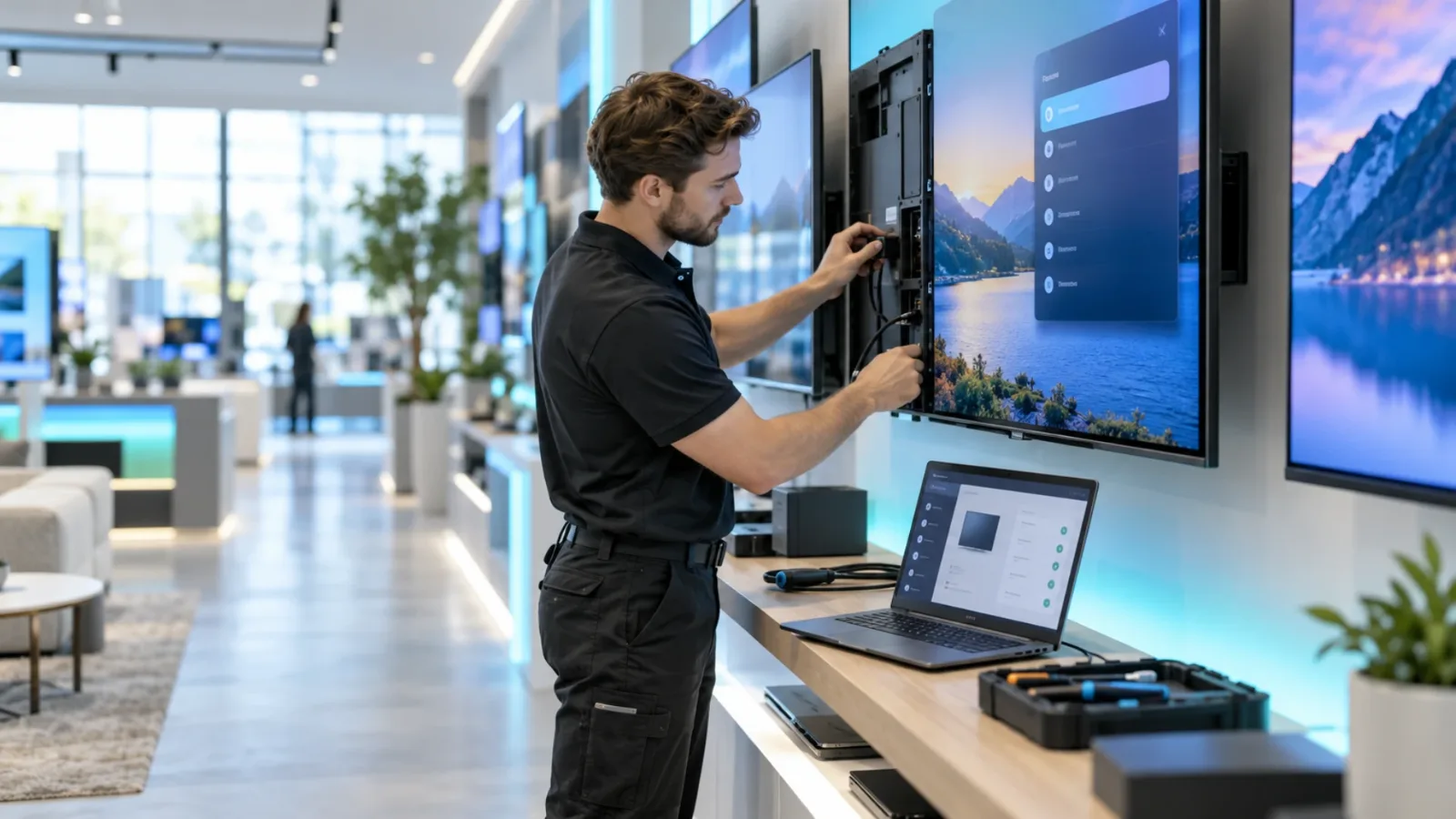
Why Do Screens Go Black? Fixes for Business TVs
Why do screens go black at work? Find the common power, input, network, and signage app issues, then keep every business display reliably on, every day.
On this page
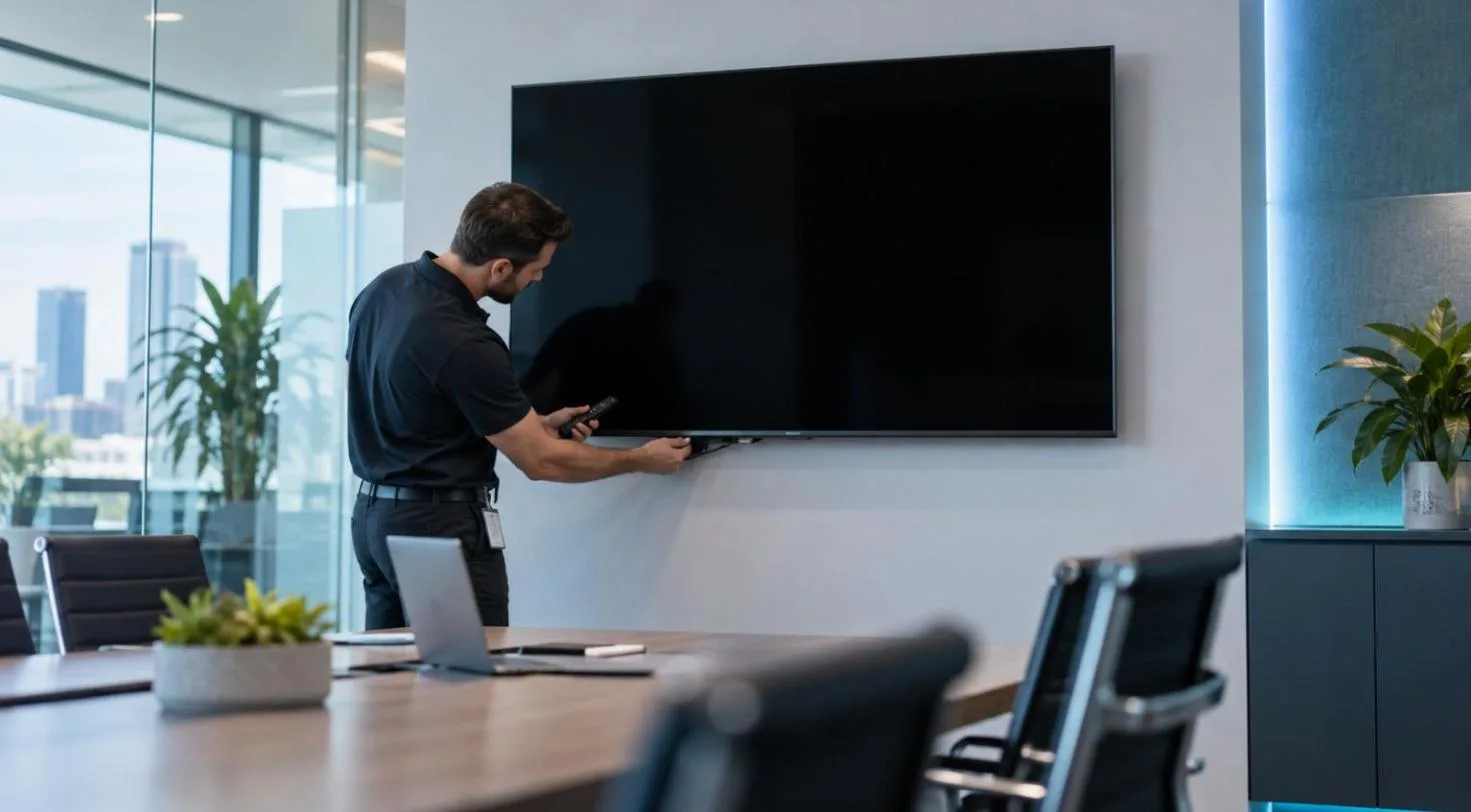
A black screen at one location is frustrating. A black screen across a restaurant, retail store, clinic, or office can mean missed promotions, confusing customer experiences, and staff wasting time on a ladder with a remote. So, why do screens go black when they are supposed to be running your content? Usually, the problem is not the display itself. It is a break somewhere between power, input, network connection, or the signage app.
The fastest fix comes from isolating the failure instead of restarting everything blindly. Start with what the screen is telling you - or not telling you - then work through the few causes that matter most.
Why Do Screens Go Black During Business Hours?
A screen can be black for two very different reasons. It may have lost power or a video signal, meaning the TV cannot show anything at all. Or, the TV and signage player may be working, but the scheduled content is blank, unavailable, or not loading.
That distinction matters. A powered-off screen needs an on-site hardware check. A screen that is online but showing the wrong content may be fixed remotely in minutes. Before anyone starts unplugging cables, look for clues: Is the TV power light on? Does the remote bring up the TV menu? Is there a “No Signal” message? Can you see a screensaver, an app logo, or a blank black rectangle?
Those details narrow the problem quickly.
Start With Power, Not the Content
It sounds obvious, but power issues are common in public-facing environments. A cleaner may unplug a cable. A power strip may be switched off. A GFCI outlet can trip. Some TVs also enter deep sleep after a power interruption and do not wake up when expected.
First, verify that the TV has power. Check the power indicator, press the physical power button on the display, and test the outlet or power strip with another device if needed. If the screen uses a streaming stick, confirm that it has its own reliable power source. Plugging a stick into the TV’s USB port is convenient, but some USB ports do not supply enough power or shut down when the TV sleeps.
For business signage, use a power setup that staff cannot easily disturb. Secure cables, label outlets, and avoid overloaded power strips. If power loss is a recurring issue, a small uninterruptible power supply may be worth considering for critical displays, especially at front desks, menu boards, or check-in areas.
Check TV Power Settings
Many black-screen incidents are really energy-saving settings doing exactly what they were configured to do. TVs may turn off after a period of inactivity, enter eco mode, switch to a screensaver, or follow an automatic sleep schedule.
Review the TV’s sleep timer, auto power-off, energy saver, and scheduled on/off settings. In a business setting, these should match operating hours. If your display must show content from 8 a.m. to 10 p.m., the TV should be awake before the first customer arrives - not waiting for an employee to find the remote.
Confirm the Right Input Is Selected
If the TV turns on but shows a black image or “No Signal,” the input is the next place to look. A TV may switch inputs after an update, a power outage, a remote button press, or an HDMI handshake issue. The display may be looking at HDMI 1 while your streaming stick or connected device is on HDMI 2.
Use the TV remote to open the input menu and select the port connected to your signage device. If the correct input is selected but no image appears, reseat the HDMI connection. Remove and reconnect the streaming stick or HDMI cable, then wait a moment for the display to recognize it.
HDMI extenders, adapters, and inexpensive splitters can introduce failures too. They are useful when space is tight, but each extra connection is another possible point of failure. For a display that repeatedly drops to black, simplify the physical connection before replacing the TV.
Rule Out a Network Problem
A signage screen can stay powered on and still look black if its app cannot retrieve content. This is most likely after a Wi-Fi change, internet outage, router restart, network credential update, or captive portal interruption.
Start by checking whether other connected devices at the location are online. If the TV or streaming device uses Wi-Fi, verify it is connected to the correct network and has a strong enough signal. A device at the back of a store, behind equipment, or near a kitchen can have a weaker connection than a phone held at the front counter.
A weak network does not always produce a black screen. It can create delayed updates, incomplete media loading, or content that appears to freeze. That is why offline playback matters for business signage. A reliable platform should keep previously downloaded content playing when the internet briefly drops, then reconnect automatically when service returns.
If screens repeatedly lose connectivity, consider moving the access point, using a wired connection where practical, or separating business devices from crowded guest Wi-Fi. The answer depends on the location, but the goal is simple: content should not disappear because customers are using the network.
Check the Signage App and Content Schedule
When the TV menu works and the connected device is visible, the issue may be inside the signage app or its assigned content. A blank playlist, an expired campaign, a deleted asset, or an incorrect schedule can all result in an empty-looking display.
Open your signage dashboard and confirm that the screen is online, assigned to the correct location, and linked to an active playlist. Then check the schedule. It is easy to schedule a promotion for the wrong day, apply it to a different screen group, or set an end time that leaves no content running afterward.
This is where centralized management saves time. With VitVue, teams can see whether a screen is online, confirm what playlist is assigned, and push updated content without visiting each location. That visibility matters when you manage multiple displays or multiple sites. A manager should not need a group text, a USB drive, and a remote control to determine whether the lobby screen is working.
Watch for Unsupported or Problematic Media
A black screen can also be tied to one specific media file. Large videos, unusual codecs, damaged files, or poorly exported content may fail to load on a particular TV or streaming device even when everything else is working.
Test by assigning a simple image or known-good playlist to the screen. If it begins playing, the device and connection are likely fine, and the problem is with the original media. Re-export the video in a widely supported format, reduce the file size if necessary, and make sure the content matches the screen’s orientation and resolution.
Do not treat this as only a design issue. Content reliability is an operations issue. A beautiful campaign that fails at playback is less useful than a simple one that runs consistently.
Restart in the Right Order
Restarting can solve temporary glitches, but the order matters. Turn off the TV and the connected streaming device or media source. Wait 30 seconds. Power on the TV first, select the correct input, and then restart the connected device.
This sequence gives the TV time to establish the HDMI connection correctly. If you restart only the TV while the connected device is still stuck, the black screen may return. If you restart everything repeatedly without checking inputs, network status, or schedules, you can lose time without finding the actual cause.
For screens that are remote or difficult to access, choose devices and signage software that recover automatically after a reboot. The less a system depends on someone being physically present, the more practical it becomes as your screen count grows.
When the TV May Be the Problem
Not every black screen is a setup issue. A damaged backlight, failing HDMI port, outdated firmware, or internal panel defect can cause a TV to go dark. One quick test is to shine a flashlight close to the display while it is powered on. If you can faintly see an image, the backlight may have failed.
Try another input or connect a different device. If the TV remains black across inputs, cannot show its own settings menu, or flickers before shutting down, the display itself likely needs service or replacement. If the TV menu appears normally but your signage content does not, focus on the connected device, input, or app instead.
Build a Setup That Prevents Repeat Black Screens
The best fix is not a better emergency routine. It is reducing the number of things that can go wrong. Use reliable power, secure the streaming device, set the TV to the correct input, disable unwanted sleep settings, and keep network credentials documented. Assign a default playlist so a screen never goes empty when a campaign ends.
For multi-location teams, standardize the setup at every site. The same TV settings, network approach, screen names, and content rules make remote troubleshooting much faster. A black screen should be an exception that is visible immediately, not something a customer notices before your team does.
When screens are part of daily operations, treat them like any other customer-facing system: configure them once, monitor them centrally, and make recovery simple enough that no IT team is required.
Learn why you can run digital signage without a media player. Running screens in stores? See how VitVue powers retail digital signage.