TV Signage Compatibility: What to Check First
TV signage compatibility determines whether your existing screens can run digital content reliably, stay online, and remain simple to manage at scale.
On this page
A screen that looks great in the break room can still be the wrong screen for digital signage. TV signage compatibility is about more than whether an app can install. It determines whether your displays can stay online, play scheduled content reliably, recover after an outage, and be managed without someone visiting every location.
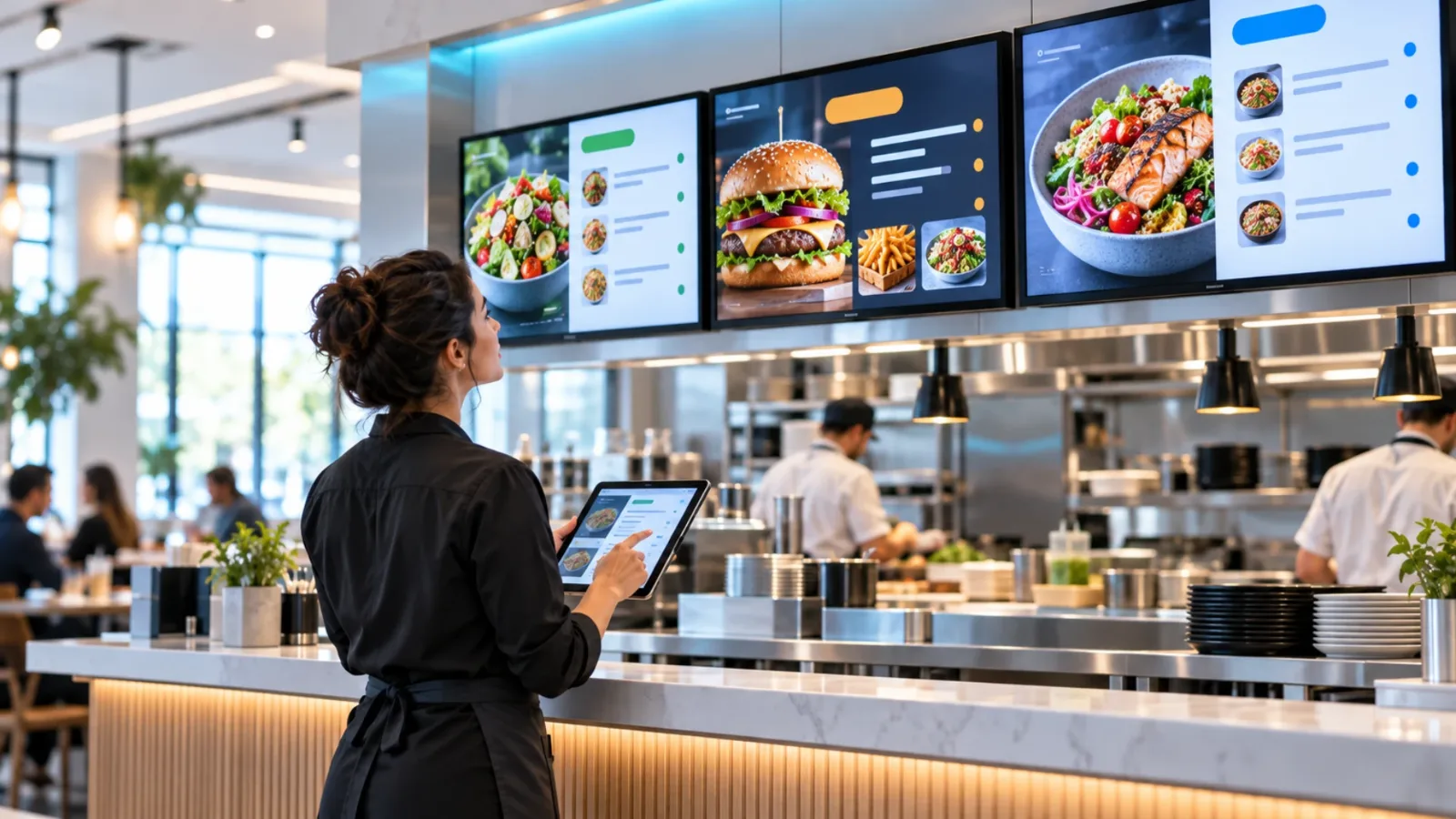
For a single lobby screen, a workaround may be fine. For 10 restaurant menus, 30 retail promotions, or hundreds of franchise displays, compatibility becomes an operating decision. The goal is simple: use the TVs you already own when they make sense, avoid unnecessary hardware, and know early when a streaming stick or different screen is the smarter path.
What TV Signage Compatibility Actually Means
Compatibility has three layers: the TV hardware, its operating system, and the network environment where it will run. A television can support streaming apps for consumers yet still be a poor fit for business signage if its software is outdated, storage is limited, or its settings interrupt playback.
Start with the operating system. Smart TVs run different platforms, including Android TV or Google TV, Amazon Fire TV, Samsung Tizen, LG webOS, Roku TV, and proprietary systems. Signage platforms must build and maintain support for each one. A compatible model is not simply a TV with Wi-Fi. It is a screen with a supported operating system and a reliable way to run the signage player.
Then consider how the display behaves over time. Consumer TVs are designed for a few hours of viewing, frequent remote-control use, and occasional software updates. A digital sign may run all day, repeat a playlist for weeks, and need to restart automatically after a power interruption. Those are different demands.
Finally, confirm that the screen can be centrally controlled. If staff need a USB drive, a remote, and a ladder to update a promotion, the TV is technically displaying content but not functioning as a managed signage endpoint.
Check These TV Requirements Before You Deploy
Before committing to a rollout, identify the exact TV model and operating system version. Model names that look nearly identical can have different software, processor performance, or app availability. The easiest approach is to test one representative unit before purchasing more screens or promising a launch date.
Supported operating system and current software
A newer Smart TV is usually easier to support, but age alone does not decide compatibility. What matters is whether the device can run the current signage app and receive the updates it needs. TVs that no longer receive operating-system updates can become harder to secure and maintain, even if they still turn on and play video.
Avoid assuming every Smart TV has access to every app store. Some platforms restrict business apps by region, while others have limited support for background operation or kiosk-style playback. Confirm support for the exact platform, not just the TV brand.
Reliable internet and local playback
A digital sign needs internet access for initial setup, content publishing, schedules, screenshots, and device status. But a good signage setup should not go blank every time Wi-Fi drops. Offline playback matters because it keeps previously downloaded content running while the connection returns.
For locations with guest Wi-Fi, separate the signage network when possible. Captive portals, changing passwords, bandwidth limits, and aggressive network timeouts can disconnect a screen without anyone noticing. A stable connection is more valuable than peak download speed. Most static promotions, menus, announcements, and image-based playlists do not require a massive internet plan, but they do require consistency.
Storage and processing headroom
Signage content is not all equal. A simple rotating playlist of images and text places minimal demand on a TV. High-resolution video, animated templates, web pages, or frequent live updates require more memory, storage, and processing capacity.
This is where inexpensive Smart TVs can create hidden costs. A screen may handle one short video but stutter after several apps have been installed or after its storage fills with cached content. Test the content you plan to use, including your longest video and most complex layout. Do not test with a single static slide and assume the full production playlist will behave the same way.
Power recovery and automatic launch
Many business locations power screens on and off through a wall switch, timer, or power strip. After an outage, the TV should turn back on and reopen the signage app without staff intervention. If it lands on a home screen, asks for a remote command, or opens a consumer streaming service instead, your daily operations become fragile.
Look for settings such as power-on behavior, auto-launch, sleep mode, screen saver controls, HDMI-CEC, and software update timing. These details sound small until a location opens at 6 a.m. with a black menu board.
When a Smart TV Is Enough and When It Is Not
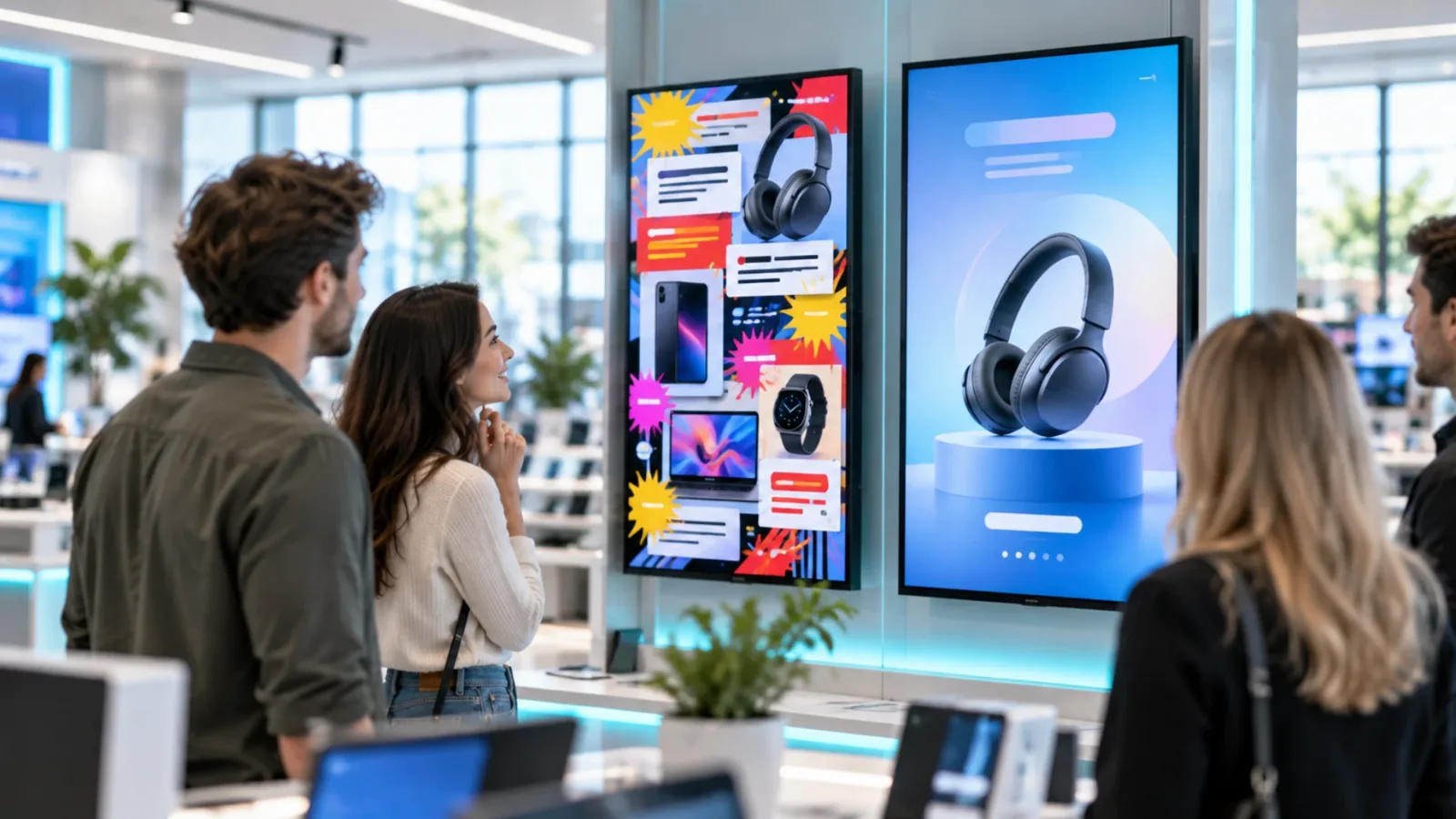
Using a compatible Smart TV directly is the lowest-friction option. There is no separate media player to mount, power, replace, or troubleshoot. For standard business communication - retail offers, waiting-room information, employee updates, fitness schedules, and restaurant promotions - this can reduce deployment time and hardware cost substantially.
A streaming stick is often the better choice when a TV's built-in platform is unsupported, underpowered, or too old to manage confidently. It can also standardize a mixed fleet. A franchise group may have different TV brands across locations, but the same streaming device can create a more consistent player environment on each compatible display.
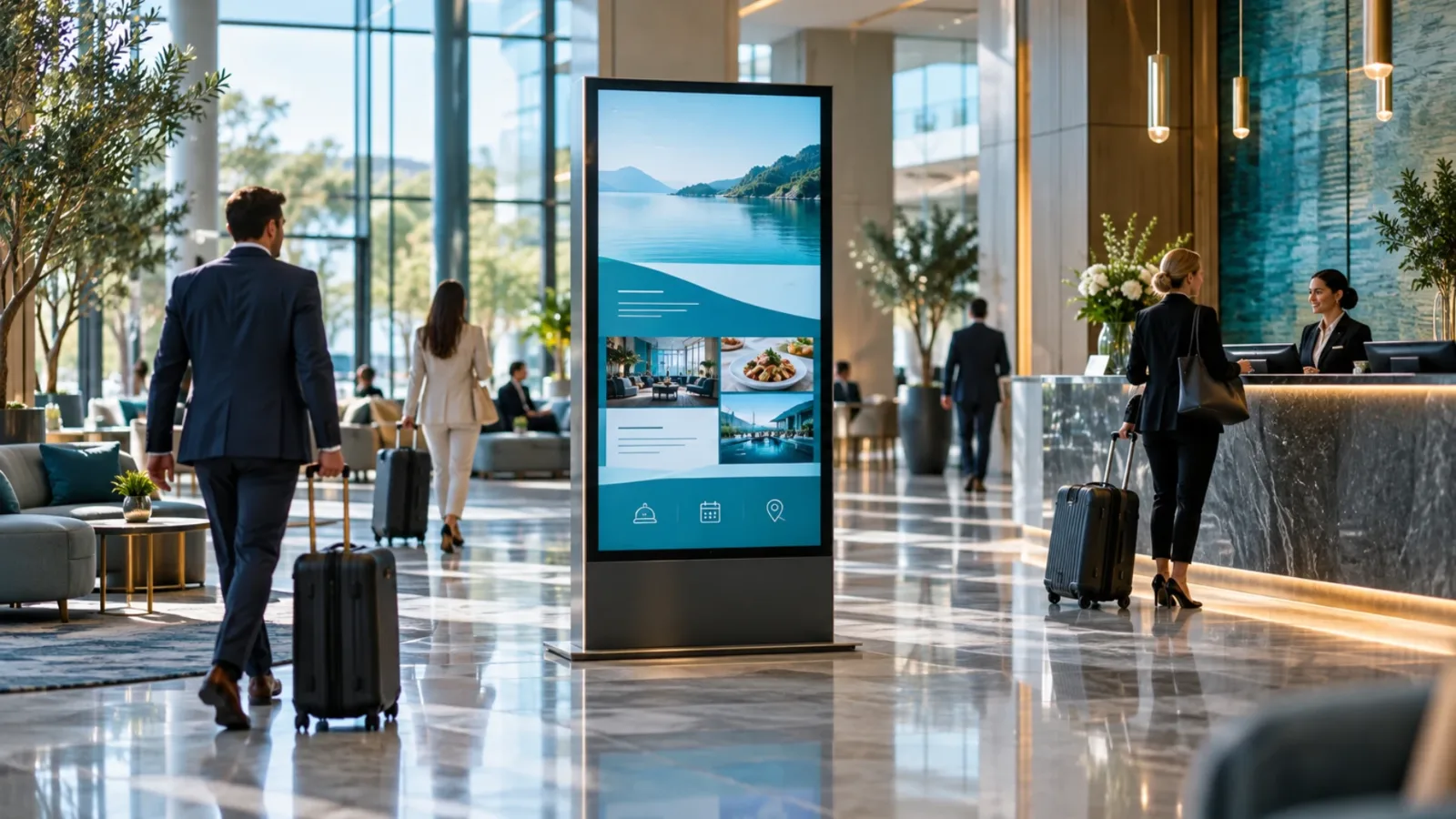
Dedicated commercial displays still have a place. They are worth considering for high-traffic areas, long daily operating hours, large video walls, outdoor installations, or environments where brightness, durability, and warranty coverage are critical. The trade-off is higher upfront cost. Not every back-office dashboard or staff-room screen needs commercial-grade hardware.
The practical decision is not "Smart TV versus commercial display." It is whether the screen can deliver the uptime, image quality, and control your specific location needs at a cost that makes sense.
Compatibility Problems That Appear After Installation
The most expensive signage issues are usually not app-installation failures. They are the slow operational problems that show up later: a TV sleeps overnight and does not wake, a firmware update changes permissions, a location changes Wi-Fi, or a manager installs another app that consumes storage.
Screen orientation can also cause surprises. Most consumer TVs are designed for landscape use. Mounting one vertically may affect cooling, warranty coverage, viewing angle, or the ability to rotate content correctly. Check the manufacturer's mounting guidance before planning portrait menus or directory displays.
Remote-control access is another common oversight. Keep a labeled remote or approved remote-management process for each location, especially during rollout. You may only need it once, but that once is often when a store is busy and the person on site has never touched the TV settings.
For multi-location teams, visibility matters as much as compatibility. A screen that supports the app but provides no status feedback is still difficult to manage. Your platform should show whether devices are online, when content last synced, and what is currently scheduled. VitVue is built around that model: use compatible TVs or streaming-stick-connected displays, then manage content and screen status from one dashboard.
A Simple Pre-Deployment Test
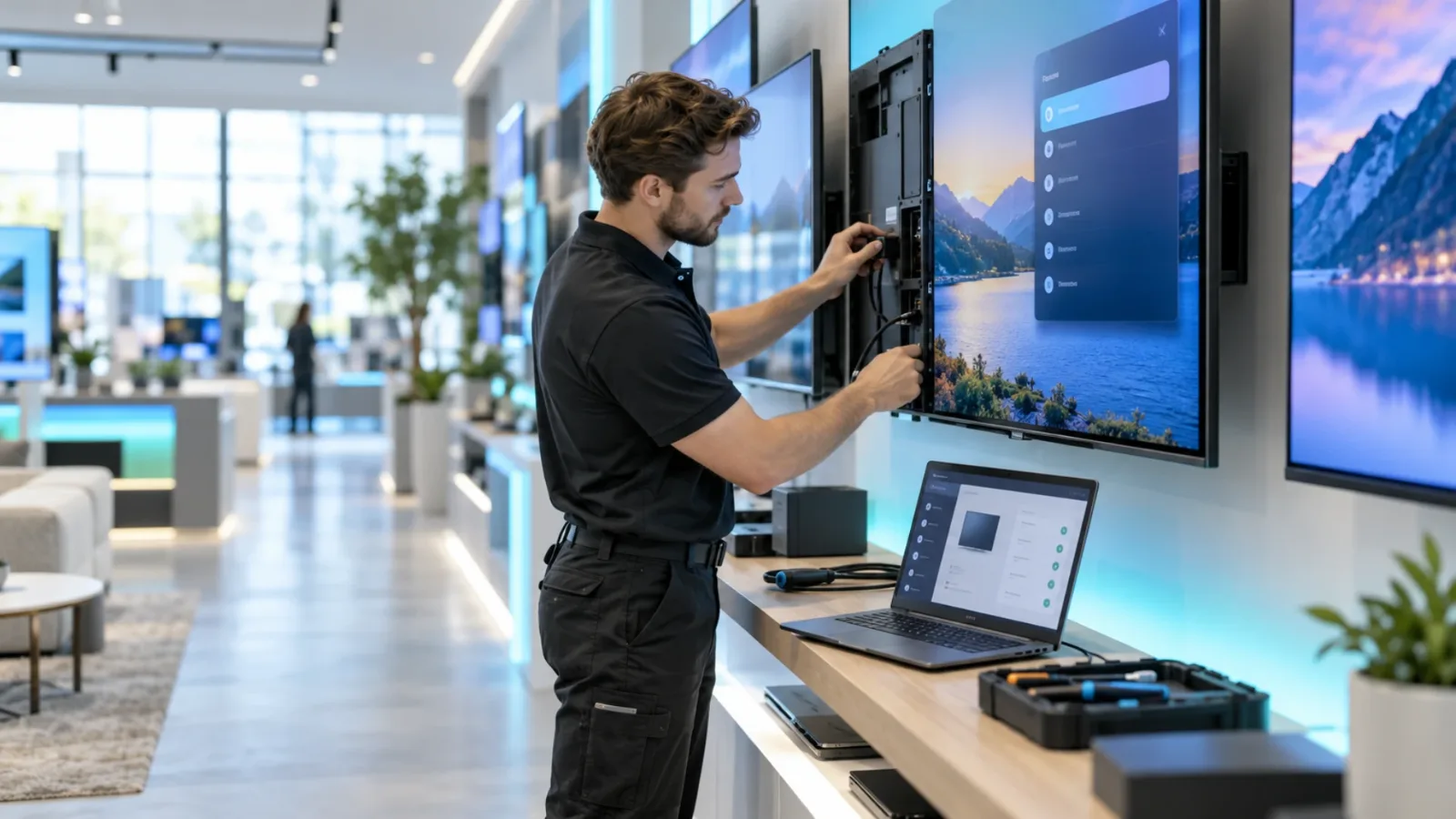
Run a real-world pilot before a large purchase or company-wide launch. Use the exact TV model, the location's actual network, and a playlist that resembles daily use. Let it run through opening hours, closing hours, and at least one planned power cycle.
During the pilot, verify that the screen starts correctly after power is removed and restored, downloads new content, continues playing during a temporary internet interruption, and resumes normal status after reconnecting. Check image quality from the viewer's distance, not just from directly in front of the screen. A promotion that looks sharp from two feet away may be unreadable from a checkout line.
Also test the people process. Can an office manager enroll the screen? Can a marketing team publish a last-minute update? Can a location manager tell whether the correct playlist is live without calling IT? Compatibility is proven when the technology and the workflow both hold up.
The best screen is rarely the one with the longest feature list. It is the one your team can deploy quickly, keep running, and update from anywhere. Start with one tested model, document the setup, and make every next screen easier than the first.
See how VitVue digital signage software keeps every screen updated from one dashboard.