How to Monitor Screen Uptime Across Locations
Learn how to monitor screen uptime across every location, spot offline displays fast, and keep digital signage content visible without extra IT effort.
On this page
A blank menu board during lunch rush is not a minor technical issue. A frozen promotion in a retail store, an offline lobby display at a clinic, or a dead welcome screen in a hotel creates an immediate gap in customer communication. Knowing how to monitor screen uptime gives your team a way to catch those failures before staff or customers have to report them.
For multi-location businesses, the goal is not simply to see whether a TV has power. You need a clear answer to three operational questions: Is the screen online? Is the signage app playing? Is the right content appearing when it should? A useful uptime process answers all three without sending someone to inspect every location.
What screen uptime really means
Screen uptime is the percentage of time a digital display is available and functioning as intended during its scheduled operating window. That definition matters because a screen can be technically online but still fail its job. It may show a black image, freeze on old content, lose its internet connection, or continue playing a playlist that should have changed hours ago.
For a restaurant, uptime may mean menu boards are active from opening through close. For a gym, it may mean class schedules, promotions, and member messages are visible throughout staffed hours. A corporate office may only need lobby and meeting-room displays running on weekdays. Measure uptime against the schedule that matters to the location, not against a generic 24/7 clock.
A screen intentionally powered down overnight should not count as downtime. A screen that misses its scheduled opening playlist at 8:00 a.m. should.
Start with a single view of every display
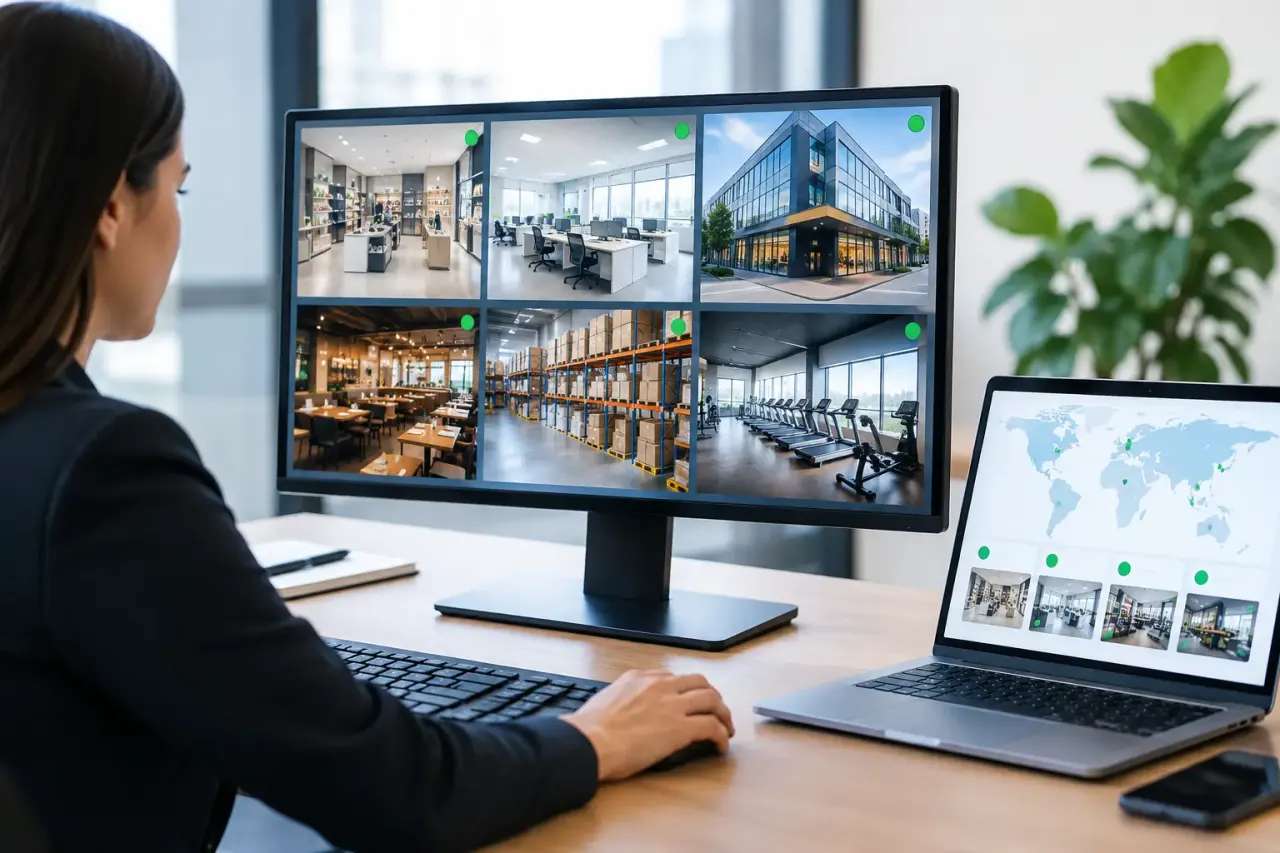
You cannot manage uptime from a collection of USB drives, text messages, and site visits. The first requirement is a centralized dashboard that lists every screen, its location, and its current status.
Give every display a name that makes sense to the people who will use the dashboard. “Store 14 - Drive-Thru Menu Left” is far more actionable than “Samsung TV 3.” Include the location, area, and screen purpose. This makes it easier to identify the correct device when an alert arrives and gives local staff clear instructions when they need to check power, Wi-Fi, or a remote control.
Your screen list should show at least the last time each display checked in, its connection status, the assigned playlist or channel, and a recent screenshot or playback confirmation where available. These details turn a vague “offline” message into a fast decision: wait for a temporary network interruption, contact the location, or take action remotely.
Use heartbeats to identify offline screens
Most cloud-managed signage platforms monitor devices through regular check-ins, often called heartbeats. Each time the app connects to the platform, it confirms that the device is reachable. If it stops checking in beyond a defined period, the system marks it offline or inactive.
This is the foundation of screen monitoring, but it has limits. A heartbeat confirms communication with the device. It does not always prove that the physical panel is powered on, that the input is correct, or that a customer can see the content. Treat connection status as the first layer of monitoring, not the entire answer.
Set a practical offline threshold. A five-minute threshold may catch issues quickly, but it can also create unnecessary alerts at locations with unstable Wi-Fi. A 30-minute threshold reduces noise but may leave a broken display unnoticed during a critical promotion. For most customer-facing screens, start with a threshold that reflects the importance of the display and the reliability of the local network, then adjust after a few weeks of real-world data.
Confirm that content is actually playing
A connected screen is valuable only when it is displaying the intended message. Look for platform features that provide playback history, proof of play, screenshots, or playlist activity. These records help confirm that scheduled content was delivered and played during the planned time window.
This is especially useful when a campaign is tied to a date, time, or location. If a franchise launches a weekend offer, the marketing team should be able to verify that the offer reached every participating screen without calling each store. If a clinic replaces seasonal messaging with a weather closure notice, the administrator needs evidence that the update appeared promptly.
Screenshots offer a practical visual check, but use them thoughtfully. A screenshot every few seconds can generate more data than most teams need. Periodic captures, status snapshots after a content push, or exception-based checks are usually enough. The right level depends on your industry, screen count, and whether content is regulated or revenue-critical.
Set alerts that lead to action
Alerts are useful when they help someone act quickly. They become ignored when every short network blip triggers an email to five people.
Build alerts around meaningful events: a screen that has been offline past the selected threshold, a device that has not received a scheduled update, or a display that remains in an error state after reconnecting. Route alerts based on responsibility. A local manager may be the right person to check power and Wi-Fi, while a central marketing or operations team should handle playlist assignments and campaign schedules.
Keep the response path simple. An alert should tell the recipient which screen is affected, where it is located, when it last checked in, and what to do next. For example, ask the site manager to confirm that the TV is powered on, connected to the correct input, and online. If the device is online but content is wrong, the central team can push the correct playlist from the dashboard.
Avoid treating every display the same. A lobby screen that supports a brand experience can tolerate a longer response time than a drive-thru menu board or a safety communication display. Assign higher-priority alerts to screens where downtime affects sales, service flow, or compliance.
Track uptime by location, screen, and time period
The basic uptime calculation is straightforward:
Uptime percentage = (scheduled operating time - unplanned downtime) / scheduled operating time x 100
The value comes from using the number to identify patterns. Review uptime by individual screen to find repeat offenders, by location to uncover network or power issues, and by week or month to see whether operational changes are helping.
A location with 98% uptime may look acceptable until you discover that the missing 2% happens every morning during opening hours. Likewise, a screen with frequent short disconnects may deserve attention even if its monthly total remains high. Timing matters. Downtime during a major promotion, lunch rush, or check-in period has more impact than downtime after closing.
Look for recurring causes rather than isolated incidents. If several screens at one site go offline together, the network is the likely issue. If one display regularly fails after a scheduled power cycle, investigate the TV settings, HDMI input, or streaming device. If devices remain online but show old content, check scheduling rules, device assignments, and whether the latest content was published.
Build a recovery process that does not require IT
Monitoring only works when the team can recover quickly. Create a short playbook for location staff with the few checks that solve most problems: confirm power, verify the correct TV input, check the local internet connection, and restart the signage app or connected device if needed.
For central teams, keep recovery controls inside the signage platform whenever possible. The ability to republish content, change a playlist, restart an app session, or review device history remotely reduces unnecessary site visits. This is where cloud-based digital signage has a clear operational advantage over USB workflows and unmanaged media players.
VitVue supports this model by giving teams a central view of screen status, content deployment, and playback activity while using Smart TVs or low-cost streaming devices already available at the location. The point is not to create another system for your team to manage. It is to make screen visibility part of normal operations.
Make uptime part of your weekly operating rhythm
Do not wait for a major campaign to discover that half your displays are disconnected. A short weekly review is usually enough for most teams. Check the offline screen list, review recurring issues, confirm that upcoming schedules are published, and follow up on locations with lower-than-expected uptime.
As your network grows, define an uptime target by screen type. Customer-facing promotional displays may need a higher target than internal break-room screens. Keep the target realistic, but do not let “mostly working” become the standard for communication that customers rely on.
The best monitoring setup is quiet when everything is working and specific when it is not. When a display fails, your team should know about it early, know exactly which screen is affected, and have a clear next step before a missed message becomes a missed opportunity.
Read our guide to cloud based digital signage software. See how VitVue powers retail digital signage.