Digital Signage Analytics Dashboard That Delivers
A digital signage analytics dashboard shows what played, what is online, and where action is needed so every screen stays on-message and working daily.

On this page
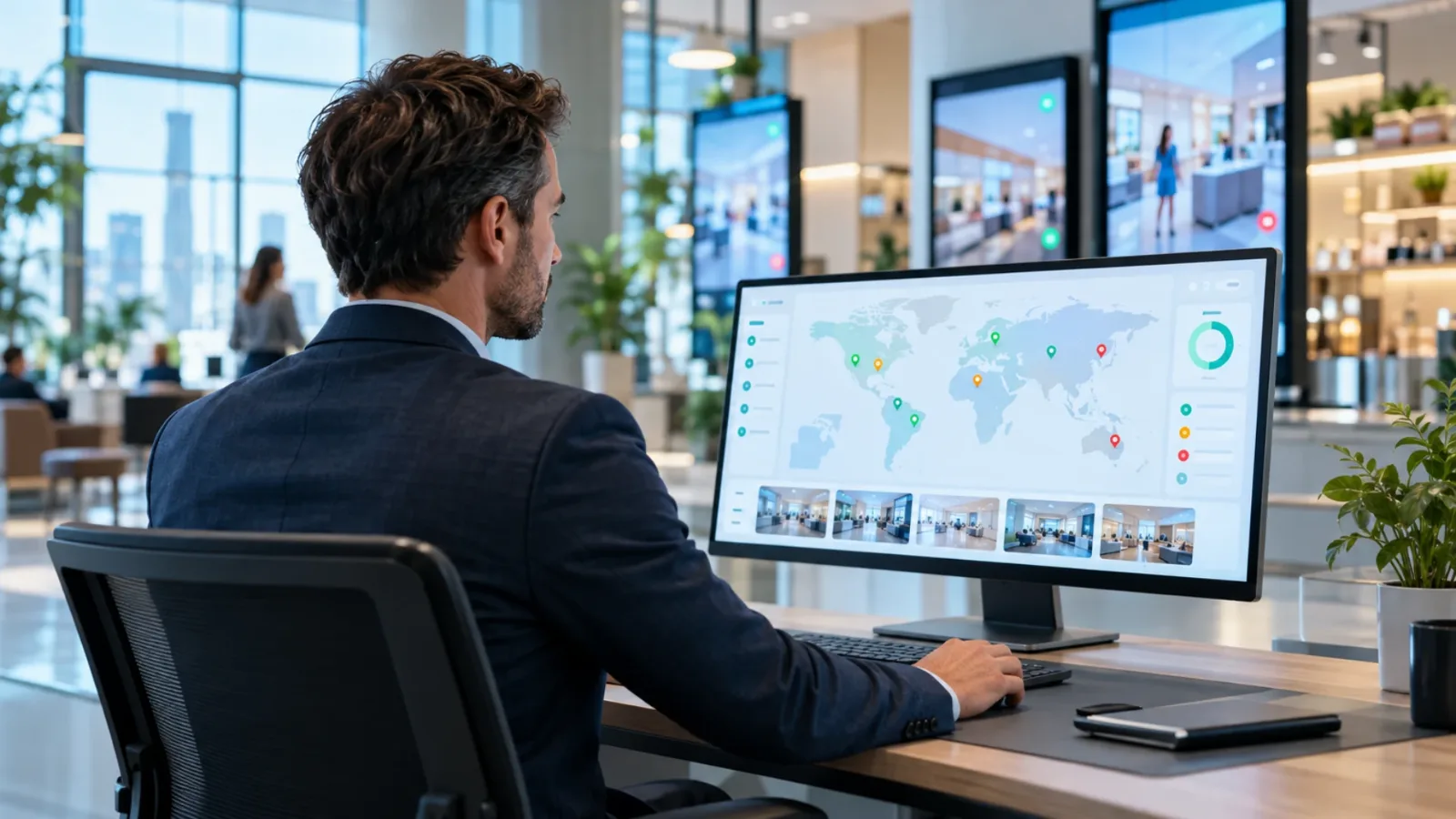
A screen can look fine from across the room and still fail the job. It may be offline, showing yesterday’s promotion, stuck on a single slide, or playing a campaign that was meant to end last week. A digital signage analytics dashboard gives teams proof of what is happening across every display, without store calls, photo requests, or a site visit.
For multi-location businesses, that visibility is not a nice-to-have. It is how you protect promotions, customer communication, compliance messaging, and the time your staff spends managing screens. The right dashboard turns digital signage from a collection of TVs into an operating system for on-site communication.
What a digital signage analytics dashboard should answer
Analytics should make decisions easier, not create another report to ignore. At a minimum, a dashboard should tell you whether each screen is online, what content played, when it played, and whether scheduled content reached the intended display.
Those answers matter in different ways. A restaurant operator needs to know that breakfast menus switched before the morning rush. A retail team needs confirmation that a weekend promotion ran at every participating store. A clinic administrator needs confidence that patient instructions and wait-time messaging are visible in the lobby. The common issue is simple: if you cannot verify delivery, you are managing by assumption.
A useful dashboard should surface the exceptions first. Screens that are offline, devices that have not checked in, failed content updates, and playlists that did not run as planned deserve attention before a long list of healthy displays. This is where analytics becomes operationally valuable rather than just informational.
The metrics that actually improve screen operations
Not every data point deserves equal attention. Most teams get better results by focusing on a small group of metrics tied directly to availability, content execution, and response time.
Screen uptime and online status
Uptime is the foundation. A screen that is powered off, disconnected from Wi-Fi, or unable to reach the signage platform cannot deliver a message, no matter how strong the creative is.
Look for both current status and historical uptime. Current status helps a manager fix an issue now. Historical uptime reveals patterns, such as a display that repeatedly drops after closing or a location with unstable connectivity. A single offline event may be minor. The same event every week points to a problem worth fixing.
It also helps to distinguish between an offline screen and a screen that is technically online but not playing the expected content. These are different issues with different fixes. One may require checking power or internet. The other may be a scheduling, playlist, or publishing issue.
Play history and proof of display
Play history confirms which assets, playlists, or campaigns appeared on a screen and when. For promotional teams, this is the closest thing to proof that a campaign was delivered to the physical location.
This is especially useful when content has a fixed window. Think limited-time offers, seasonal menus, event signage, safety notices, or required compliance communications. If a campaign was scheduled from Friday through Sunday, play history should let you verify execution by screen or location without asking every site to respond.
There is a trade-off here. Play history can show that content was delivered and played by the signage device, but it does not automatically prove that every customer looked at it or took action. Use it to measure operational delivery. Pair it with sales, traffic, QR scans, or campaign data when the goal is to measure business impact.
Content and playlist performance
A dashboard should show which content is active now and which playlists have run over a selected period. This gives operators an immediate way to spot outdated material, missing creative, or incorrect playlist assignments.
For a gym chain, the priority may be verifying that class schedules are current in each club. For a hotel, it may be making sure event information appears on lobby screens at the right time. For a franchise group, it may be confirming that local offers display alongside brand-approved campaigns.
The key is filtering. Analytics become far more useful when teams can view data by location, screen group, individual screen, playlist, or date range. A national marketing lead needs a broad view. A store manager needs only the screens in one location. One dashboard should support both without burying either person in irrelevant data.
Issue response time
The dashboard provides the signal. Your process determines the result. Track how long it takes from detecting an offline screen or failed update to restoring normal playback.
This metric often exposes the real bottleneck. It may not be the software or the screen. It may be that nobody owns screen issues, location staff do not know how to restart a TV, or alerts go to an inbox no one checks. Assigning clear ownership and simple recovery steps can improve uptime quickly.
How to set up a dashboard your team will use
Start with the questions your team asks repeatedly. Which screens are down? Did the promotion go live? Is this location showing the correct menu? Build the dashboard and reporting routine around those questions, not around every metric available.
First, organize screens into sensible groups. Most businesses begin with locations, then add groups by use case such as menus, waiting rooms, employee communications, or promotional displays. This makes it faster to publish content, check status, and isolate issues. A screen named only TV 04 creates confusion. A name like Austin North - Front Counter Menu gives the team immediate context.
Next, set a clear baseline for acceptable uptime. A 24-hour lobby display may have a different expectation than a screen used only during store hours. Define the expected operating window before treating every offline period as a failure. Context prevents false alarms and helps teams focus on the screens that truly need attention.
Then establish an exception routine. A regional manager might review offline screens each morning. Marketing may verify campaign play history at launch and again before the campaign ends. Location staff may receive a straightforward instruction: check power, confirm the TV is on the correct input, restart the streaming device if needed, and escalate if the display does not reconnect.
Finally, keep the routine lightweight. A dashboard that requires hours of analysis every week will not survive a busy operating schedule. The best practice is a quick daily health check, campaign verification at key moments, and a monthly review of recurring issues.
Common mistakes that make analytics less useful
The first mistake is treating all screens the same. A menu board, a corporate lobby display, and an employee breakroom screen have different schedules, audiences, and business priorities. Their performance should be evaluated accordingly.
The second is focusing only on outages. Online status matters, but an online display can still show the wrong message. Pair uptime monitoring with play history and active-content verification.
The third is collecting data without acting on it. If the same screen goes offline every Friday, log the pattern and fix the cause. It could be a timer switch, a weak Wi-Fi signal, an HDMI connection, or a staff shutdown routine. Analytics should reduce repeat work, not document it forever.
The fourth is relying on manual confirmation. Asking locations to send photos may work for one or two displays, but it breaks down across dozens of sites. It delays updates, creates inconsistent records, and pulls staff away from customers. Centralized analytics gives headquarters visibility while allowing local teams to stay focused on operations.
A better standard for multi-location signage
The goal is not to create a complicated reporting project. The goal is to know, quickly and confidently, that every screen is available and showing the right message.
VitVue helps teams manage that work from one place, using the Smart TVs and streaming-stick-connected displays they already have. With centralized monitoring, play history, scheduling, and real-time updates, teams can replace USB drives and guesswork with a clearer operating view.
Start with the screens that matter most: customer-facing menus, promotions, compliance messaging, and high-traffic displays. Once those are visible and accountable, expanding to more locations becomes much easier. A good dashboard does not ask your team to watch every screen. It tells them exactly when they need to act.
Read our guide to cloud based digital signage software.