How to Update In-Store Displays Without USBs
Learn how to update in store displays faster, keep every location on brand, and replace USB swaps with centrally managed screen content that stays current.
On this page
A lunch promotion ends at 2 p.m., but the screen by the register still advertises it at 5. A retail location launches a weekend offer, while three other stores keep running last month’s campaign. These small misses create real friction: confused customers, wasted promotional spend, and staff pulled away from the work that matters.
Knowing how to update in store displays efficiently is not just a design question. It is an operations question. The right process lets your team change messages quickly, keep every location aligned, and confirm that the right content is actually playing.
Start With the Update You Need to Make
Not every screen change deserves the same workflow. A daily menu update, an urgent out-of-stock notice, and a seasonal campaign have different timing, approval, and scheduling needs. Before editing content, define what needs to change, where it should appear, and when it should come down.
For a single-store business, this may be as simple as changing a price slide or replacing a promo image. For a franchise group or multi-location retailer, the update may need location-specific pricing, regional messaging, or different creative for screens in the lobby, aisle, checkout area, and staff room.
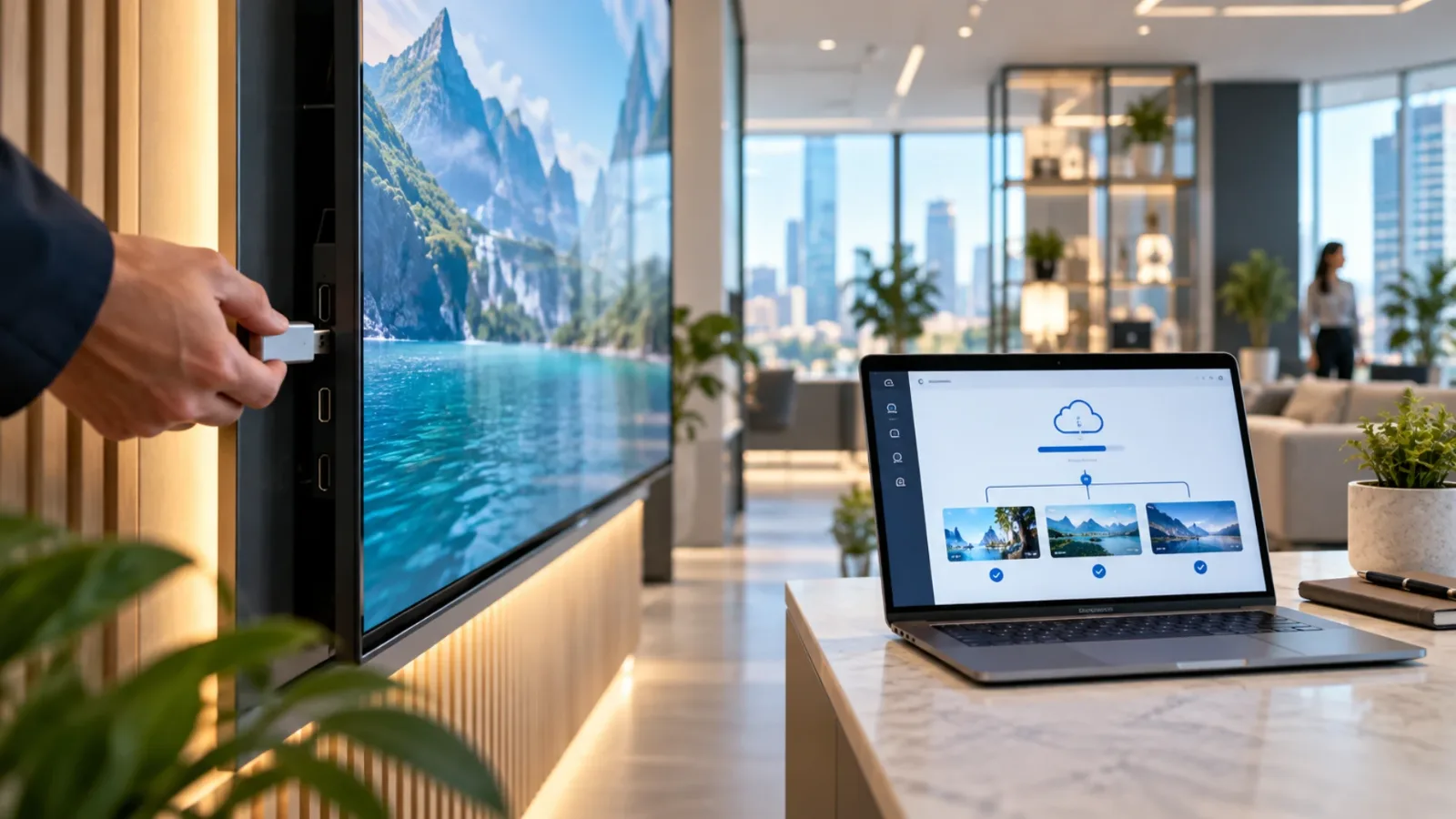
This is where USB-based updates begin to break down. Someone has to prepare the files, copy them to a drive, visit each screen, swap the content, and hope the right version was used. It can work for one rarely updated display. It is a poor fit when messages change often or when locations are spread out.
How to Update In-Store Displays From One Dashboard
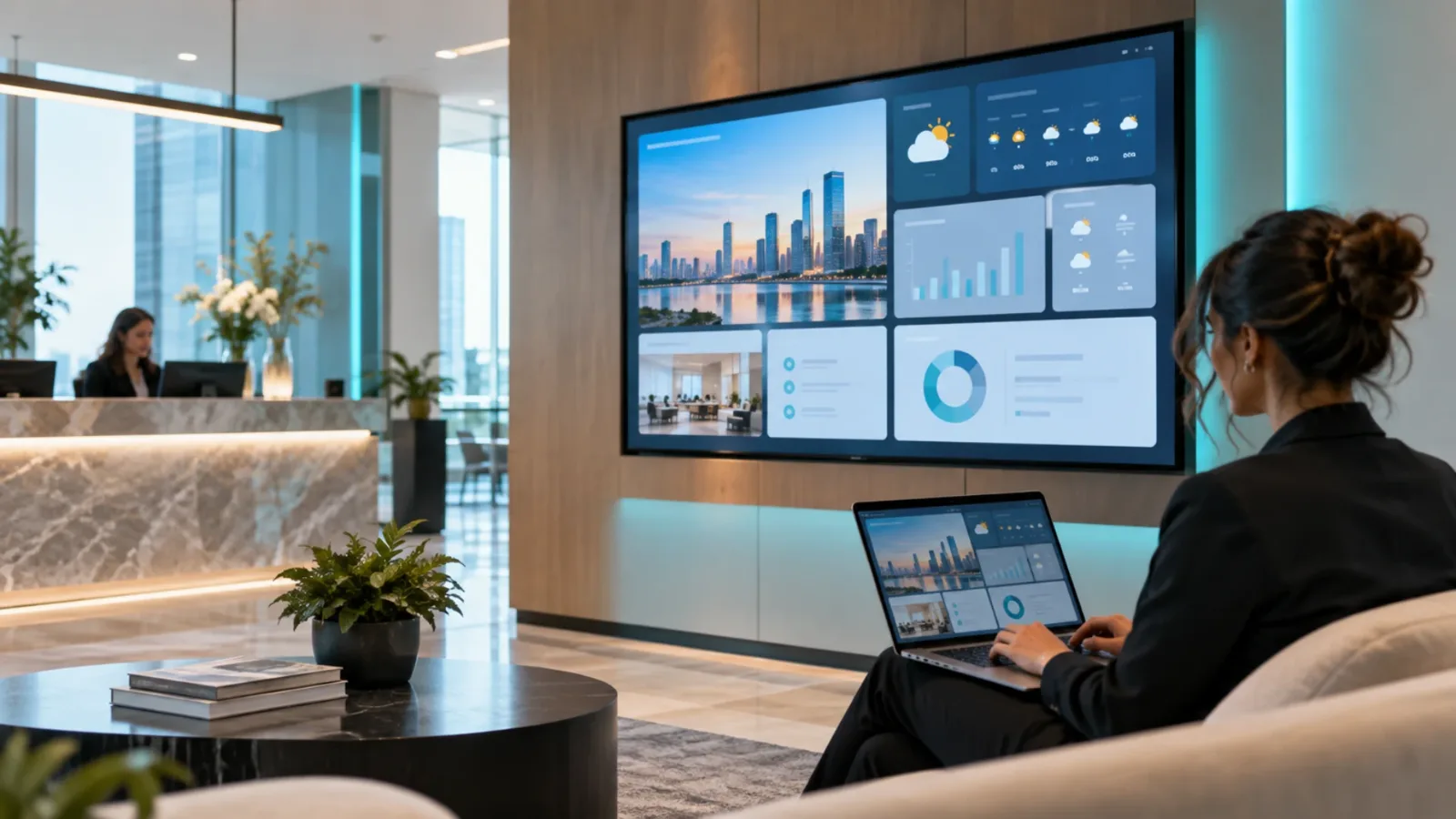
A cloud-based digital signage platform replaces manual screen visits with a centralized workflow. Instead of treating each TV as an isolated device, you manage content, schedules, and screen groups from one place.
The basic process is straightforward: create or edit the content, assign it to the right screens, set a schedule, and publish. The updated display can go live in minutes without asking a store employee to handle a USB drive or call IT.
Build content that can be changed quickly
Speed starts before the publish button. Use reusable layouts for the messages your business changes most often: product promotions, menu specials, event notices, wait-time information, staff announcements, and social proof.
A drag-and-drop editor and ready-made templates keep routine updates from turning into a design project. Keep the parts that change frequently - price, date, product image, offer details, and call to action - easy to edit. Keep brand fonts, colors, and layout rules locked into the template.
That balance matters. Too much flexibility leads to inconsistent screens across locations. Too little flexibility creates bottlenecks where every minor update needs a designer. Your local team should be able to update approved fields without reinventing the display.
Group screens by location and purpose
Do not send every update to every screen. A front-window display may need a high-impact promotion, while a checkout screen is better for loyalty reminders and a break-room screen is for internal communication.
Organize screens into groups that match how you operate: by store, region, department, screen type, or campaign. Then publish a message once to the group that needs it. A restaurant operator can update breakfast boards at every participating location while leaving all-day menu screens untouched. A retailer can send a store-specific clearance promotion to one location without disrupting the broader brand campaign.
This structure also prevents accidental changes. When each screen has a clear purpose, it is harder to place the wrong message in the wrong part of the customer journey.
Schedule content instead of chasing deadlines
Many in-store messages are predictable. Happy hour, weekday promotions, class schedules, holiday hours, limited-time offers, and monthly events should not require someone to remember a manual screen change at the exact moment it starts.
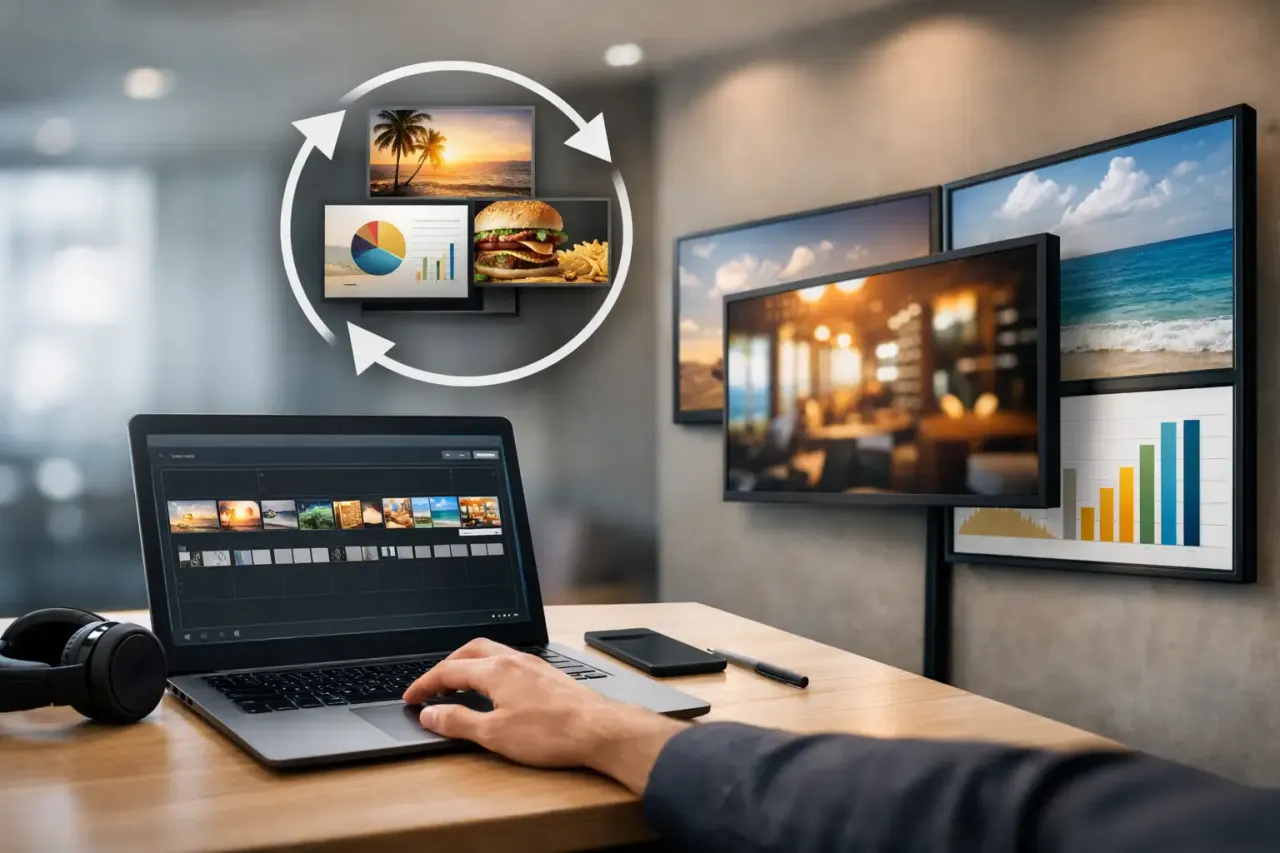
Schedule content with a start date, end date, and time window. Build playlists that rotate evergreen brand content with timely promotions, then let the schedule handle the transition. This removes a common operational failure: expired offers remaining on screen because a busy employee did not get to the update.
Scheduling does require discipline. Confirm time zones, review overlapping campaigns, and decide which message takes priority when two promotions target the same screen. A simple content calendar keeps these decisions visible before they become on-screen mistakes.
Use Live Updates for Time-Sensitive Changes
Some updates cannot wait for the next scheduled slot. A product sells out. Severe weather changes store hours. A clinic needs to alert patients to a delayed provider. A hotel wants to direct guests around a temporary entrance closure.
For these moments, real-time content pushing is the better option. Update the slide, publish it to the selected screens, and replace the outdated message immediately. The goal is not to put every message into emergency mode. It is to give your team control when timing affects customer experience or revenue.
Create a simple approval rule for urgent updates. For example, store managers may be allowed to publish operational notices, while price changes and brand campaigns require marketing approval. That protects the brand without forcing teams to wait on routine, location-level communication.
Keep Displays Working When the Internet Does Not
A digital display is only useful when customers can see it. Internet outages happen, especially across distributed locations. If your screens depend entirely on a live connection, they can go blank at the worst time.
Choose a setup with offline playback. The screen stores scheduled content locally, so it continues playing the most recent approved playlist even if the connection drops. Once the network returns, the display reconnects and receives its next update.
Offline playback is not a reason to ignore connectivity. It is a safeguard. Your team should still receive visibility into which screens are online, which have not checked in recently, and whether the expected content is playing. Without that visibility, a centralized update process can still leave you guessing.
Verify the Update Actually Reached the Screen
Publishing content is not the finish line. The final step is confirming delivery. This is one of the biggest advantages of centrally managed signage over USB workflows: you can check screen status and play history without calling each location.
After a major update, review whether the target screens are online and whether the new playlist has started. For high-priority campaigns, spot-check a representative location or ask a manager for a quick visual confirmation. Analytics can show uptime and content playback patterns, helping you identify screens that are offline, misconfigured, or consistently missing updates.
This matters most for multi-location teams. A campaign is not truly live because the head office published it. It is live when customers at each intended location can see it.
Create a Repeatable Display Update Process
The best system is one your team can use on a busy Tuesday, not just during a polished campaign launch. Define who owns the content, who can approve it, how far ahead scheduled content should be loaded, and what happens when an urgent change is needed.
Keep a small set of approved templates and set naming conventions for playlists, screen groups, and campaigns. Clear names such as “Dallas - Checkout - Weekend Offer” are more useful than “Promo Final v7.” Archive expired campaigns so teams do not accidentally republish old pricing or outdated seasonal messaging.
For growing businesses, central control does not mean every update must come from corporate. It means corporate can set guardrails while local teams handle the messages that depend on real conditions in their location. That is a practical middle ground between slow, centralized approval and inconsistent store-by-store improvisation.
Choose Technology That Reduces Work, Not Adds It
Traditional signage often adds hardware, complicated setup, and another device for each screen. For many businesses, that is more infrastructure than the job requires. If you already have Smart TVs or can connect an affordable streaming stick, you can deploy managed digital signage without dedicated media players or a heavy IT project.
VitVue is built for that model: create content, schedule it, push it to screens, and monitor it from one dashboard. The result is faster updates with less hardware to manage and fewer reasons to send staff walking around with USB drives.
Your displays should operate at the speed of your business. Build a clear update process, use schedules for predictable changes, reserve live publishing for urgent moments, and verify what is playing. Then your screens can do what they were installed to do: communicate the right message while your team stays focused on the floor, the customer, and the next opportunity.