Smart TV Apps Versus Chromecast for Digital Signage
Smart TV apps versus Chromecast for digital signage: compare setup, control, costs, reliability, and the right choice for every business screen at scale.
Auf dieser Seite
A lobby screen goes black before a busy check-in period. A restaurant’s promotion is still showing last week’s offer. A regional manager has no way to tell whether either screen is online without calling the location. That is the real context for the smart TV apps versus Chromecast decision. This is not simply a hardware preference. It affects how quickly your team can publish content, how consistently it plays, and how much work every screen creates after installation.
For a single TV in a break room, either path can work. For customer-facing screens across stores, clinics, gyms, restaurants, or offices, the answer depends on control. The best option is the one that lets your team update every display without adding on-site steps, consumer account problems, or an unnecessary support burden.
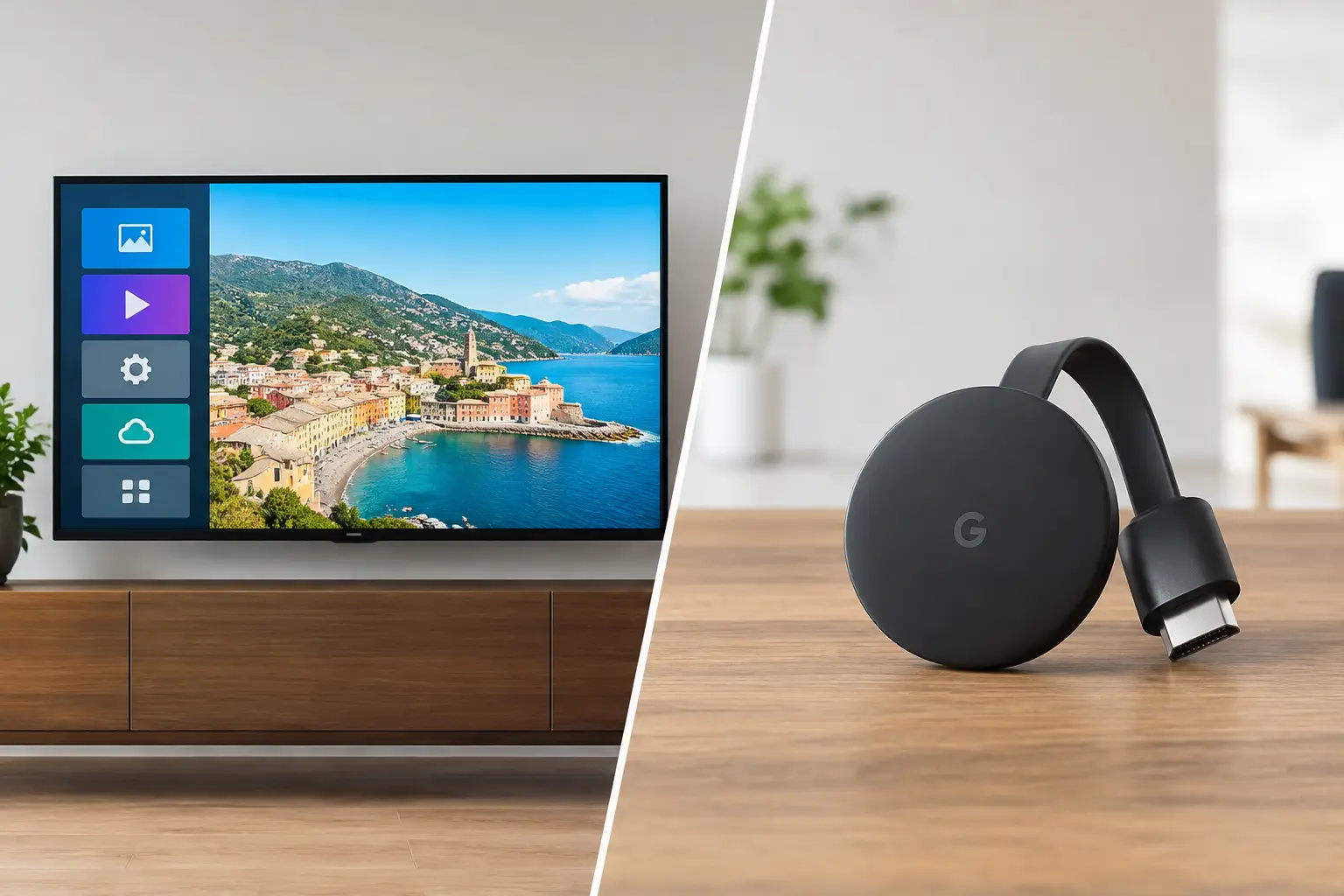
Smart TV Apps Versus Chromecast: The Core Difference
A smart TV app runs directly on the television’s built-in operating system. Once the TV is connected to the internet and enrolled in a signage platform, it can receive playlists, schedules, and content without a separate player attached to the screen. For businesses that already own compatible smart TVs, this approach removes hardware from the rollout.
Chromecast is a streaming device that connects through an HDMI port. Traditional Chromecast devices are designed around casting content from a phone, tablet, or computer. Chromecast with Google TV can also run apps locally, which makes it more useful for managed display use than older cast-only models. Either way, it adds a device, a power connection, a Wi-Fi setup, and another component to monitor.
That difference seems small at one location. Multiply it by 20, 50, or 200 screens and it becomes an operational decision. A direct-to-TV app usually means fewer physical points of failure. A Chromecast can make sense when a TV does not support the signage software you need or when an HDMI streaming device is the fastest practical upgrade.
When Smart TV Apps Are the Better Business Choice
Smart TV apps are built for the business that wants to run digital signage without a media player, using the screens it already has. There is no extra device to order, mount, label, replace, or hide behind a display. A team can install the app, sign in, assign the screen, and begin publishing content from a central dashboard.
The cost advantage is straightforward. Eliminating a device from each screen reduces upfront spend and avoids the small expenses that add up during a rollout: HDMI adapters, power strips, mounting accessories, shipping, spare units, and technician time. It also keeps the install cleaner. That matters in guest-facing environments where loose cables and dongles are not acceptable.
The bigger benefit is daily control. A strong smart TV signage app should let you push updates in real time, schedule content by time or location, keep a playlist playing if the connection drops, and confirm that the display is online. Your marketing team can change a promotion at 10 a.m. Your operations team can update store hours across every site before lunch. No employee needs to find a remote, connect a laptop, or cast from a personal phone.
This is especially useful for menus, retail promotions, internal communications, waiting room information, class schedules, and corporate dashboards. These screens need predictable playback, not a person standing nearby to operate them.
The Smart TV App Trade-Off
Not every smart TV is equally capable. TV operating systems vary by brand and model, and older displays may no longer receive updates or support the app you want to use. Consumer TVs can also include sleep settings, home-screen prompts, and automatic updates that need to be configured correctly before deployment.
Compatibility should be checked before a large purchase or rollout. Confirm the TV brand, operating system, supported app version, network requirements, and whether the platform offers the monitoring features your team needs. A direct app is efficient only when it is supported on the screens in your estate.
When Chromecast Makes Sense
Chromecast can be a practical bridge when you have a mix of older TVs, basic commercial displays, or screens that lack a compatible native app. Instead of replacing an otherwise working display, you can connect a streaming device through HDMI and give that screen a modern playback option.
It can also be useful for temporary situations. A pop-up event, short-term office display, training room, or pilot program may not justify a permanent hardware strategy. If the device is already available and the content needs are simple, Chromecast can get a screen running quickly.
Chromecast with Google TV is generally the more viable option for ongoing signage because it supports installed apps. A cast-only workflow is better suited to personal entertainment than business communications. Casting requires a sender device, creates dependence on the local network, and can lead to awkward failures when a phone locks, leaves the building, changes Wi-Fi networks, or receives a call.
For a permanent customer-facing display, avoid treating screen casting as a digital signage system. It does not provide the centralized scheduling, proof of playback, remote recovery, or role-based control that multi-location teams rely on.
The Chromecast Trade-Off
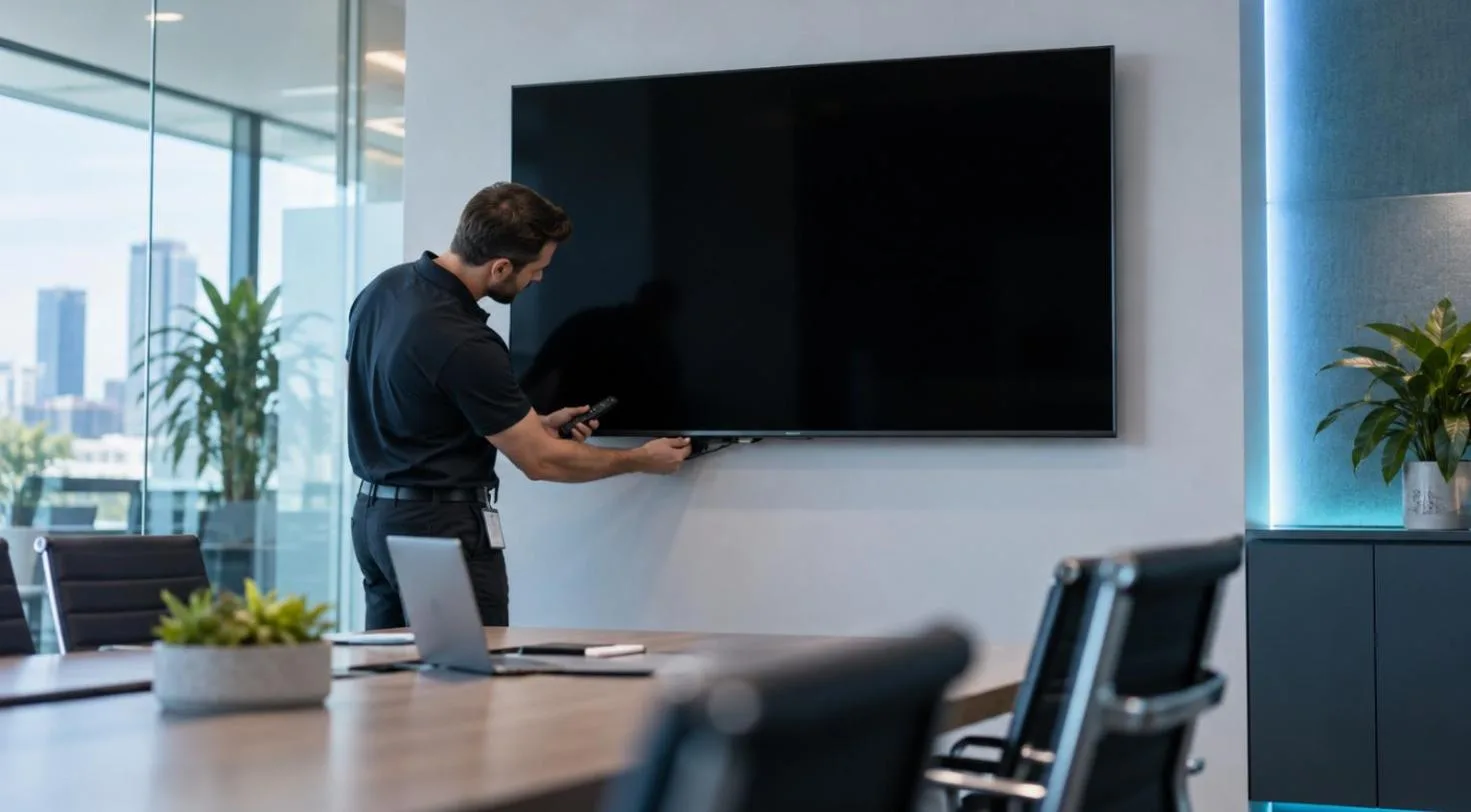
Every Chromecast adds hardware management. Someone must plug it in, connect it to Wi-Fi, keep its account settings stable, and make sure the TV stays on the correct HDMI input. If it is powered from a TV USB port, it may restart when the television sleeps or loses power. If it is hidden behind a wall-mounted screen, replacing it later can require a site visit.
There is also a support question. When content stops playing, is the issue the TV, the HDMI input, the Chromecast, the Wi-Fi network, the casting device, or the content source? More components create more places for a simple screen problem to become a troubleshooting ticket.
That does not make Chromecast a bad choice. It means it should be selected for a clear reason, such as TV compatibility, a short deployment window, or a controlled environment where an external player is easier to standardize.
Choose for Management, Not Just Setup
The quickest installation is not always the lowest-effort system six months later. Before choosing smart TV apps or Chromecast, ask who will own the screens after launch. If the answer is a store manager, receptionist, or local staff member, reduce the number of things they must touch. If the answer is a central marketing or operations team, prioritize remote control and visibility.
A useful decision framework comes down to four operational questions:
Can you publish content to every screen from one place?
Can you schedule different messages by location, day, or time?
Can you confirm that screens are online and playing the assigned content?
Can displays keep playing a downloaded playlist during a temporary internet interruption?
If the answer is no, the lower hardware cost may be hiding a larger labor cost. USB updates, manual casting, and location-by-location troubleshooting are inexpensive only until your screen count grows.
What a Scalable Signage Setup Looks Like
For compatible smart TVs, a native signage app paired with a cloud dashboard is usually the cleanest architecture. The TV handles playback. The platform handles content creation, approvals, scheduling, screen assignments, and monitoring. Your team manages messages rather than devices.
For unsupported TVs, an HDMI streaming device can fill the gap, provided it can run a dedicated signage app and be managed consistently. The goal is not to avoid hardware at all costs. The goal is to use only the hardware that earns its place in the system.
VitVue follows this approach by turning compatible smart TVs into centrally managed displays while supporting streaming-stick-connected screens where needed. Teams can create content, assign it to one screen or many, schedule it by location, and maintain visibility without relying on USB drives or on-site updates.
Network planning still matters. Put screens on reliable Wi-Fi or Ethernet where available, document each display’s location and purpose, and standardize TV settings before launch. Disable sleep modes that interrupt playback, set the correct input when using an external device, and keep a simple ownership process for accounts and permissions. These steps prevent avoidable support work later.
The Right Choice Depends on Your Screens
Choose a smart TV app when your existing displays are compatible and you want the fewest moving parts. It is the strongest fit for organizations that value low hardware cost, fast rollout, and centralized control across multiple locations.
Choose Chromecast with Google TV or another supported streaming device when your displays need an external app environment, when compatibility is mixed, or when replacing TVs is not yet justified. Avoid cast-only workflows for permanent signage unless a staff member will actively control the screen and downtime has little consequence.
A screen should be as easy to update as a web page, even if it is 500 miles away. Start with the hardware you have, validate compatibility before scaling, and build around a platform that keeps every display visible, current, and working without a call to the location.