School Campus Display Software That Cuts Update Time
School campus display software gives staff one place to schedule alerts, celebrate students, manage screens, and keep every message current across campus.
בעמוד הזה
A bell rings, a schedule changes, and a student event needs promotion before lunch. Yet too many schools still rely on printed flyers, USB drives, and staff walking from building to building to update screens. School campus display software replaces that scramble with one controlled system for getting the right message on the right screen, right when it matters.
For schools, digital displays are not just another communications channel. They are a practical way to make announcements visible where students, staff, families, and visitors already are: entrances, hallways, cafeterias, athletic facilities, front offices, and libraries. The value comes from speed and consistency, not from adding another complicated IT project.
What School Campus Display Software Should Solve
A display network only works when it reduces work for the people responsible for campus communication. If updating a screen requires a ticket, a technical specialist, or a trip to every building, the system will quickly become another underused tool.
The right platform gives authorized staff a central dashboard to create content, assign it to screens, schedule it, and confirm that it played. A principal can post a weather closure notice across every campus screen. An athletic director can promote a game only at the gym and stadium. A counseling office can rotate scholarship deadlines during the school day without changing every playlist by hand.
That control matters because school communications have different levels of urgency. A lunch menu can be planned weeks ahead. A bus delay, safety instruction, or early dismissal cannot. Campus teams need both scheduled content and the ability to push a message live in moments.
Where Digital Displays Make the Biggest Difference
The best use cases are usually the ones already causing communication bottlenecks. Start with the screens that have a clear audience and a clear owner, rather than attempting a district-wide rollout with no content plan.
Arrival Areas and Front Offices
Entry screens set the tone for the day. They can welcome families, direct visitors to the right office, share event reminders, and reinforce campus expectations. During enrollment periods, open houses, or testing weeks, they reduce repetitive questions at the front desk.
For multi-building campuses, each location can have its own local playlist while district-wide notices remain consistent. That balance prevents a generic screen network from becoming background noise.
Hallways, Cafeterias, and Common Areas
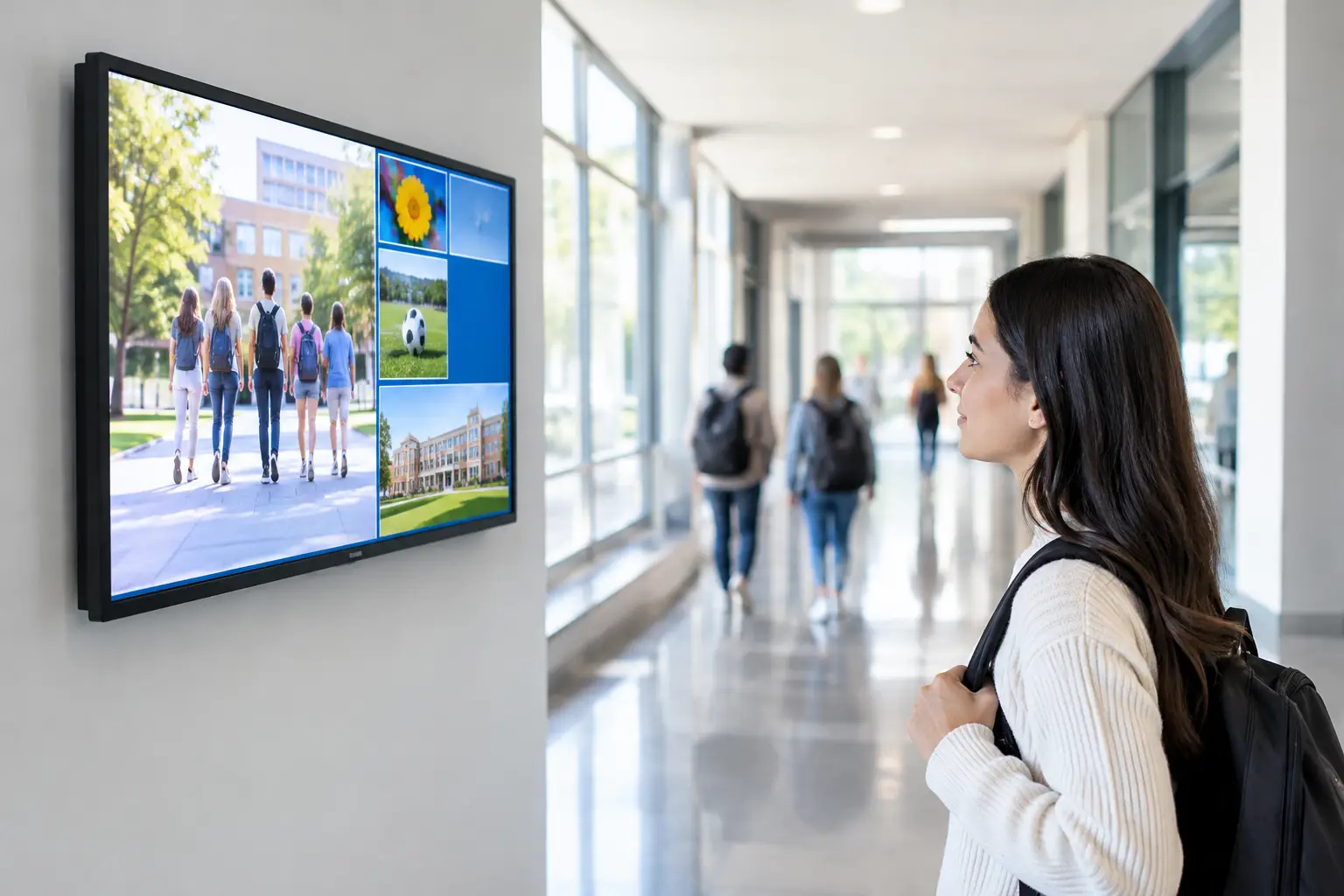
Students move quickly, so messages need to be brief, visual, and timed well. Club meetings, spirit days, attendance reminders, counseling resources, and upcoming deadlines work best when they are easy to scan in a few seconds.
A cafeteria display can follow the rhythm of the school day. Show breakfast details in the morning, lunch menus before midday, then sports and activity announcements in the afternoon. Scheduling removes the need for staff to remember every content swap.
Athletics, Performing Arts, and Events
These areas benefit from screens that can change by event. Display team schedules, sponsor recognition, ticketing instructions, rehearsal updates, and venue directions. A screen near a gym can promote a basketball game after school while the lobby screen highlights a theater performance the following week.
This is also where local control matters. The activities team should be able to manage its designated screens without gaining access to every display across the district.
Features That Keep Campus Communication Moving
Not every signage platform is built for the pace and structure of a school environment. Focus on features that reduce administrative effort and keep screens dependable.
A drag-and-drop editor and ready-made templates help non-designers create clean announcements without waiting on a communications team. Staff should be able to start with a branded layout, add a photo or date, and publish without learning design software.
Smart scheduling is equally important. Schools need dayparting, date ranges, recurring playlists, and the ability to prioritize an urgent message over regularly scheduled content. A message about a delayed start should take over relevant screens immediately, then disappear automatically when the event has passed.
Remote screen monitoring is not optional when displays are spread across buildings. Administrators need to see whether screens are online and whether the intended playlists are playing. Play history and uptime data turn screen management from guesswork into an accountable process.
Offline playback is another practical safeguard. If a local internet connection drops, displays should continue showing previously downloaded content rather than going black. That does not replace network reliability, but it keeps important messaging visible during routine disruptions.
How to Launch Without Creating More Work
The fastest deployments begin with a small, repeatable system. Do not start by asking every department for content. Start by deciding who owns the network, what types of messages belong on it, and how frequently those messages will change.
First, inventory the screens already on campus. Many schools have Smart TVs in lobbies, cafeterias, and offices that can become digital signage displays without buying dedicated media players. Where a TV needs support, an inexpensive streaming stick may be enough. This approach lowers upfront costs and avoids a hardware-heavy installation.
Next, group screens by audience and location. A district office, elementary school, high school, gym, and visitor center do not need the same playlist. Create screen groups so staff can publish one message to the places where it is relevant.
Then establish a simple content rhythm. District announcements might run across all sites. Campus announcements can run locally. Event messaging can be scheduled around the calendar. Give a small number of trained users publishing access, and set clear approval rules for emergency or sensitive content.
Finally, build a short library of templates before launch. Include layouts for event promotion, deadlines, recognition, weather notices, testing reminders, and urgent alerts. This gives staff a usable starting point and protects visual consistency across screens.
Choosing School Campus Display Software Without Legacy Hardware
Traditional signage systems often create unnecessary friction: dedicated media players for every screen, complex installations, local updates, and more equipment for IT teams to manage. Those models may still fit highly specialized installations, such as large video walls or environments with unusual security requirements. For standard campus TVs, they are often more infrastructure than the job requires.
A software-first platform lets schools use compatible Smart TVs or streaming-stick-connected displays while managing content from a browser. That means fewer devices to purchase, fewer physical points of failure, and faster expansion when another building needs a screen.
VitVue is designed around this model. Staff can create, schedule, deploy, and monitor content from one dashboard without adding traditional media players to every display. For a campus team, that translates into a simpler rollout and less dependence on IT for everyday message changes.
Cost should be evaluated beyond the monthly software price. Consider hardware replacement, installation time, training, ongoing support, and the staff hours lost to manual updates. A lower-cost system that is difficult to use can still become expensive if screens are stale or staff avoid updating them.
Plan for Access, Safety, and Accessibility
School displays are public-facing, which means governance matters. Define publishing permissions by role. A front-office team may manage visitor notices, while the district communications team controls system-wide announcements. Use approval workflows when multiple people contribute content, especially for emergency communications.
Keep student privacy in view. Avoid posting sensitive student information, disciplinary details, or images without appropriate permissions. For recognition content, follow the same photo-release and communications policies used for social media, yearbooks, and school websites.
Accessibility should shape content choices as well. Use high contrast, large type, concise copy, and enough screen time for people to read a message. Avoid relying on color alone to convey meaning. If an announcement is critical, digital signage should support other channels such as text alerts, email, intercom systems, and the school website. A hallway screen is valuable, but it should not be the only path for urgent information.
Make Every Screen Earn Its Place
A campus display network should not become a rotating wallpaper of outdated flyers. Review playlists regularly. Remove expired events, track which screen groups stay online, and ask whether each screen has a clear communication purpose.
Start with the messages people need to see, give staff a simple way to publish them, and keep control centralized. When screens can be updated in minutes instead of days, campus communication becomes more visible, more reliable, and far easier to manage.