Android TV Digital Signage: How to Turn Any Android Screen Into a Business Display
Auf dieser Seite
If your TV runs Android TV or Google TV, you already own most of what you need for digital signage. There’s no media player to buy and no cables to run. You install a player app, pair the screen, and manage it from a browser.
This guide covers which Android devices work, how to set one up in a few minutes, and the settings that keep a screen playing reliably all day.
What is Android TV digital signage?
Android TV digital signage means running a signage player app on an Android-based TV or streaming device, instead of a dedicated media player. Content is built in a web dashboard and sent to the screen over the internet.
Android TV is a good fit for signage for three reasons:
• It’s everywhere. Sony, TCL, Hisense, Philips, Xiaomi and many other brands ship TVs with Android TV or Google TV built in.
• It installs apps from Google Play. Signage software installs like any other app, with automatic updates.
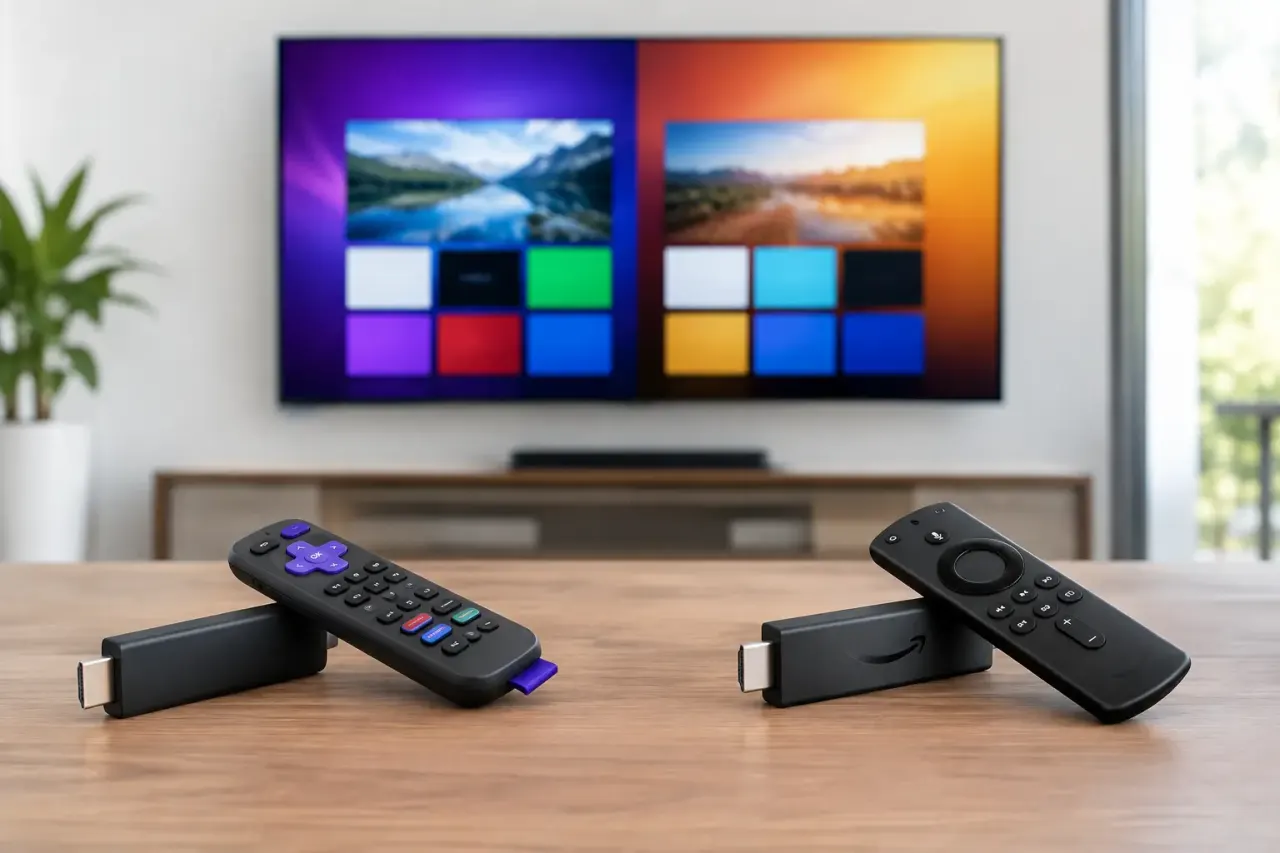
• The add-on devices are cheap. Any TV with an HDMI port becomes an Android screen with a streaming stick or box that costs far less than a commercial media player.
Which Android devices work for signage
Device type | Examples | Best for |
TV with Google TV / Android TV built in | Sony Bravia, TCL, Hisense, Philips | New installs where you’re buying screens anyway |
Streaming stick | Chromecast with Google TV, Xiaomi TV Stick | Upgrading an existing TV for around $30 |
Android TV box | Nvidia Shield, Xiaomi Mi Box | Heavier content and 4K video |
Commercial display with Android | Pro displays running Android | 24/7 operation, brighter panels, longer warranties |
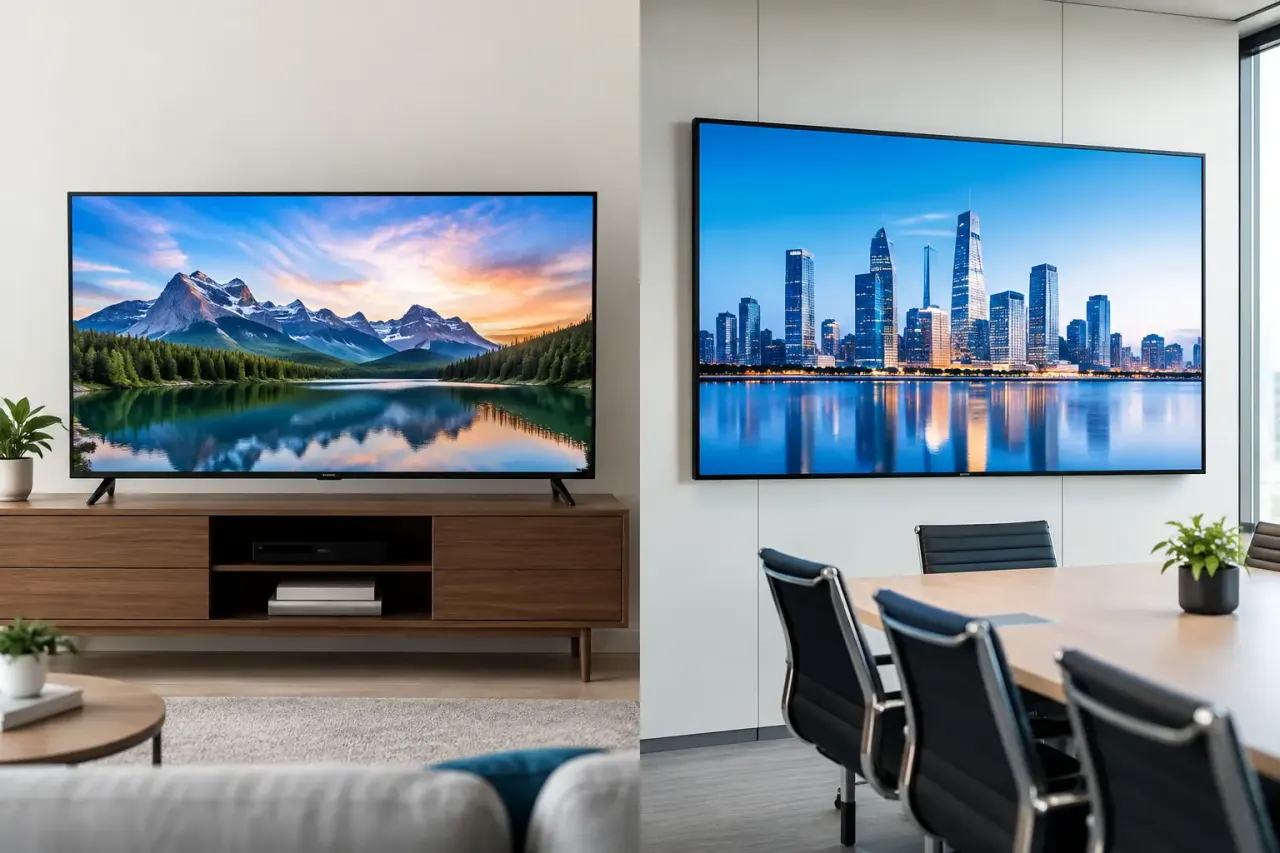
If you’re deciding between a consumer TV and a pro display, compare brightness, warranty and rated hours of daily use before you buy.
How to set up Android TV signage with VitVue
The VitVue Player is available on the Google Play Store for Android TV and Google TV.
1. Install the player. On the TV, open Google Play, search for “VitVue Player” and install it.
2. Open the app and read the pairing code. The player shows a 6-character code with a countdown.
3. Pair the screen. In the VitVue dashboard, add a screen and type the code. The screen appears in your account within seconds.
4. Assign content. Pick a template or build a slide in the editor, add it to a playlist, and assign the playlist to the screen.
Want to see it working before you sign up? Tap View Demo in the player to preview sample signage with no account or network.
Settings that keep an Android screen running all day
Most signage problems on Android TV come from TV settings designed for home use, not from the signage app. Check these before you mount the screen:
• Turn off screen saver and “ambient mode.” Otherwise the TV replaces your content with photos after a few minutes of no remote activity.
• Disable auto-sleep / eco timers. Many TVs switch off after 2–4 hours without input.
• Set the power-on behavior. Where the TV allows it, set it to return to the last input or app after a power cut.
• Use a wired connection or strong Wi-Fi. Content is cached, but a stable connection keeps updates and live apps current.
• Lock the remote away. A curious customer pressing “Home” is the most common cause of a blank screen in public spaces.
If a screen still drops out, check the TV’s power-saving menu first – it’s the cause in most cases.
Managing many Android screens remotely
The real value of signage is changing content without visiting the screen. With remote digital signage software, you update a menu, promotion or notice once and every paired screen picks it up.
Two features matter most once you have more than a couple of screens:
• Scheduling. Show breakfast content in the morning and dinner content at night, automatically. Good digital signage scheduling software lets you set this by time of day and day of week.
• Screen groups. Push one playlist to every screen in a location or region instead of assigning them one by one.
What can you show on Android TV signage?
Beyond images and video, a good digital signage app lets you add live content that updates itself:
• Weather, clocks and countdowns
• News and RSS tickers
• QR codes linking to menus, reviews or Wi-Fi
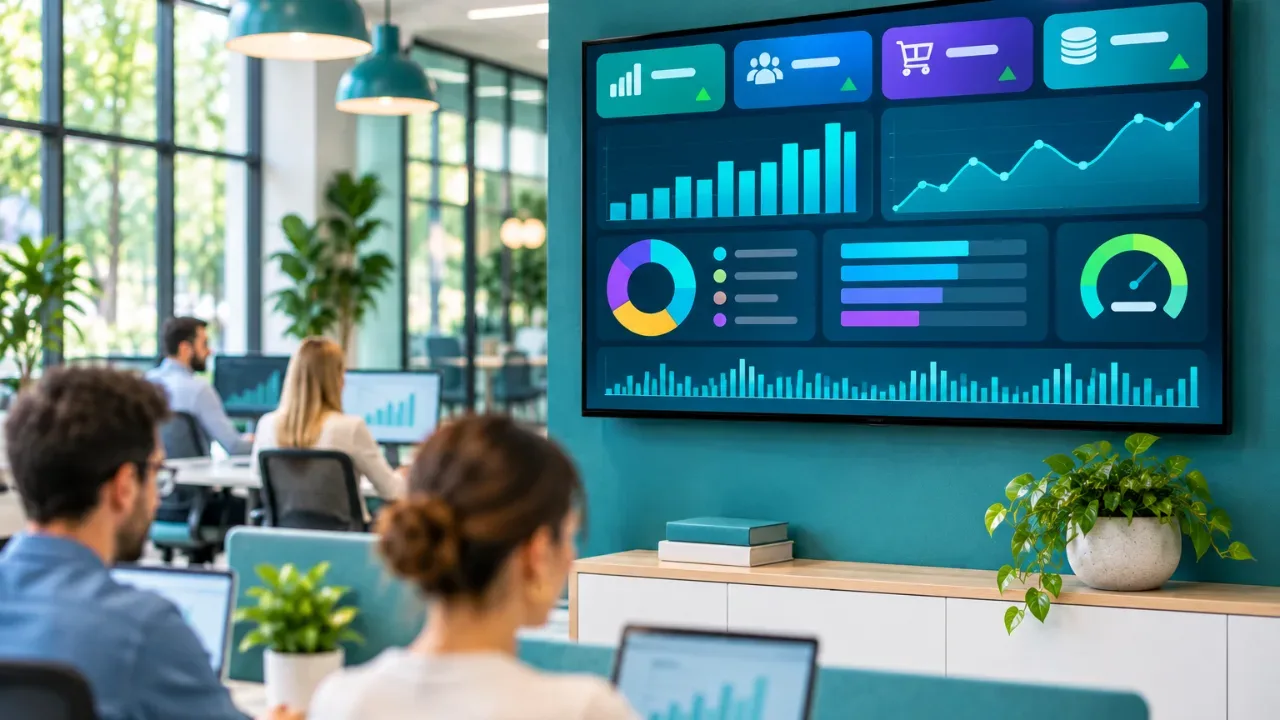
• Google Slides, Canva designs, and Power BI or Looker Studio dashboards
Android TV vs other signage platforms
| Android TV / Google TV | Samsung (Tizen) / LG (webOS) | Dedicated media player |
Extra hardware | None, or a ~$30 stick | None | $100–$400 per screen |
App install | Google Play | Browser-based player for now | Vendor-specific |
Setup time | Minutes | Minutes | Often needs IT |
VitVue runs on Samsung, LG and other screens through the web player at tv.vitvue.com, so you can mix Android and non-Android screens in one account.
FAQ
Can I use a regular Android TV for business signage?
Yes. Consumer Android TVs work well for most indoor signage. For 24/7 operation or bright window displays, a commercial display lasts longer.
Does Chromecast with Google TV work for signage?
Yes. It runs Google Play apps, so you can install a signage player directly on it.
What happens if the internet drops?
The player keeps showing cached content, and updates sync when the connection returns. Live sources such as weather or dashboards need internet.
Do I need a different app for each TV brand?
No. Android TV uses the Google Play app; other brands use the web player. All screens are managed from one dashboard.
Turn your Android TV into a managed sign in under a minute. Start your 30-day free trial – no credit card required.