How to Display Live Dashboards on Office TVs
На этой странице
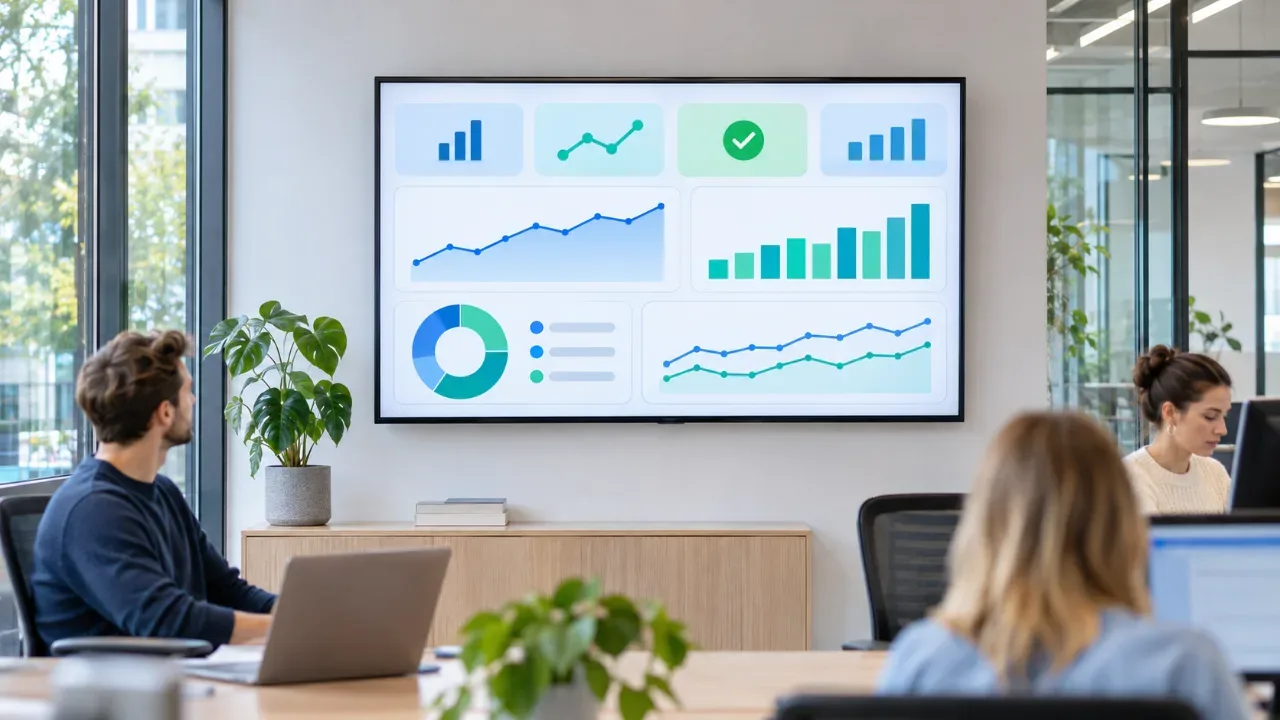
A sales board on the wall gets looked at more than a report in an inbox. Teams that see their numbers all day react faster – a missed SLA, a stalled pipeline, a spike in support tickets.
The problem is getting the dashboard onto the TV and keeping it there. Most teams start with a laptop plugged into the screen. Then the laptop sleeps, someone logs out, or IT needs it back. This guide shows a setup that runs without a computer and updates itself.
Why a laptop and HDMI cable isn’t enough
• Sessions expire. BI tools log you out after hours or days, and the screen shows a login page.
• Updates, sleep and pop-ups. Windows updates and notifications appear on a wall everyone can see.
• One screen, one laptop. Five office screens means five computers to maintain.
• Security. A logged-in laptop in a meeting room is an open door to your BI account.
A signage player replaces the laptop with an app on the TV (or a ~$30 streaming stick) that shows the dashboard full screen and recovers on its own.
Which dashboards can you show?
Source | How it connects | Good for |
Power BI | A report link that permits embedding | Sales, finance and operations KPIs |
Looker Studio | A shareable report link | Marketing and web analytics |
Google Sheets | A sheet shown as a live table | Simple targets, leaderboards, rosters |
Airtable, Notion | A shared view or page | Project status, team boards |
Any web dashboard | Website embed | Tools with a public or tokenized URL |
Step by step: put a dashboard on the TV
1. Publish or share the report. In Power BI or Looker Studio, create a link that can be viewed without a personal login.
2. Add the app to a slide. In VitVue, add the Power BI, Looker Studio or Google Sheets app and paste the link. Check the preview.
3. Fit it to the screen. Use a wide (16:9) layout and hide filters and page tabs so the numbers fill the frame.
4. Pair the TV. Install the player on the TV, enter the pairing code, and assign the playlist.
Live sources need internet to refresh. Each app updates on its own refresh interval.
Keep sensitive data safe
A dashboard on a wall is visible to visitors, cleaners and anyone walking past a glass meeting room. Before you publish:
• Build a TV version of the report with only the metrics the room needs – no customer names, salaries or margins.
• Avoid public “publish to web” links for internal data. Use your BI tool’s secure embed options where available.
• Place screens with care. Finance numbers belong in the finance area, not reception.
Rotate dashboards by team and time of day
One screen can serve several teams. Put a sales board, a support queue and a company announcement in one playlist, each showing for 20–30 seconds.
With digital signage scheduling software you can go further: show the daily targets at 9:00, live numbers through the day, and wins of the week on Friday afternoon – without anyone touching the screen.
Rolling out to several offices
Once the first screen works, the same setup scales. Multi location digital signage software lets you group screens by office, so each site sees its own numbers plus shared company news.
Because everything runs in the cloud, an operations lead can update every office from one browser. That’s the main advantage of remote digital signage software over laptops and USB sticks: nobody has to walk to the screen.
Design tips for a dashboard people actually read
• 3–5 numbers per screen. If it needs scrolling or squinting, it won’t be read.
• Large fonts. A number should be readable from 5 meters.
• Use color for status only. Green for on target, red for off, gray for everything else.
• Show the update time. People trust a board that says “updated 2 minutes ago.”
FAQ
Can I show a Power BI dashboard on a TV without a computer?
Yes. A signage player app on the TV loads the Power BI report from a link that permits embedding, so no PC is needed.
How often does the dashboard refresh?
It follows the source’s refresh interval. The screen shows the latest published data.
Can different screens show different dashboards?
Yes. Assign a separate playlist to each screen or screen group.
What TVs work?
Any Android TV or Google TV through the Google Play app, and Samsung, LG and other screens through the web player.
Put your KPIs on the wall today. Try VitVue free for 30 days – connect your first dashboard in minutes.